2. Use AWS to publish a message to each topic.
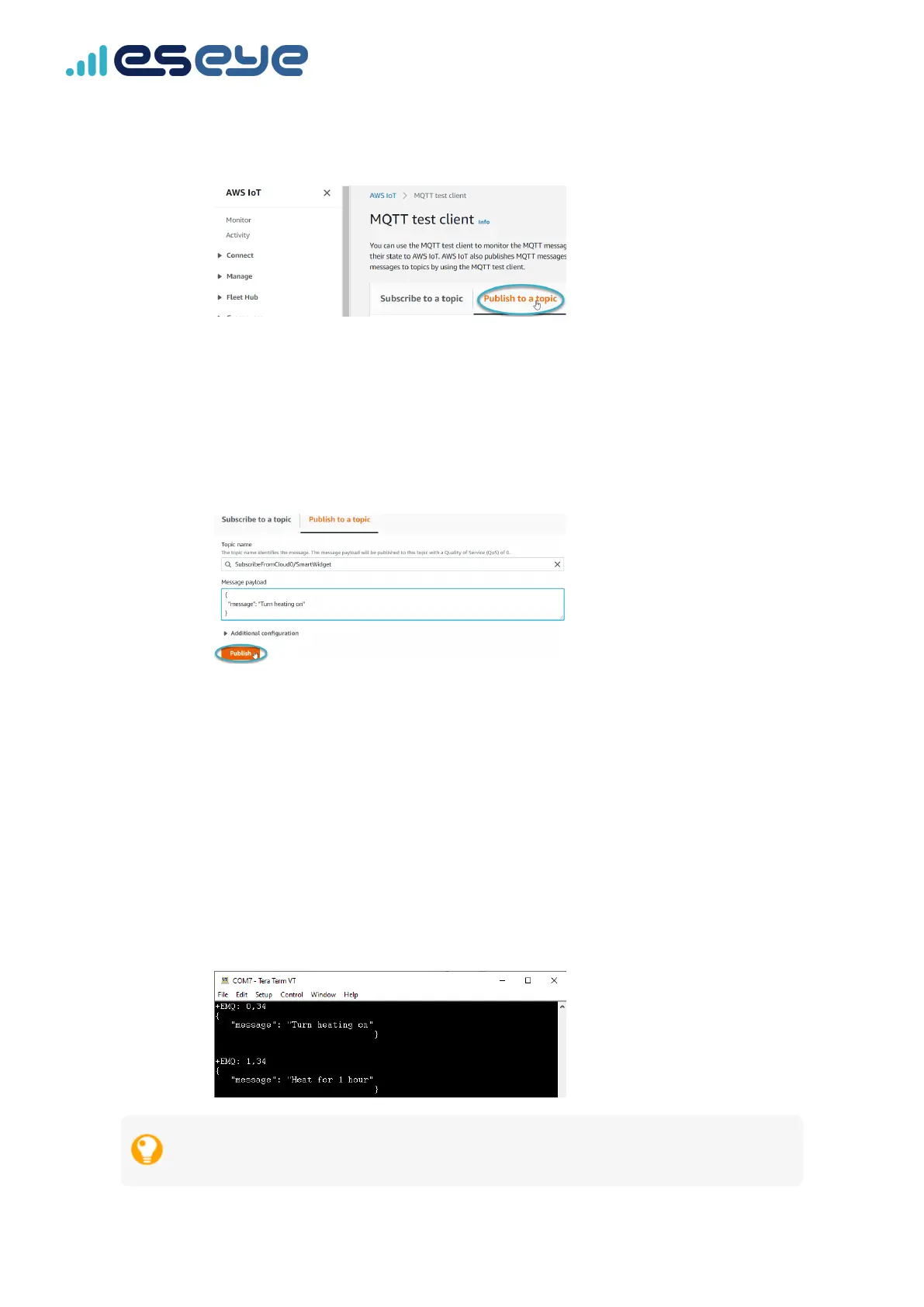
a. Using the AWS IoT MQTT test client, select the Publish to a topic tab.
b. In the Topic name box, type:
SubscribeFromCloud0/<ThingName>
c. In the coding window, replace
Hello from AWS IoT console with
Turn heating on
d. Select Publish.
e. In the Publish box, type:
SubscribeFromCloud1/<ThingName>
f. In the coding window, replace
Turn heating on with
Heat for 1 hour
g. Select Publish.
View the AWS messages in the terminal emulator, in the following format:
+EMQ: <indexnumber>,<messagelength>
{
"message": "<messagetext>"
}
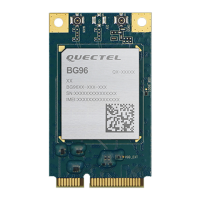
If you can see the messages in the terminal emulator, then AWS can successfully publish data to
your thing through the Quectel BG96 module.
29
Eseye-enabled Quectel BG96 module Developer Guide v1.8
Sending data from the cloud to your thing


 To Next Page