Page 22 of 48
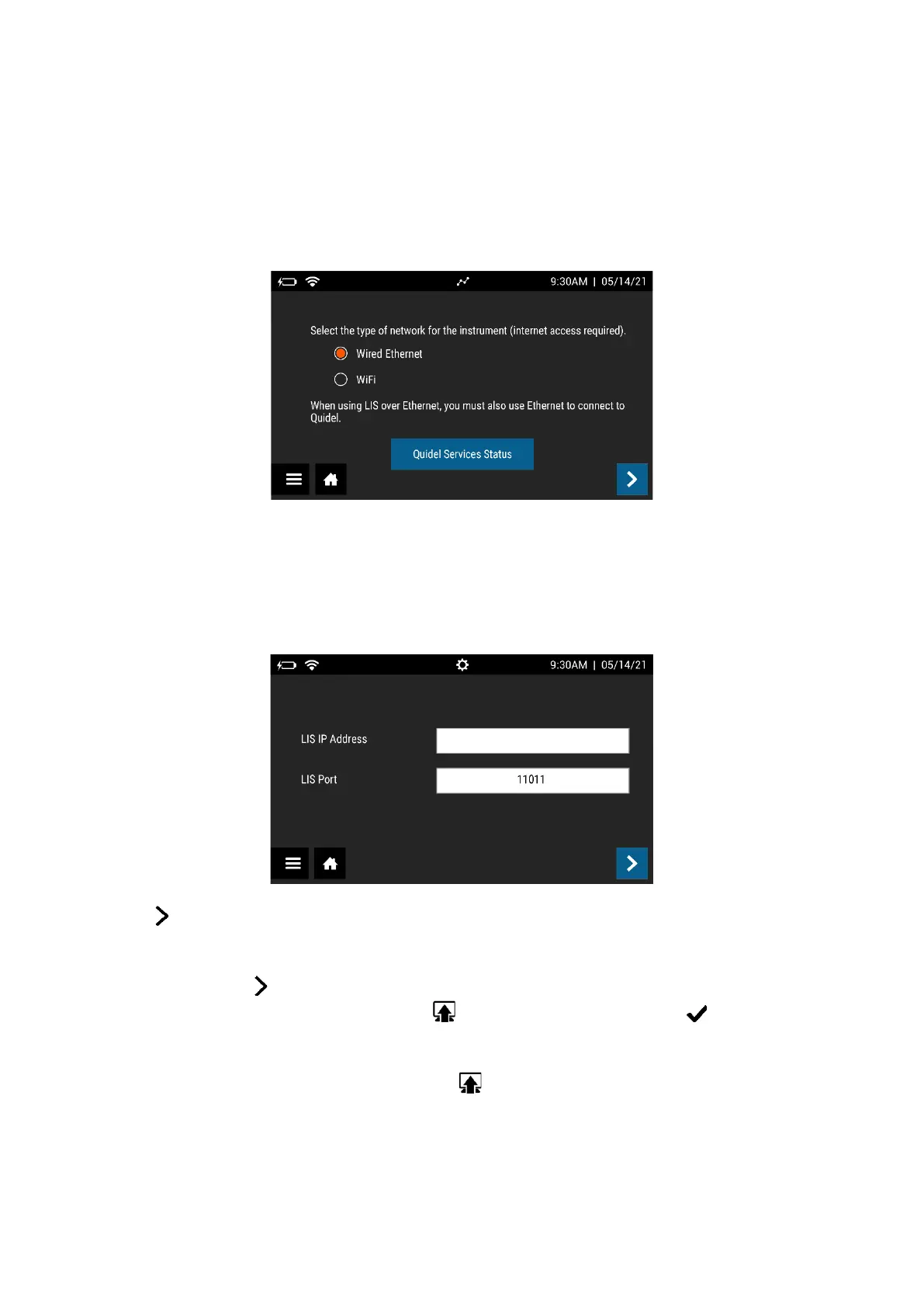
The Quidel Service Status button allows the User to check their Network Type, Internet
Access, Quidel Service Access, and the progress of any Firmware downloads that are
currently in progress. This screen can be helpful for calls with Quidel’s Customer Support
team (Figure 8).
Figure 8
LIS Settings
Use the on-screen keypad to enter the LIS IP Address. LIS Port is pre-populated, and no
additional user input is needed (Figure 9).
Figure 9
Press to continue to the next screen. For Auto Send, select either On or Off. If set to On,
test results will automatically be sent to the LIS as tests are run. If set to Off, test results will
need to manually be sent to the LIS. See the Send Data section on page 40 for additional
information. Press to continue to the next screen and select either ASTM or POCT1-A as
your preferred connection protocol. Press to test the connection. Select to confirm
configuration and return to the Run Test screen.
The option to test the connection by pressing on the LIS Settings screen is only available
for Sofia 2’s that are Connected to Quidel (page 25). Users with a Sofia 2 that is not
Connected to Quidel may also refer to the Send Data section on page 40 for an alternative
way to check their LIS connection.


 To Next Page