Page 33 of 48
Ensure that is selected, then press to import Sofia 2 firmware. Sofia 2 will complete a
self-installation and then power up in the normal startup screen. Once complete, it is safe to
remove the USB flash drive.
Import Assay Methods from USB Flash Drive
Insert USB flash drive with the assay method to install.
Use or in the first field to select Import.
In the next field, use or to select Assay Methods.
Ensure that is selected, then press to import Sofia 2 assay methods. Sofia 2 will
complete a self-installation and return to the previous screen. Once complete, it is safe to
remove the USB flash drive.
Import Language Files from USB Flash Drive
Insert USB flash drive with the language file to install.
Use or in the first field to select Import.
In the next field, use or to select Language Files.
Ensure that is selected, then press to import Sofia 2 language files. Sofia 2 will
complete a self-installation and return to the previous screen. Once complete, it is safe to
remove the USB flash drive.
Run Test (Patient Specimens)
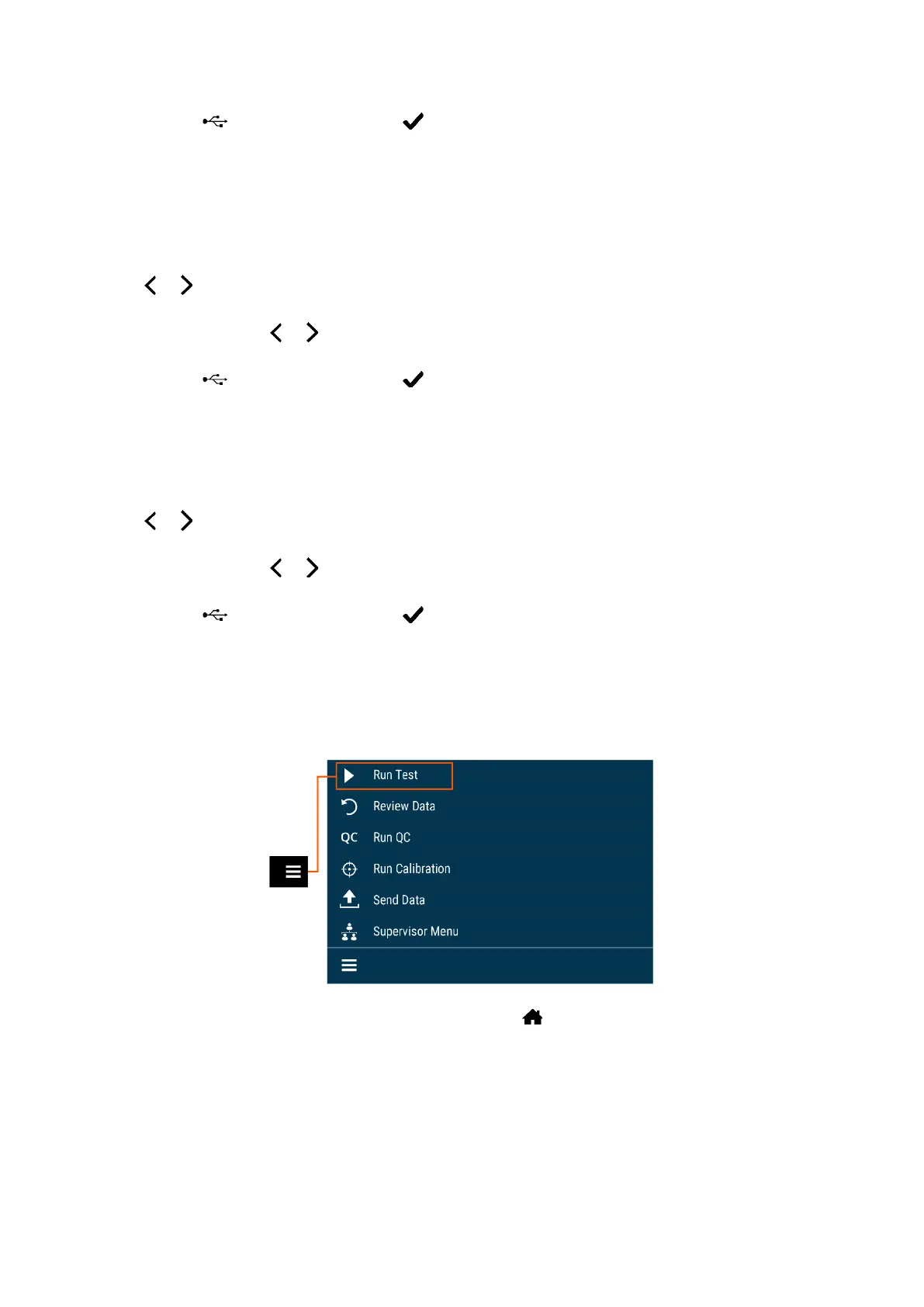
The Run Test screen can also be accessed by selecting on most screens.
Enter the User ID
The User ID can be entered using the barcode scanner or manually using the on-screen
keypad.
Select the User ID field on the Run Test screen. Use the barcode scanner (Figure 25) to scan the
barcode from a User’s ID Card or manually enter the data using the on-screen keypad on Sofia 2.


 To Next Page