Page 25 of 48
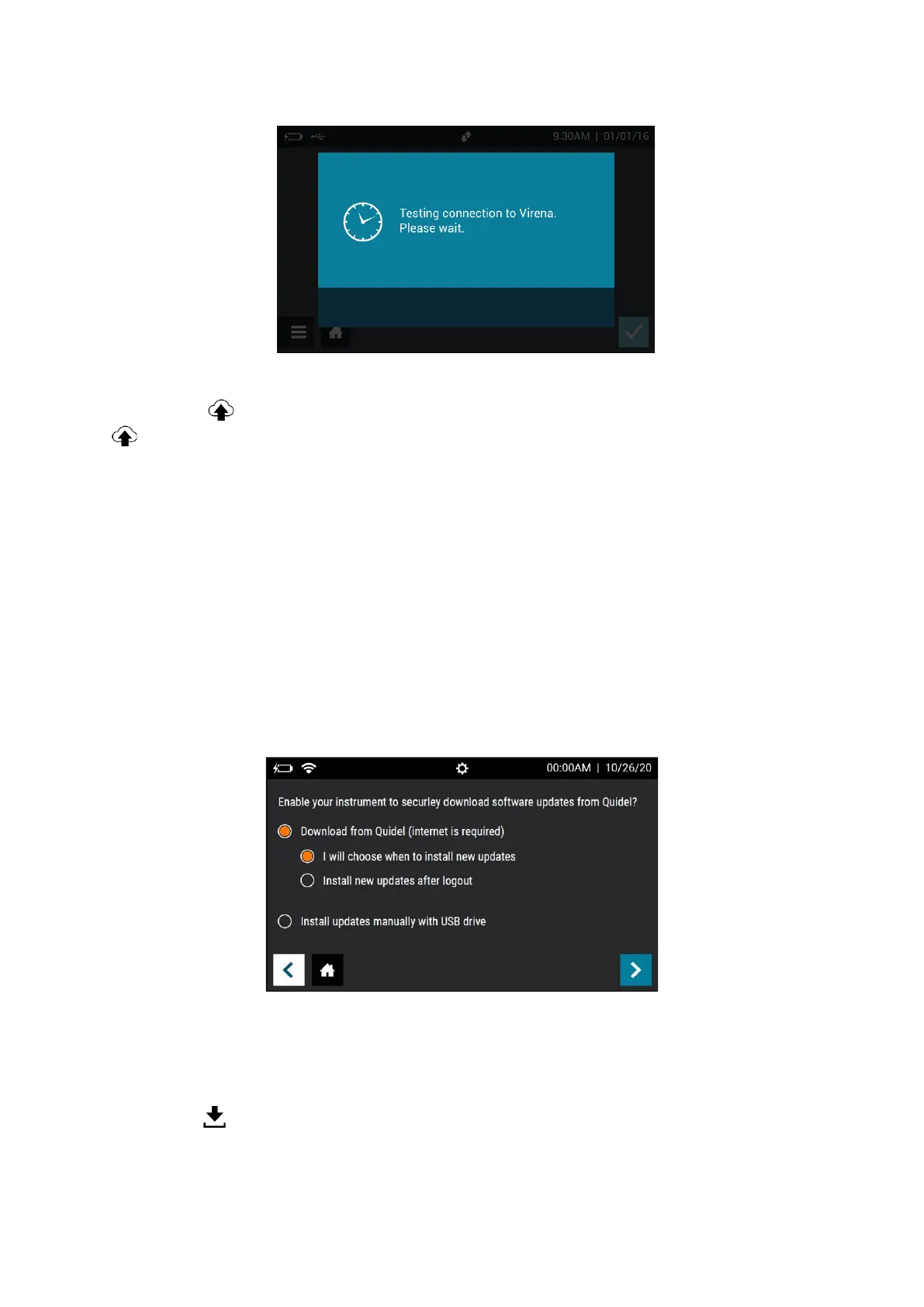
Figure 14
If the Sofia 2 is Connected to Quidel, the User can also test their Virena connection by
pressing the icon on the Virena Settings home screen (seen in Figure 10). However, the
will only be visible on this screen if the Sofia 2 is Connected to Quidel. Instructions on
how to Connect Sofia 2 to Quidel can be found in the next section.
If successful, the on-screen pop-up will display Test connection success. If unsuccessful, the
on-screen pop-up will display Test connection error. If the connection test is unsuccessful
after a second attempt, please contact Quidel Technical Support.
Connect to Quidel
The Connect to Quidel screen allows the Supervisor to automatically download Sofia 2
software updates directly to their device from the cloud via a Wired Ethernet or Wi-Fi
connection (Figure 15).
Figure 15
To Connect to Quidel, Users will select their preferred installation method under “Download
from Quidel”.
• I will choose when to install new updates - Users will be alerted by the Load data
icon on their home screen when an update is available for installation. At their
convenience, the User can navigate to Software Updates (page 26) and press
“Update Now” to install the update.


 To Next Page