BIOS Configuration
64
Boot sector recovery from a serial port (serial flash)
This process, also known as serial flash, enables you to use a serial port to load a BIOS image
for boot sector recovery. This feature is usually used for embedded systems that rely on a serial
port for remote access and debugging.
Requirements
To use serial flash for boot sector recovery, you must meet the following requirements.
The target system (the system that needs BIOS updates) must have a serial port and serial
flash support embedded in the BIOS image file.
The host system should also have a serial port and a terminal program that supports
XModem Transfer protocol (for example, Hyper Terminal for the Windows operating systems
and minicom for Linux/FreeSBD).
You must have a null modem serial cable
1. Connect a null modem serial cable between the target system and the host system that
runs the terminal program.
2. Make sure that the new BIOS image file is accessible on the host system.
3. Start the terminal program on the host system and create a new connection. Use the
following communication parameters for the new connection.
Bits per second: 115200 bits/sec.
Data Bits: 8
Parity: None
Stop Bit: 1
Flow Control: None
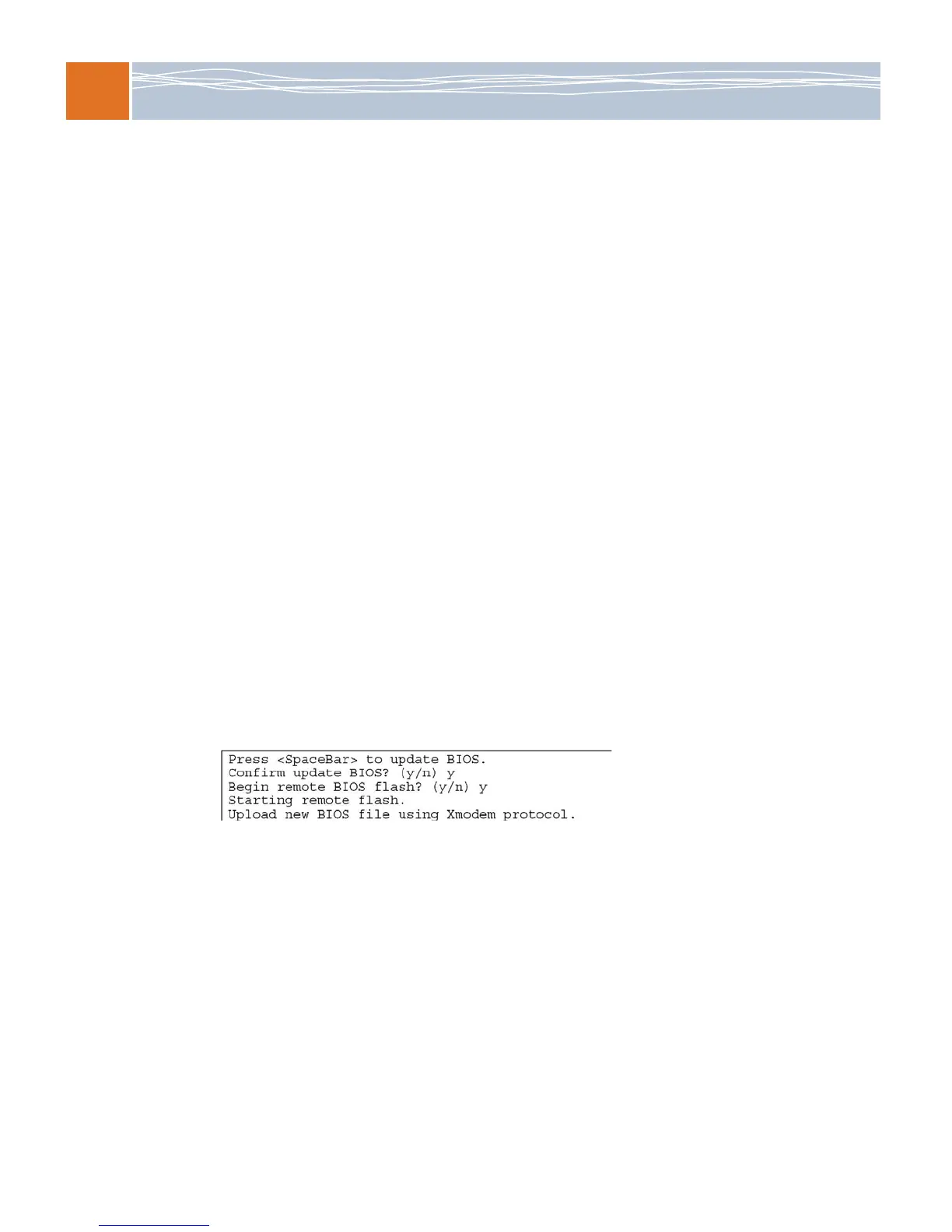
4. Power on your system, and click the Connect button in the Hyper Terminal. The terminal
displays the following instructions:
5. Follow the instructions on the screen to update the BIOS:
A. At the prompt, press the spacebar to update the BIOS.
B. When asked to confirm BIOS updating, press Y to confirm BIOS updates.
C. Press Y again to begin flashing BIOS remotely.
Note: Be sure to complete steps A–C quickly because you will have a second or less to do
so.
6. Once you’ve completed the instructions, a screen is displayed to indicate that remote
flashing is starting and the new BIOS file is being uploaded.


 To Next Page