EAGLE™
User Manual
Advanced Settings Page
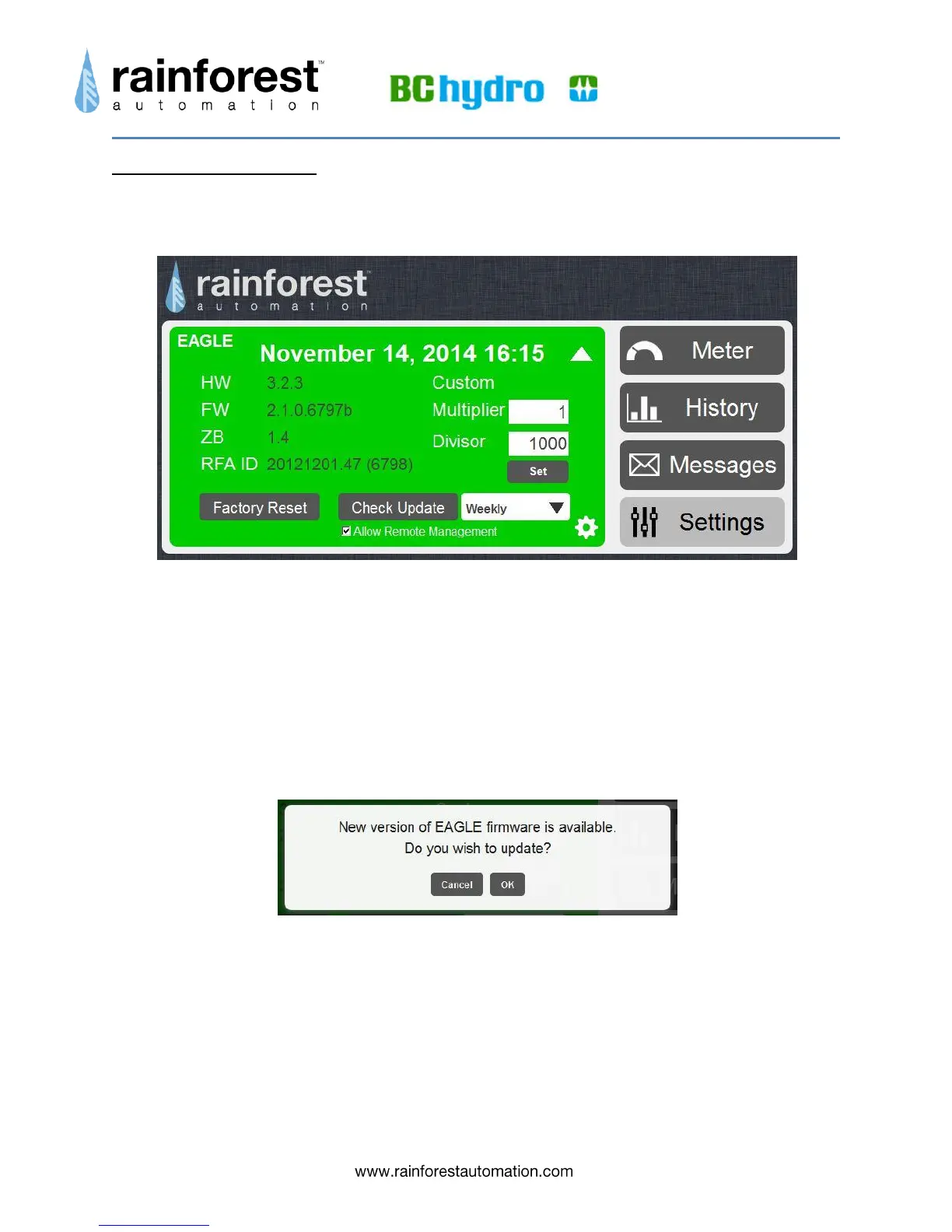
Clicking the gear icon in the lower right corner of the EAGLE sub-page brings up the
Advanced Settings page.
This page provides information about your EAGLE™ hardware and firmware, and lets
you set some network configuration options.
Your EAGLE™ comes preconfigured to allow remote device management, including
software updates, using Secure Shell (SSH) and Virtual Private Network (VPN). If you
prefer not to allow external connections to your device, you can disable this function by
un-checking the box next to “Allow Remote Management”.
The “Check Update” button will look for software updates for your EAGLE™ (the “Allow
Remote Management” box must be checked for this to work). If new software is found,
you will see this pop-up:
If you click “OK” your EAGLE™ will download and install the update, after which it will
automatically reboot. You can also use the dropdown menu next to the “Check Update”
button to have your EAGLE™ check and notify you of updates automatically.
The Multiplier and Divisor fields are primarily for commercial meters, and should not be
changed.
The “Factory Reset” button in the lower left corner should be used with caution! It
reboots the EAGLE™, terminates the smart meter connection, clears all of the history
data, and sets all options to original factory settings. The meter will not talk to the


 To Next Page