EAGLE™
User Manual
Connecting to a Cloud Service
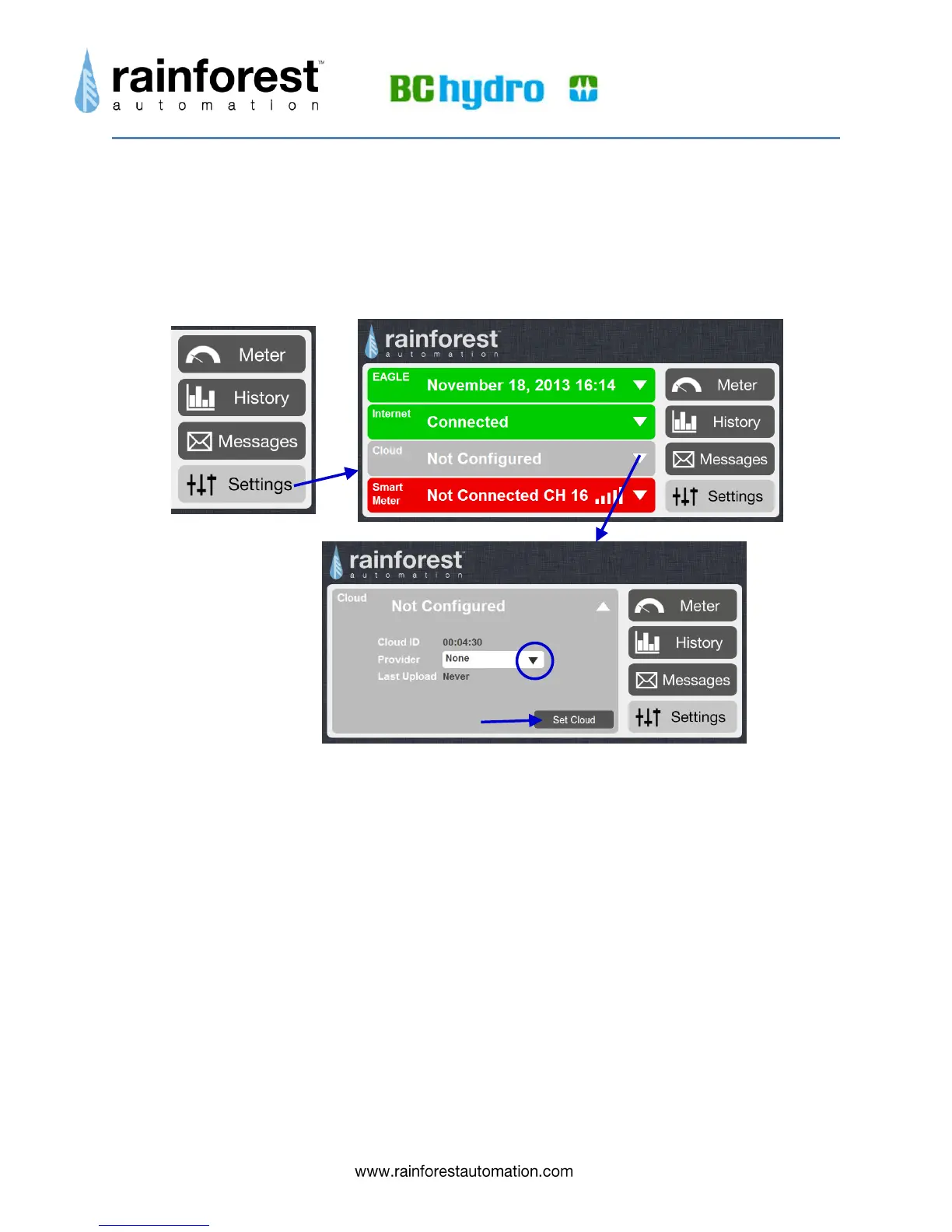
To set up a connection to the Cloud Service of your choice, click the Settings button in
the lower right of the Web Viewer, then expand the Cloud status bar to bring up the
Cloud sub-page.
Now you can select the Cloud Service you want from the drop-down menu for
“Provider”. To set your selection, click the “Set Cloud” button.
To complete your connection to the Cloud Service, you will have set up an account with
the Cloud Service, and you will have to indicate that data will be coming from a
Rainforest EAGLE™ device. You will also have to provide your 6-digit EAGLE™ Cloud
ID, which is shown right above the drop-down menu on this sub-page. Your Cloud ID is
also printed in the middle of the Information Label that is on the underside of your
EAGLE™.
In addition to the Cloud Services found in the drop-down menu, you can also select
“Manual”. This will cause a new “Enter URL” field to appear. You can enter the internet
address to any server that understands the EAGLE™ Uploader RESTful interface. This
interface is documented in the EAGLE™ Uploader API Manual, which can be found on
our Developer Portal: http://rainforestautomation.com/developer.
In the following sections you will find detailed directions for connecting to specific Cloud
Services.


 To Next Page