EAGLE™
User Manual
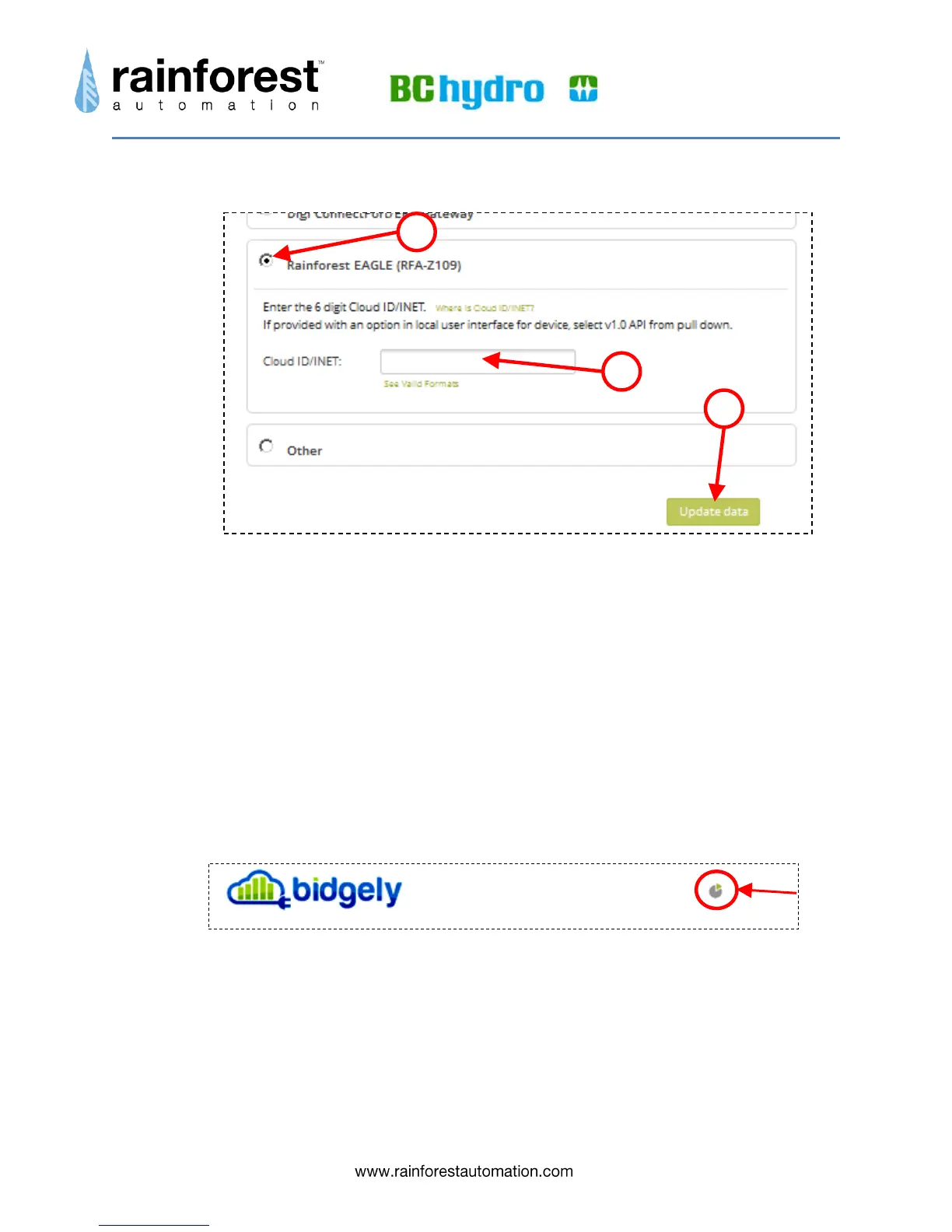
You should be automatically sent to the “Energy Monitor Set Up” page.
4) Select “Rainforest EAGLE (RFA-Z109)”
5) In the “Cloud ID/INET” field, enter: the 6-digit Cloud ID found on the Information Label on the
underside of the EAGLE™.
6) Click “Update Info”
7) You will see a dialog box appear that asks you to test your connection. Click “OK”. Notice
that a “Test Connection” button appears at the bottom of the page.
8) Click the “Test Connection” button.
9) You will see a dialog box indicating that the connection between your Bidgely account and
your EAGLE™ is being tested. It may take a few minutes to get a GOOD result.
View your Bidgely data
Click the small grey pie graph at the top right of the Bidgely page to see your Energy Dashboard.


 To Next Page