BUS SELECT GROUP ST SUBMIX 1
In the Project or Mix window, press
BUS SELECT GROUP ST SUBMIX 1
to create a new stereo bus group track named
“Submix 1” for your selected track. This Batch Command operates in the following order:
- Creates a new bus group track
- Names the bus “Submix1”
- Selects “stereo” from the Configuration menu
BUS SELECT GROUP MONO SUB 1
In the Project or Mix window, press
BUS SELECT GROUP MONO SUB 1
to create a new mono bus group track named
“Submix 1” for your selected track. This Batch Command operates in the following order:
- Creates a new bus group track
- Names the bus “Submix 1”
- Selects “mono” from the Configuration menu
BUS SELECT GROUP ST SUBMIX 2
In the Project or Mix window, press
BUS SELECT GROUP ST SUBMIX 2
to create a new stereo bus group track named
“Submix 2” for your selected track. This Batch Command operates in the following order:
- Creates a new bus group track
- Names the bus “Submix 2”
- Selects “stereo” from the Configuration menu
BUS SELECT GROUP MONO SUB 5
In the Project or Mix window, press
BUS SELECT GROUP MONO SUB 5
to create a new mono bus group track named
“Submix 5” for your selected track. This Batch Command operates in the following order:
- Creates a new bus group track
- Names the bus “Submix 5”
- Selects “mono” from the Configuration menu
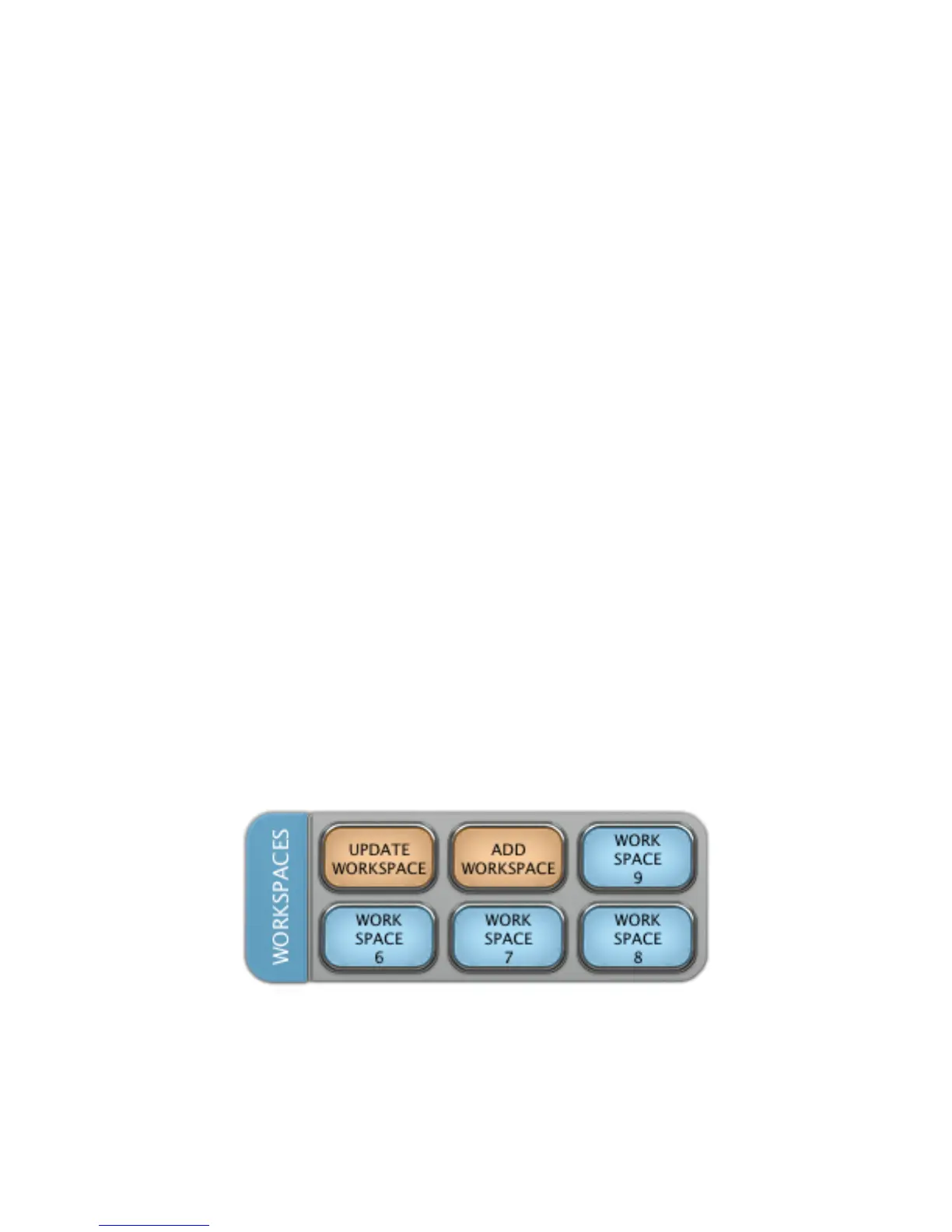
LAYOUT 8.7 “WORKSPACES”
UPDATE WORKSPACE
In any window, press
UPDATE WORKSPACE
to update the current workspace with the current window configuration.
ADD WORKSPACE
In any window, press
ADD WORKSPACE
to add a new workspace with the current window configuration.


 To Next Page