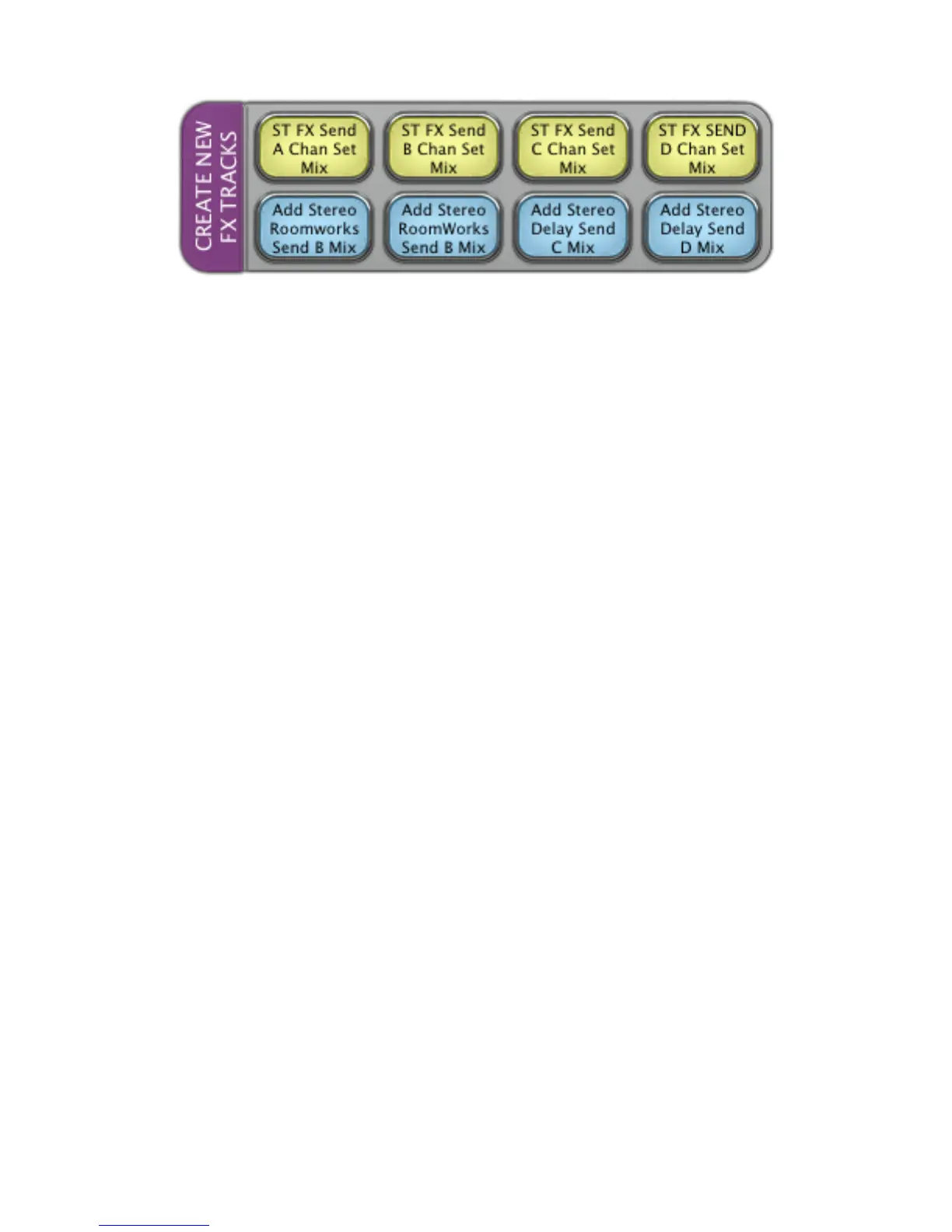
LAYOUT 8.3 “CREATE NEW FX TRACKS”
ST FX SEND A CHAN SETTINGS
In the Project window, with the Channel Settings window closed, press
ST FX SEND A
to create a new stereo FX track
on Send 1 of your selected track. This Batch Command operates in the following order:
- Opens up the Channel Settings window
- Send a mouse-click to Send 1
- Selects “add” from the menu
- Selects “stereo” from the Configuration dropdown menu on the new FX track window
ST FX SEND B CHAN SETTINGS
In the Project window, with the Channel Settings window closed, press
ST FX SEND B
to create a new stereo FX track
on send 2 of your selected track. This Batch Command operates in the following order:
- Opens up the Channel Settings window
- Send a mouse-click to Send 2
- Selects “add” from the menu
- Selects “stereo” from the Configuration dropdown menu on the new FX track window
ST FX SEND C CHAN SETTINGS
In the Project window, with the Channel Settings window closed, press
ST FX SEND C
to create a new stereo FX track
on send 3 of your selected track. This Batch Command operates in the following order:
- Opens up the Channel Settings window
- Send a mouse-click to Send 3
- Selects “add” from the menu
- Selects “stereo” from the Configuration dropdown menu on the new FX track window
ST FX SEND D CHAN SETTINGS
In the Project window, with the Channel Settings window closed, press
ST FX SEND D
to create a new stereo FX track
on send 4 of your selected track. This Batch Command operates in the following order:
- Opens up the Channel Settings window
- Send a mouse-click to Send 4
- Selects “add” from the menu
- Selects “stereo” from the Configuration dropdown menu on the new FX track window


 To Next Page