Pressing the “X” button on the top right of the header will close the floating
mixer.
21. Banking the mixer using finger gestures:
• Like the RAVEN Mixer, the floating mixer can also be banked using finger
swipes. Touch the fader faceplate and glide your one finger left and/or
right to bank by one track at a time. Do not touch the fader cap for a
banking motion.
• Users can also bank more quickly by using two-fingers on the faceplate
of the fader tracks and swipe left or right to bank by 24-tracks at a time.
RAVEN Settings
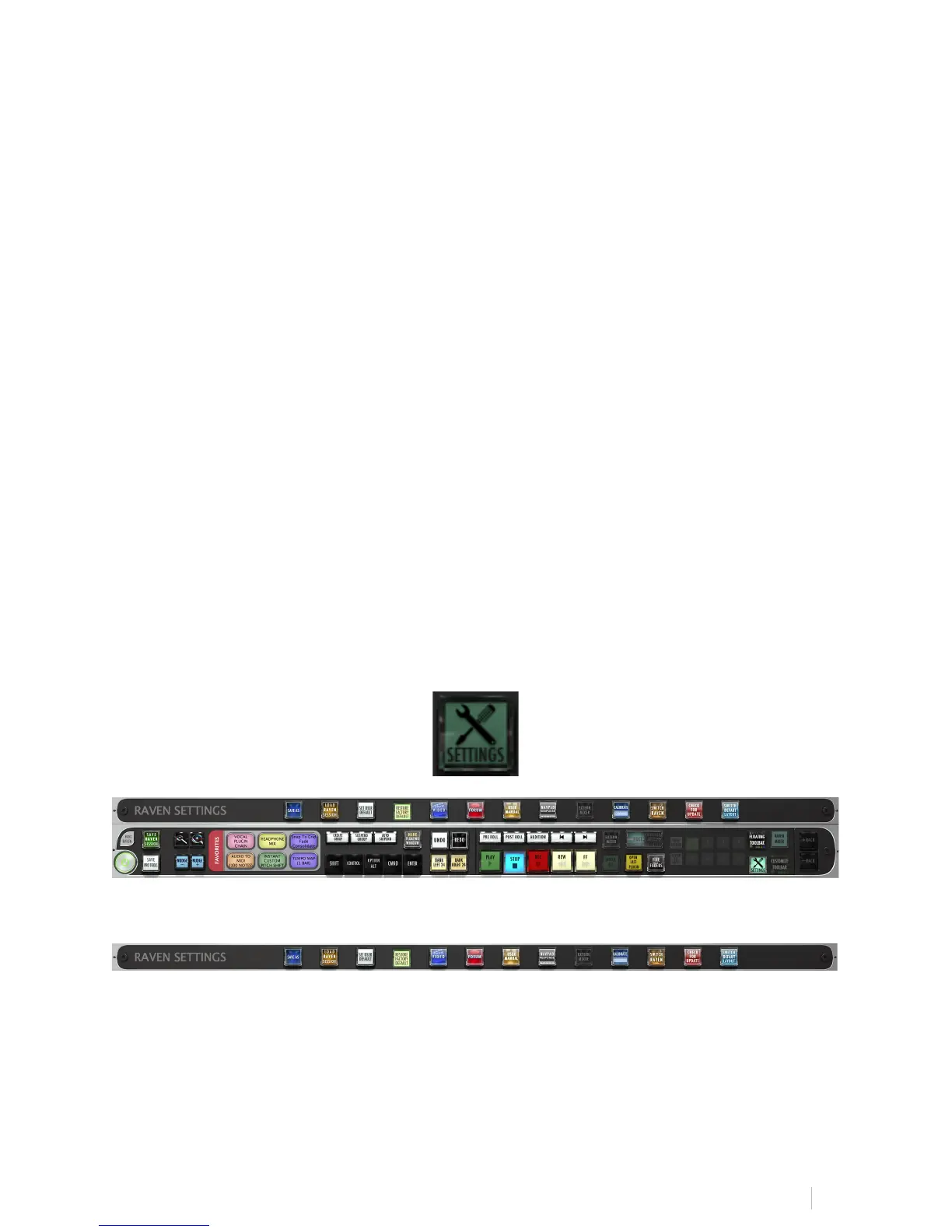
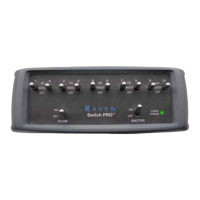
Touch the Settings button and the tool racks will appear. At the very top you’ll notice
a RAVEN Settings toolbar.
There are thirteen buttons on the RAVEN Settings bar.
1. Save As:
Brings up the dialog window for renaming and saving the RAVEN session to a
location.


 To Next Page