BlackMax – Installation and Operation Manual
Page 15 of 36
Issue date: 24/11/2023. Version 13.0
Smart Load Output Mode:
This mode activates when battery SOC and PV power surpass user-set thresholds.
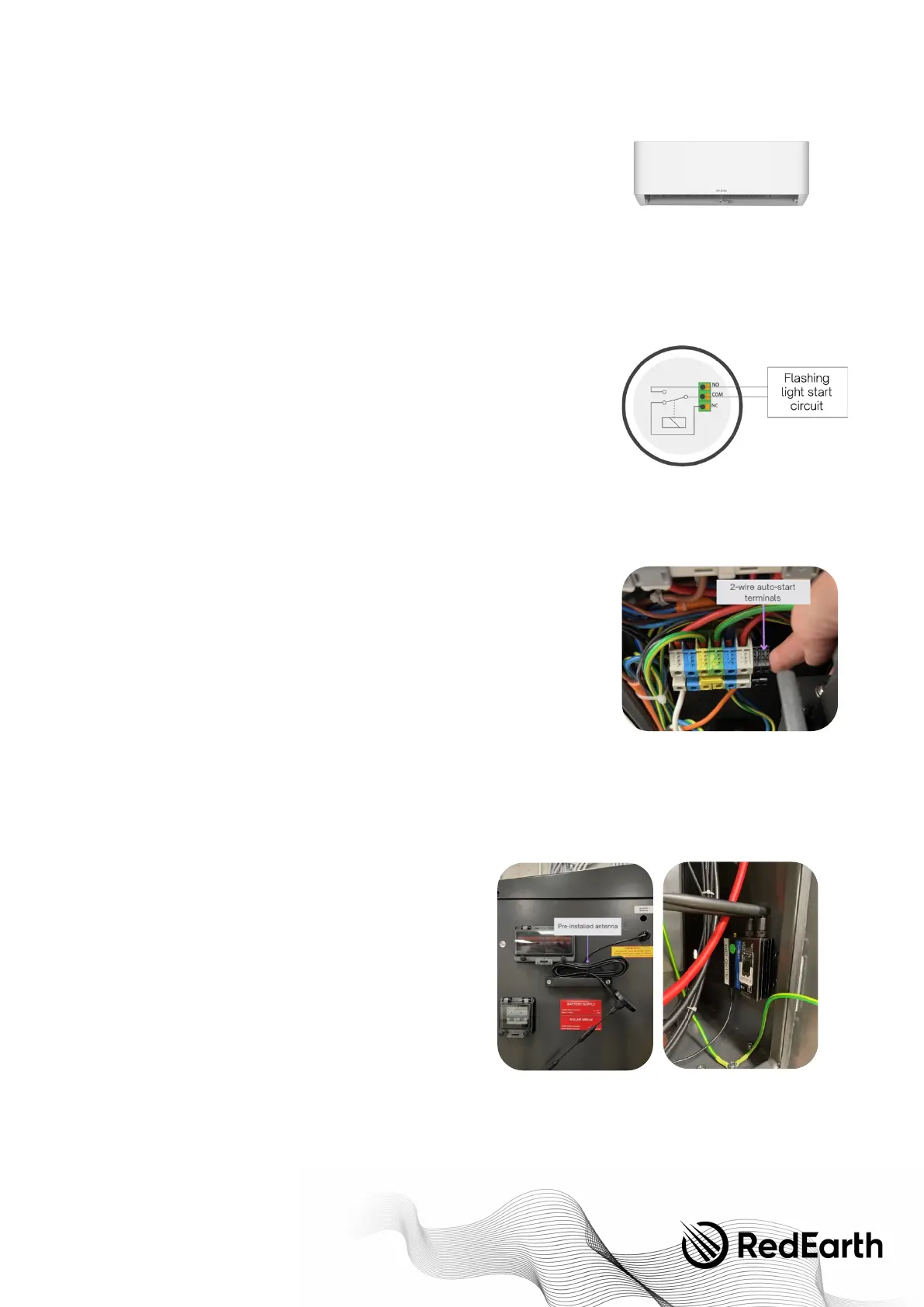
For example. Turn on your air conditioning system: ON at 100%, OFF at 95%. In this
example you’re aircon turns on automatically when PV power exceeds 500W and
battery SOC is 100% and turns off automatically when battery SOC is below 95%.
Like connecting an AC Coupled Source - it is important to adjust the system
configuration during installation as by default the BlackMax will expect a generator
connection.
To a c c o m m o d a t e t h i s c h a n g e , f o l l o w t h e s t e p s o u t l i n e d in section "Adjusting the inverter parameters" or contact RedEarth
support before connecting any additional AC Source.
4.6 Flashing light connection (and generator auto-start connection)
Flashing light to indicate low battery SOC:
The BlackMax comes with a pre-wired orange light that begins flashing when the state-of-
charge (SOC) of the battery drops to 20% or the battery voltage drops below 51 volts,
whichever comes first.
This is meant as a signal that it is time for the user to either reduce their loads until the
sun returns in the morning or to start their generator now. If an auto-start generator is
connected, then it should have already started before the orange light starts flashing. If it
has not, then there may be an issue with the generator (e.g., starter battery is flat).
The flashing light will continue until the battery reaches an SOC of 40% or 54.0 volts at which point the battery will usually have
enough charge to continue until the sun comes up in the morning. The generator can be run as long as desired, remembering
that it will typically charge the batteries at 1.5kW. So, if the generator runs for 2 hours it will add 3kWh to the batteries.
Generator 2-wire auto-start (dry contact):
In addition to the flashing light a 2-wire auto start cable can be installed to automate the
generator running. This requires a suitable generator with 2-wire auto-start feature. The
flashing light will remain available as we provide two dry-contact points in the BlackMax.
This is done by inserting the two wires from the generator auto-start into the NO and COM
terminals marked "Generator Auto Start".
A 2-wire auto-start cable is not supplied by RedEarth.
Tip:
When using an AutoStart generator, install a small battery charger on the generators
battery so it does not discharge over time. Otherwise, the generator should be operated
each week to charge the starter battery. RedEarth can supply a suitable charger for an additional cost.
4.7 Remote monitoring system—connection (optional)
When the BlackMax was initially purchased, the monitoring device will already be installed, setup and tested in the factory.
Remote monitoring allows the BlackMax to be monitored from anywhere using RedEarth's EMU app.
Note that it requires
mobile phone coverage to work
. Another internet source can be used, e.g., local WiFi from Starlink, which RedEarth can assist
with. 4G can be used if you join Optimum via the RedEarth EMU app.
See image on right of a BlackMax with the remote monitoring
equipment installed and a guide to where to run the antenna cable.
To fi n a l i s e i n s t a l l a t i o n o f t h e remote monitoring system:
1. Position the antenna in an area that maximises reception
of the mobile phone signal. The antenna is already
connected to the BlackMax.
2. Have the customer register their BlackMax by scanning
the QR code on the outside of the BlackMax. This allows
them to setup their monitoring as explained in Section 6.
Monitoring the BlackMax. Once this is done and the start-
up procedure has been completed, call RedEarth – Te c h
Support to confirm that remote monitoring is working.
Note that an Installer login is available in addition to customer logins.
3. Sign up for RedEarth’s Optimum service to enable monitoring—This comes with a monthly fee to cover the ongoing
monitoring data costs (3/4G SIM). It also includes monitoring by RedEarth to provide additional peace-of-mind and to
simplify any required trouble shooting. Finally, the customer becomes a member of the RedEarth community and as
such can choose to receive regular updates relevant to their electricity usage.


 To Next Page