BlackMax – Installation and Operation Manual
Page 26 of 36
Issue date: 24/11/2023. Version 13.0
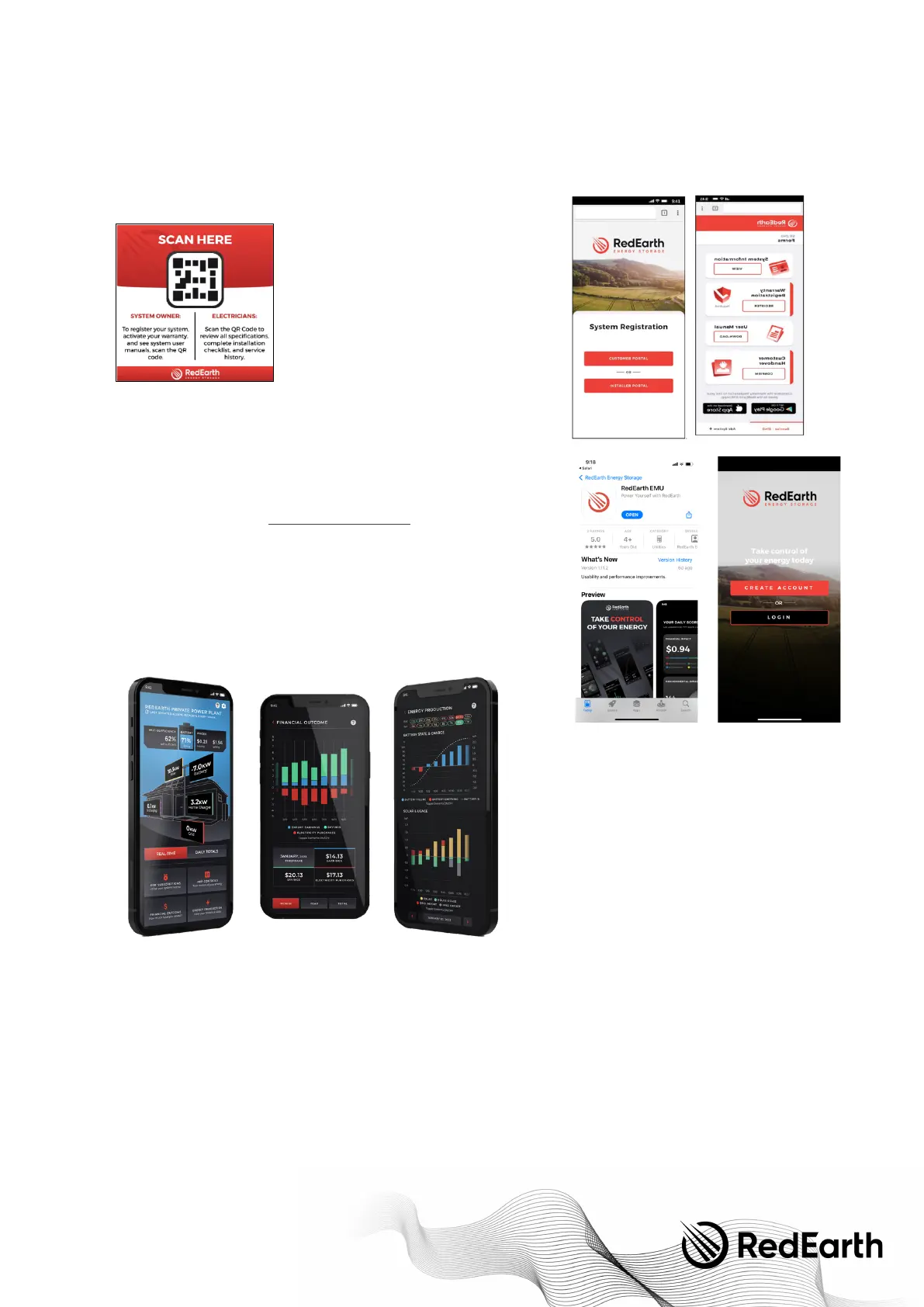
OPTION 2. Remote monitoring via RedEarth’s EMU app
Monitoring your system is done via RedEarth’s EMU app.
To s e t u p m o n i t o r i n g f o l l o w t h e s t e p s b e l o w .
Scan the QR code sticker attached on your system. It looks like this:
Scanning the code will take you to the RedEarth customer portal. Enter the
information requested and register your warranty to get the most from your
investment in your BlackMax as well as RedEarth’s PPP.
After completing the warranty registration, you can easily create an account on
the RedEarth EMU app with the same email and start viewing your system
straight away.
If you have any issues email support@redearth.energy or call RedEarth tech
support number: 1800 733 637
Click on the Google Play or App Store icons to download the RedEarth EMU app.
Create your account and RedEarth will immediately send a confirmation email to
your email account.
Now you are good to go!
Step 7. Finalising installation and customer handover
Before handing over the system, go through the following items and be sure that they have been completed.
• Check for proper weatherproof seals on all entry glands to the BlackMax, including PV cables, earth, antenna if supplied,
and load or generator if hard-wired, otherwise close these holes with the covers supplied in the Parts kit.
• Check that the system is correctly earthed, either via the customer’s local earth or through a locally installed earth stake.
• A MEN link is installed as required.
• All cable connections are tight.
• Ensure that the two protective plastic covers are in place over the AC and DC wiring.
• Explain to the customer how the system operates and how to operate it (also see User Manual)
o Demonstrate starting and stopping the system.
o Explain the monitoring displays
§ Main inverter display in the lid


 To Next Page