21
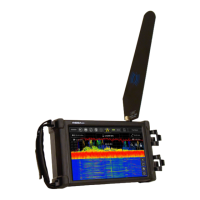
Display Screen Layout
1. Cursor — small down-arrow marking a position in the spectrum. The frequency of the cursor is
indicated by the Cursor Frequency box (top middle). The power level at the current cursor
position is indicated by the value just above the cursor.
2. Start Frequency — tap the start-frequency value opens a dialog box to set the start frequency.
Allowable start frequencies depend on the connected REI probe.
3. Frequency Span — tap the frequency span value to open a dialog box controlling the frequency
span. Enter a value (using keypad) and press one of the unit keys (kHz, MHz, GHz) to initiate the
change. If no change is desired, press the "x" in the (upper right) to close the dialog box.
Minimum span in 25 KHz. The maximum span is dependent on the connected probe.
4. Cursor Frequency — The cursor frequency box displays the frequency value of the current
cursor position. Tapping the cursor frequency box will open a dialog box that allows precise
setting of the cursor position. Doing this will also re-center the screen on the cursor.
5. Resolution Bandwidth — This box displays the current resolution bandwidth value. This value is
not manually adjustable. The MESA automatically sets the resolution bandwidth based on the
frequency span. The smaller the span, the finer the resolution bandwidth will become.
6. Stop Frequency — when tapped, a dialog box will appear to allow the setting of the stop
frequency. Allowable stop frequencies will depend on the REI probe connected.
7. Lock Screen — Press to lock the screen. A second press will unlock the screen. This feature locks
the spectrum portion of the display to prevent accidental changes to the cursor or span. All


 To Next Page
 Loading...