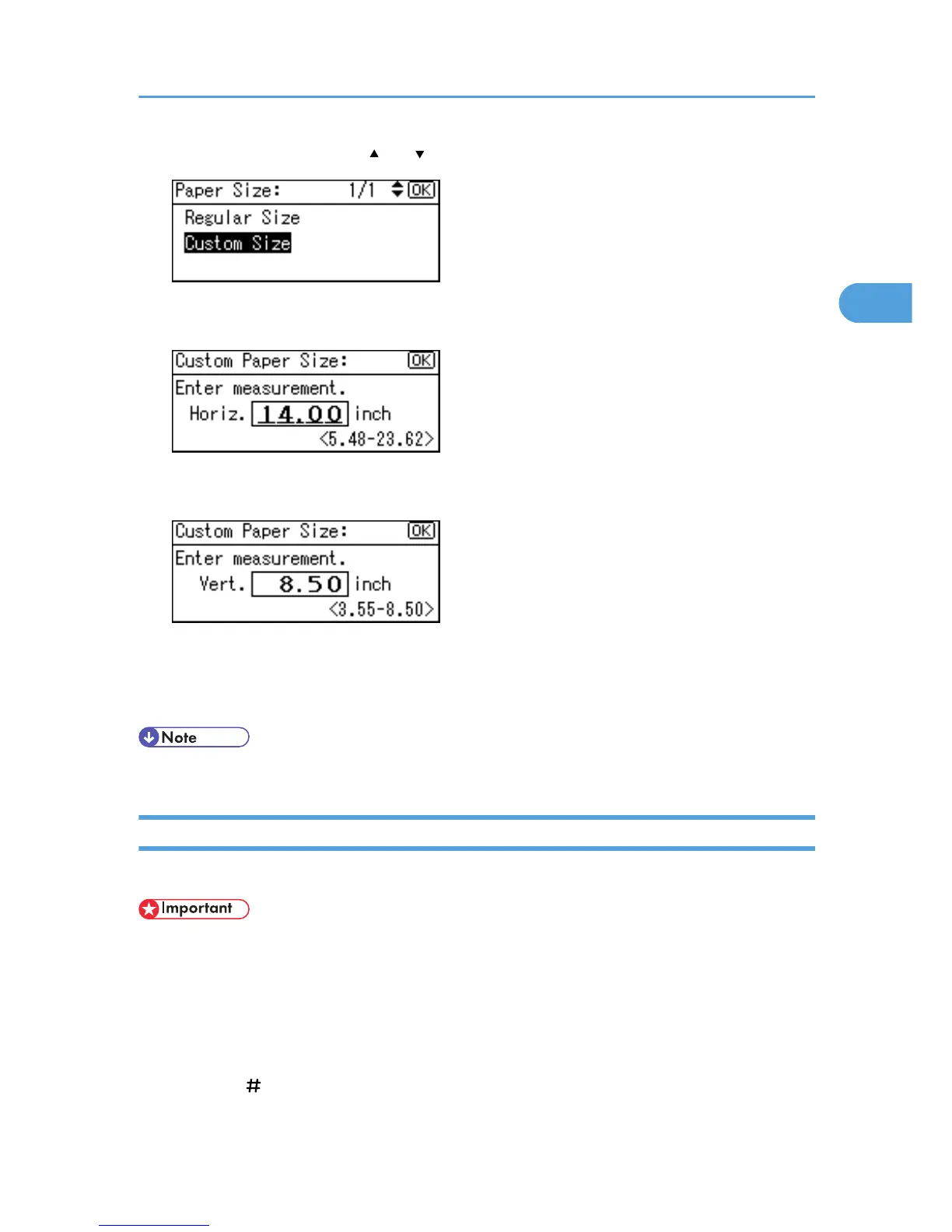
4. Select [Custom Size] using [ ] or [ ], and then press the [OK] key.
5. Enter the horizontal size of the paper (Horiz.) with the number keys, and then press the [OK]
key.
6. Enter the vertical size of the paper (Vert.) with the number keys, and then press the [OK]
key.
The "Programmed" message appears.
7. Place the originals, and then press the [Start] key.
8. When the copy job is finished, press the [Clear Modes] key to clear the settings.
• To change the value you entered, press the [Clear/Stop] key, and then enter a new value.
Copying onto OHP Transparencies
When copying onto OHP transparencies, select the type and size of paper.
• OHP transparencies must be loaded face down in the tray.
• Load OHP transparencies one at time in the bypass tray. This prevents multiple sheets being fed in
together, which can cause jams and misprints.
• Remove copied sheets one by one.
1. Insert the OHP transparencies face down on the bypass tray.
2. Press the [ ] key.
Copying from the Bypass Tray
31



 To Next Page