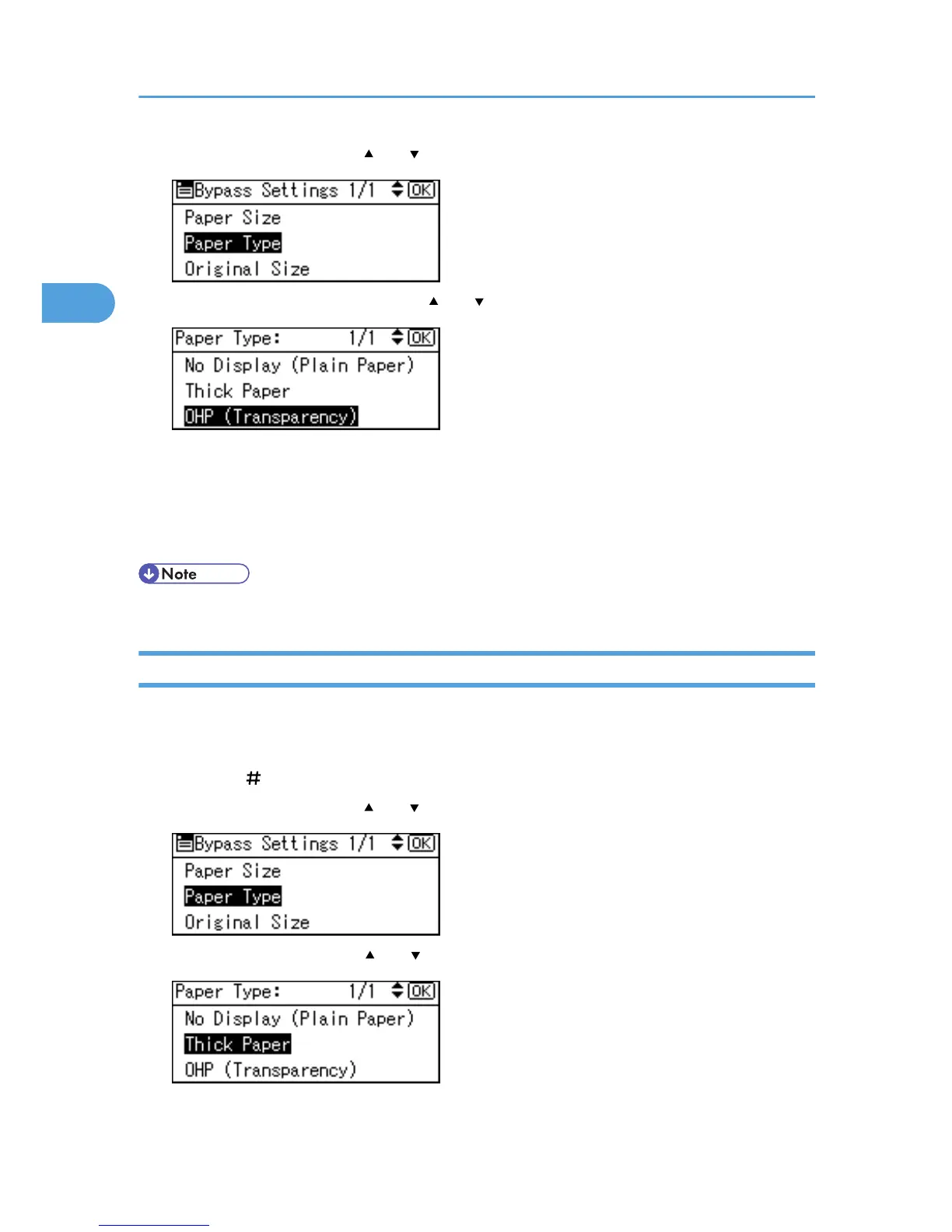
3. Select [Paper Type] using [ ] or [ ], and then press the [OK] key.
4. Select [OHP (Transparency)] using [ ] or [ ], and then press the [OK] key.
The "Programmed" message appears.
5. Select the paper size, if required.
6. Place the originals, and then press the [Start] key.
7. When the copy job is finished, press the [Clear Modes] key to clear the settings.
• Printing on OHP transparencies may be slower than printing on plain paper.
Copying onto Thick Paper
When copying onto thick paper, select the type and size of paper.
1. Insert the paper face down on the bypass tray.
2. Press the [ ] key.
3. Select [Paper Type] using [ ] or [ ], and then press the [OK] key.
4. Select [Thick Paper] using [ ] or [ ], and then press the [OK] key.
The "Programmed" message appears.
2. Copying
32



 To Next Page