EasyManua.ls Logo

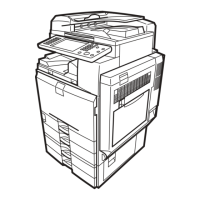
Ricoh Aficio MP C2030 - User Manual

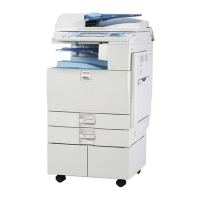
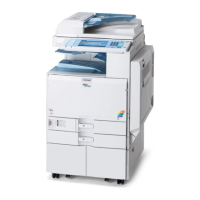
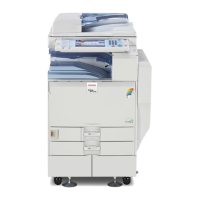
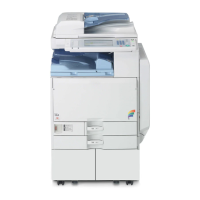
Ricoh Aficio MP C2030
136 pages
Print Icon
To Next Page IconTo Next Page
Loading...
Read this manual carefully before you use this machine and keep it handy for future reference. For safe and correct use, be sure to read the Safety Information
in "About This Machine" before using the machine.
10
8
9
11
Preparing the Machine
Setting Up the Printer Driver
Print Functions Available for This Machine
Direct Printing from a Digital Camera (PictBridge)
Scanning Originals with the Network TWAIN Scanner
Printer Features
Appendix
1
2
3
4
5
6
7
Operating Instructions
Printer and Scanner Reference

Table of Contents

Other manuals for Ricoh Aficio MP C2030

Questions and Answers

  • T
    tranheatherSep 10, 2025
    Why do white stripes appear on the OHP when using my Ricoh Aficio MP C2030 All in One Printer?
    • D
      David MckeeSep 10, 2025
      If white stripes appear on the OHP when using your Ricoh All in One Printer, it's likely due to fragments of paper stuck to the OHP. Use a dry cloth to wipe any paper fragments off the back of the OHP.
  • N
    Natalie CamachoAug 25, 2025
    What to do if Ricoh Aficio MP C2030 All in One Printer cannot authenticate using the TWAIN driver?
    • H
      Heather FosterAug 26, 2025
      If you cannot authenticate using the TWAIN driver on your Ricoh All in One Printer, consider the following: * Another user might be currently logged on to the machine. Wait for the user to log off. * Authentication may be taking longer than expected due to operating conditions. Ensure that the LDAP server and network settings are correct. * Authentication is not possible while the machine is editing the Address Book data. Wait until the editing is complete.
  • R
    robinsonalyssaAug 26, 2025
    What to do if Ricoh Aficio MP C2030 cannot print when user authentication has been specified?
    • A
      Antonio MurphyAug 26, 2025
      If you cannot print when user authentication has been specified on your Ricoh All in One Printer, it might be because user authentication is not specified in the printer driver. Specify user authentication in the printer driver.
  • U
    ugreenSep 23, 2025
    Why can't I print in duplex mode on my Ricoh Aficio MP C2030 All in One Printer?
    • D
      Diane WilsonSep 23, 2025
      There are several reasons why you might not be able to print in duplex mode on your Ricoh All in One Printer: * Paper is loaded on the bypass tray. Remove it and load paper in a different tray. * The loaded paper is thicker than 105 g/m2. Change the paper. * [Duplex] is set to [Off] for "Paper Type". Set [Duplex] to [On] in [Tray Paper Settings], under "Paper Type". * Duplex copying is not available if the paper type is set to [Thick Paper 2] or [Thick Paper 3]. Select a different paper type in [Tray Paper Settings]. * The originals are placed in the wrong orientation. Place the original in the correct orientation.
  • R
    Robert MccoySep 12, 2025
    What to do if Ricoh Aficio MP C2030 All in One Printer displays 'Failed to obtain URL'?
    • L
      Luke ValdezSep 12, 2025
      If your Ricoh All in One Printer displays the error 'Failed to obtain URL', this indicates the machine cannot connect to the server or cannot establish communication. Ensure the server's settings, such as the IP address and host name, are correctly specified on the machine and that the host name of the UA Server is correctly specified. Also, verify that the UA service is correctly specified, SSL is correctly specified using Authentication Manager and that server authentication is specified correctly on the machine.
  • B
    bstricklandSep 15, 2025
    Why I cannot combine several functions on my Ricoh Aficio MP C2030?
    • S
      Sarah MendozaSep 15, 2025
      If you cannot combine several functions on your Ricoh All in One Printer, it's because the selected functions are not compatible. Check the combination of functions and make the settings again.
  • S
    Stephanie LowerySep 4, 2025
    Why are sheets feeding in together in my Ricoh Aficio MP C2030 All in One Printer?
    • M
      Margaret FreemanSep 4, 2025
      If sheets are feeding in together, causing jams in your Ricoh All in One Printer, the sheets are likely sticking together. Fan the pages to loosen the paper before loading it. Alternatively, feed the paper one sheet at a time.
  • D
    Donald AustinSep 5, 2025
    Why is the same copy area dirty on my Ricoh All in One Printer?
    • K
      kellidavidsonSep 5, 2025
      If the same area is dirty on every copy from your Ricoh All in One Printer, the exposure glass, scanning glass, exposure glass cover, or ADF is likely dirty. Clean these components.
  • C
    Calvin Hardin Jr.Nov 23, 2025
    What to do if Ricoh Aficio MP C2030 All in One Printer cannot perform print with the printer driver?
    • J
      Jason MeltonNov 23, 2025
      If your Ricoh All in One Printer cannot print with the printer driver, connect with the TWAIN driver, or send with the LAN-Fax driver, here are some possible causes and solutions: * User authentication may have been rejected. If using Windows Authentication, LDAP Authentication, or Integration Server Authentication, confirm the user name and login name with your network administrator. If using basic authentication, confirm with the user administrator. * The encryption key specified in the driver may not match the machine's driver encryption key. Specify the driver encryption key registered in the machine. * The SNMPv3 account, password, and encryption algorithm may not match the settings on the machine. Specify the correct account, password, and encryption algorithm of SNMPv3 regist...
  • D
    Dawn BernardAug 30, 2025
    Why are images skewed on my Ricoh All in One Printer?
    • K
      kevinbrooksAug 30, 2025
      Skewed images from your Ricoh All in One Printer can be caused by improperly set side fences in the paper feed tray. Ensure the side fences are correctly adjusted. Additionally, the paper might be feeding in at a slant. Make sure to load the paper correctly.

Summary

Preparing the Machine

Confirming the Connection Method

Verifies how the machine is connected before installing the printer driver.

Network Connection

Details network connection methods for using the printer.

Local Connection

Explains how local connections, primarily USB, can be established.

Installing the Printer Driver

Provides instructions for installing the printer driver using various methods.

Setting Up the Printer Driver

PCL - Accessing the Printer Properties

Explains how to access and configure printer properties for PCL drivers.

RPCS - Accessing the Printer Properties

Details how to access and configure printer properties for RPCS drivers.

Black and White Printing when [Photograph] or [DTP] is Selected for [Document type]

Configures black and white printing for specific document types.

Registering Classification Codes

Explains how to register classification codes for printer usage monitoring.

Print Functions Available for This Machine

Unauthorized Copy Control

Embeds patterns/text to prevent unauthorized copying of documents.

Canceling a Print Job

Provides instructions to stop printing from the computer or control panel.

Checking the Error Log

Explains how to check the error log on the control panel to identify causes of printing errors.

Printing on Orientation-Fixed or Two-Sided Paper

Explains printing on paper with fixed orientation or double-sided printing.

Direct Printing from a Digital Camera (PictBridge)

What is PictBridge?

Explains the PictBridge standard for direct camera printing.

Index Printing

Explains how to print index sheets of photos from a digital camera.

PictBridge Printing

Step-by-step guide on how to initiate and perform PictBridge printing.

What Can be Done on This Machine

Lists the various functions and capabilities available with PictBridge.

When PictBridge Printing Does Not Work

Provides solutions for common problems encountered during PictBridge printing.

Scanning Originals with the Network TWAIN Scanner

Before Using the Network TWAIN Scanner

Describes preparations and procedures for using the network TWAIN scanner.

Overview of the Network TWAIN Scanner

Explains the network TWAIN scanner function and its sharing capabilities.

Preparing to Use the Network TWAIN Scanner

Outlines the essential steps to prepare the machine for network TWAIN scanning.

Scan Settings When Using TWAIN Scanner

Explains how to specify original orientation and settings for mixed-size originals.

Printer Features

Accessing User Tools

Provides instructions on how to access the User Tools menu for settings.

Changing Default Settings

Explains how to modify the default settings of the printer.

Menu Protect

Prevents unauthorized users from changing user tool settings by specifying protection levels.

List;Test Print

Describes how to print configuration pages, error logs, and menu lists.

System

Details various system settings like Auto Continue, Duplex, and Blank Page Print.

PCL Menu

Covers settings specific to the PCL printer language.

Appendix

Specifications

Details the electrical and hardware specifications of the machine and its options.

When Using as a TWAIN Scanner

Explains resolution and scan size relationships for TWAIN scanning.

Trademarks

Lists the trademarks and registered trademarks associated with the product.

Ricoh Aficio MP C2030 Specifications

General IconGeneral
BrandRicoh
ModelAficio MP C2030
CategoryAll in One Printer
LanguageEnglish

Videos

How to solution ERROR code SC400 Ricoh Aficio MP C2030

Related product manuals