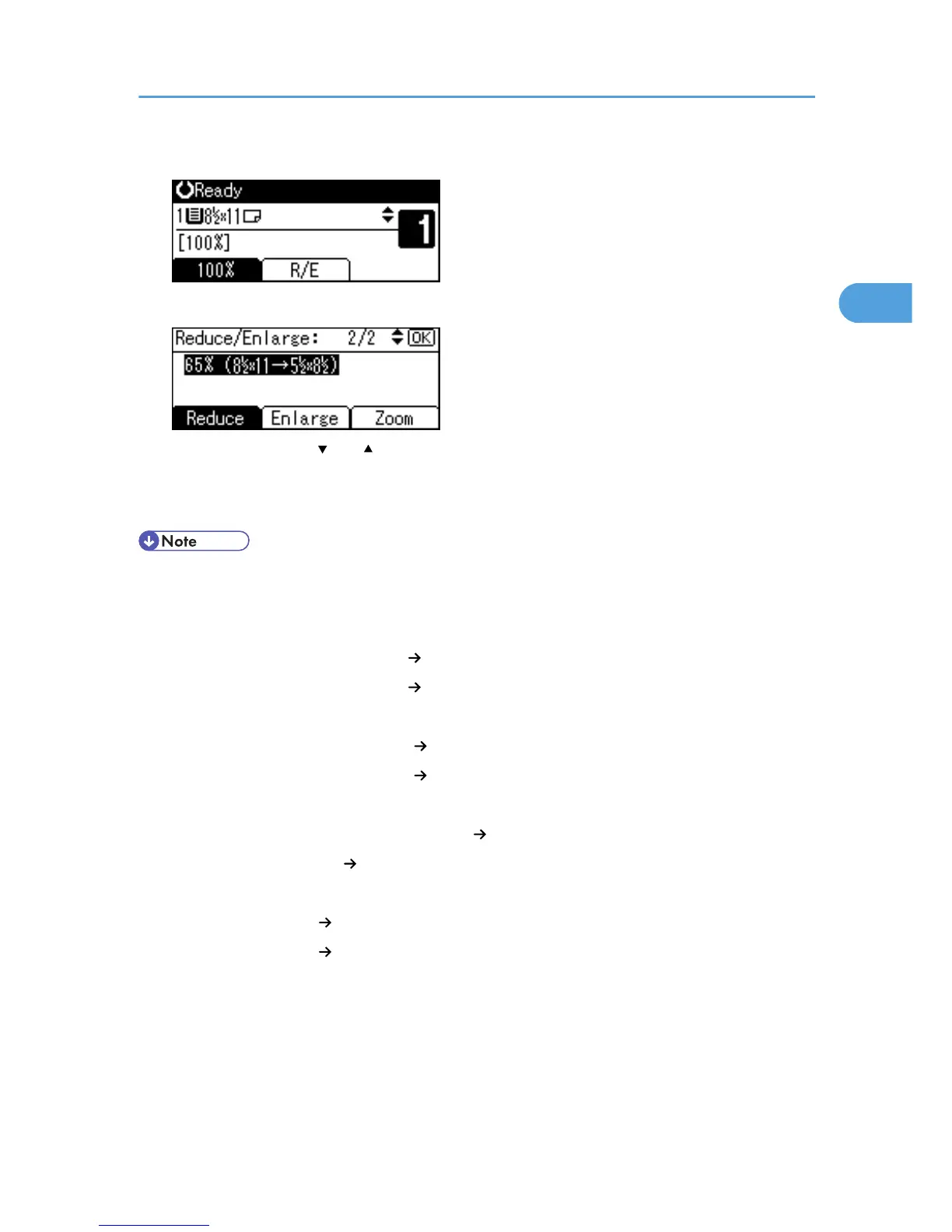
1. Press [R/E].
2. Press [Enlarge] or [Reduce].
3. Select a ratio using [ ] or [ ], and then press the [OK] key.
The "Programmed" message appears.
4. Place your originals, and then press the [Start] key.
• You can select one of five preset ratios (two enlargement ratios, three reduction ratios).
• Following shows the relation between the original and paper sizes at respective scaling factors.
• Metric version
200% (Area ratio 4 times): A6 A4
141% (Area ratio 2 times): A5 A4
93%: -
71% (Area ratio
1
/
2
times): A4 A5
50% (Area ratio
1
/
4
times): A4 A6
• Inch version
155% (Area ratio 2 times): 5
1
/
2
× 8
1
/
2
8
1
/
2
× 14
129%: 5
1
/
2
× 8
1
/
2
8
1
/
2
× 11
93%: -
78%: 8
1
/
2
× 14 8
1
/
2
× 11
65%: 8
1
/
2
× 11 5
1
/
2
× 8
1
/
2
• You can select a ratio regardless of the size of an original or copy paper. With some ratios, parts of
the image might not be copied or margins will appear on copies.
• You can change reproduction ratios shown on the initial display under Reproduction Ratio in User
Tools. For details about Reproduction Ratio, see “User Tools Menu”.
Reducing or Enlarging Originals
39



 To Next Page