Configuring the Scanner Settings
56
3
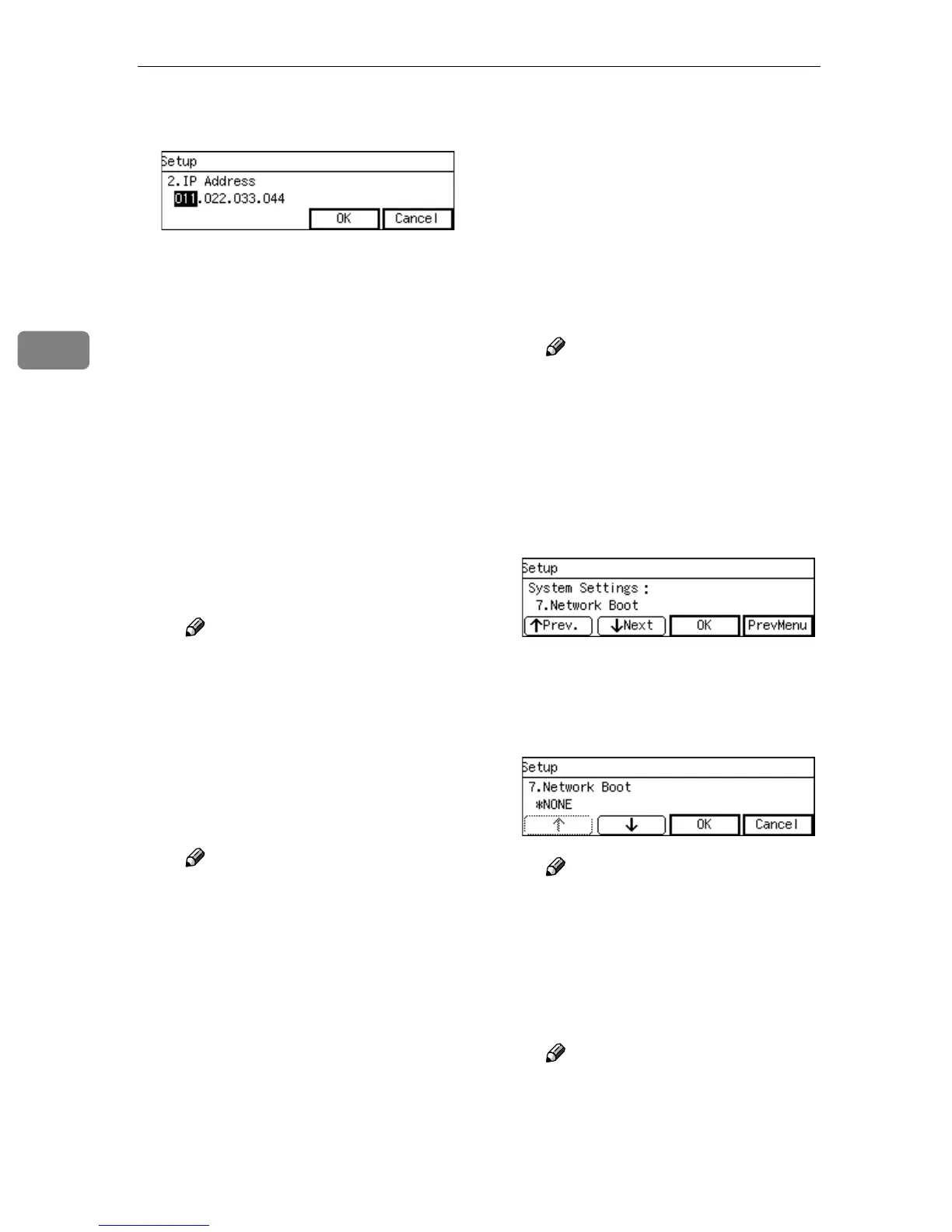
C Specify the IP address of this
machine.
• Input the IP address using
the number keys.
• An IP address consists of
four parts, and each part has
a number within the range of
0 to 255. Make sure that you
input each part of the IP ad-
dress in three digits. For ex-
ample, when you want to
specify “8” for a part, high-
light the part and then input
“008” using the number
keys.
You can use {
{{
{1
11
11}
}}
} (or {
{{
{#}
}}
} )
and {
{{
{0
00
0}
}}
} keys to move the
highlighting to right and left.
Note
❒ You can use the {
{{
{Clear/Stop}
}}
}
key to clear the three-digit
number currently highlight-
ed.
D When you are finished, press
[OK].
This returns to the System Set-
tings menu.
Note
❒ Pressing [Cancel] discards the
value that you have speci-
fied, and returns to the previ-
ous screen.
E Press [Next]
“3. Subnet Mask ” appears as
the setup item currently select-
ed.
F Specify each value for “3. Sub-
net Mask ”, “4. Default Gate-
way Address ”, “5. Access
Control ” and “6. Access Mask
” in the same way that you
have done in steps B
BB
B through
E
EE
E.
“7. Network Boot ” appears as
the setup item currently select-
ed.
Note
❒ When you want to set no lim-
itation of access to this ma-
chine, it is not necessary to
specify “5. Access Control ”,
while you need to confirm
that “6. Access Mask ” is set
to “000.000.000.000”.
G Press [OK].
The setting screen for “7. Net-
work Boot ” appears.
H Use [↑
↑↑
↑] and [↓
↓↓
↓] to display “
NONE ”.
Note
❒ “*” mark appears along with
the option currently selected.
I While “NONE” is displayed,
press [OK].
This returns to the System Set-
tings menu.
Note
❒ Pressing [Cancel] leaves the
setting as it was (the option
marked with “*” remains ac-
tive), and returns to the pre-
vious screen.


 To Next Page
 Loading...




