System Settings
57
3
To configure network boot
settings when you use this
machine on a DHCP environment
A Press [Next] three times.
“5. Access Control ” appears as
the setup item currently select-
ed.
Note
❒ It is not necessary to specify
“2. IP Address ”, “3. Subnet
Mask ” and “4. Default Gate-
way Address ”. The DHCP
server on your network as-
signs these values automati-
cally.
B Specify each value for “5. Ac-
cess Control ” and “6. Network
Boot ”.
You can specify these values in
the same way that you have
done in steps B through E un-
der p.55 “To configure network
boot and related settings when
a fixed IP address is assigned to
this machine”. When you are
finished, “7. Network Boot ” ap-
pears as the setup item current-
ly selected.
Note
❒ When you want to set no lim-
itation of access to this ma-
chine, it is not necessary to
specify “5. Access Control ”,
while you need to confirm
that “6. Access Mask ” is set
to “000.000.000.000”.
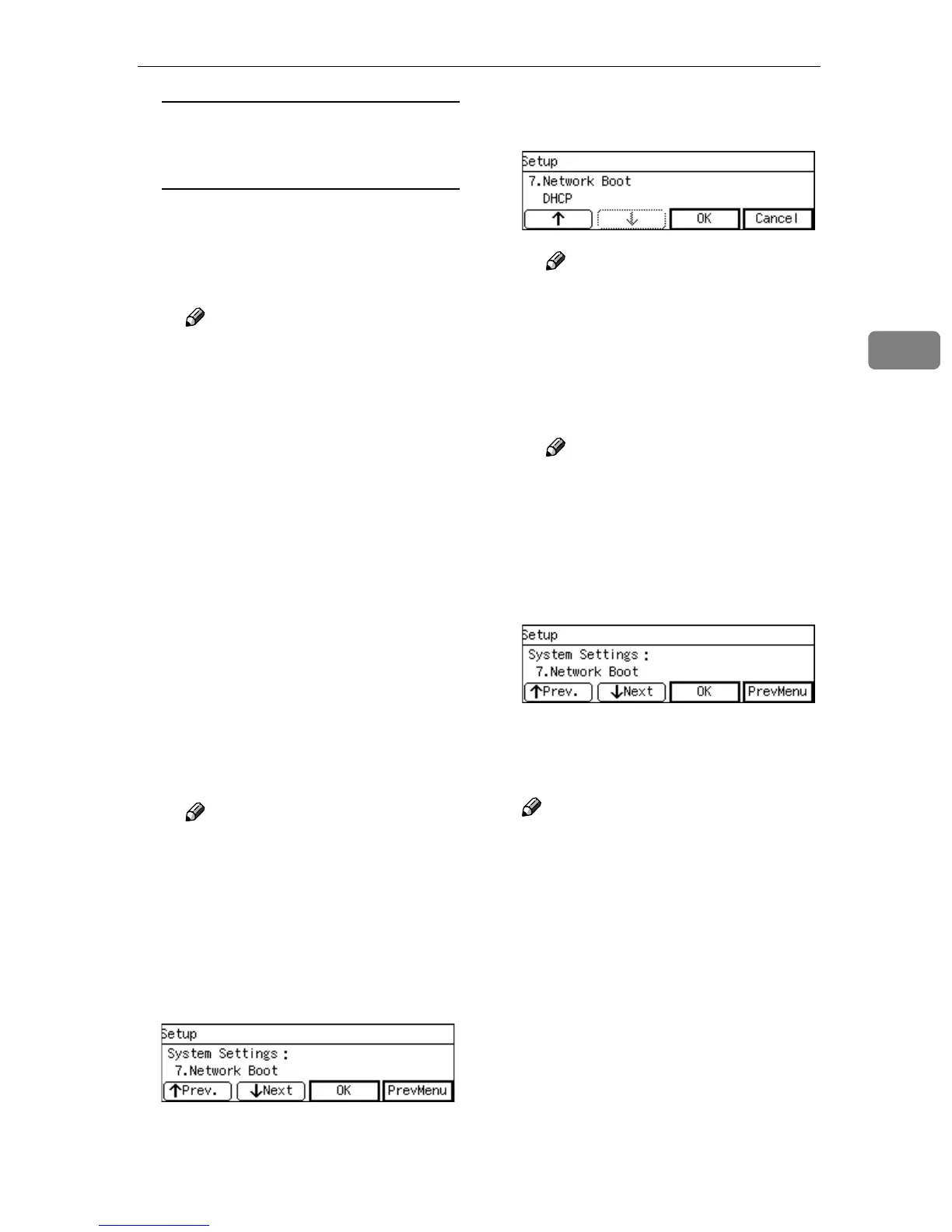
C Press [OK].
The setting screen for “7. Net-
work Boot ” appears.
D Use [↑
↑↑
↑] and [↓
↓↓
↓] to display “
DHCP ”.
Note
❒ “*” mark appears along with
the option currently selected.
E While “ DHCP ” is displayed,
press [OK].
This returns to the System Set-
tings menu.
Note
❒ Pressing [Cancel] leaves the
setting as it was (the option
marked with “*” remains ac-
tive), and returns to the pre-
vious screen.
G
GG
G
Press [Next].
“8. Delivery Server IP Address ”
appears as the setup item currently
selected.
Note
❒ This item is automatically con-
figured when you register this
machine to a delivery server op-
erated by ScanRouter V2 Profes-
sional/Lite. Press [OK] to
confirm this setting after you
have registered this machine to
a delivery server, and then
press [Cancel] to return to the
System Settings menu.


 To Next Page
 Loading...




