EasyManua.ls Logo

Ricoh PRO C9110 - User Manual

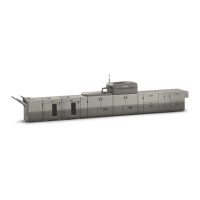
Ricoh PRO C9110
236 pages
Print Icon
To Next Page IconTo Next Page
Loading...
Operating Instructions
Security Guide
For safe and correct use, be sure to read the Safety Information in Read This First before using the machine.

Table of Contents

Other manuals for Ricoh PRO C9110

Questions and Answers

  • M
    mgallegosAug 27, 2025
    How to fix misfeeds when printing to envelopes on my Ricoh All in One Printer?
    • M
      mcculloughheatherAug 27, 2025
      If you are experiencing misfeeds when printing to envelopes on your Ricoh All in One Printer, the envelopes may be curled. Ensure you fully flatten curled envelopes before loading them. Also, avoid stacking envelopes over the specified limit for the paper tray. If misfeeds continue, load envelopes one at a time and print them individually.
  • C
    Cassie GilesAug 26, 2025
    What to do if my Ricoh All in One Printer shows an error message even after closing the indicated cover?
    • S
      Scott OconnorAug 27, 2025
      If your Ricoh All in One Printer displays an error message even after closing the indicated cover, it is possible that one or more covers that are not indicated are still open. Ensure that all covers of the machine are closed.
  • I
    Ian RodriguezAug 25, 2025
    What to do if my Ricoh All in One Printer shows an error message after removing jammed paper?
    • S
      scott22Aug 26, 2025
      If your Ricoh All in One Printer continues to display an error message even after you've removed the misfed paper, it's possible that paper is still jammed in the tray. Remove the jammed paper following the procedures displayed on the control panel.
  • K
    Kenneth SandovalAug 23, 2025
    What to do if my Ricoh All in One Printer has an error?
    • V
      Valerie JohnsonAug 25, 2025
      If your Ricoh All in One Printer has encountered an error, and a function in the [Check Status] screen shows "Error Occurred", press the [Check] button. Read the message that appears and take the appropriate action to resolve the error.

Summary

1. Getting Started

Before Configuring the Security Function Settings

Precautions and guidance before setting up security functions.

Before Using This Machine

Steps and settings required before operating the machine.

Configuring Administrator Authentication

Roles of each administrator

Describes the different roles and responsibilities of administrators.

Specifying Administrator Privileges

How to allocate specific privileges to administrators.

Registering and Changing Administrators

Procedures for registering and modifying administrator accounts.

Administrator Login Method

Explains how to log in as an administrator.

2. Configuring User Authentication

3. Restricting Machine Usage

4. Preventing Leakage of Information from Machines

Encrypting Data on the Machine

How to enable and perform data encryption on the machine.

Deleting Data on the Machine

Methods for securely deleting data from the machine.

5. Enhanced Network Security

Specifying Network Security Levels

Description of different network security levels.

Protecting Communication Paths via a Device Certificate

Steps to create and install device certificates for secure communication.

Configuring SSL;TLS Settings

Steps to configure SSL/TLS for encrypted communications.

Configuring IPsec Settings

Configuration options and settings for IPsec.

Configuring IEEE 802.1 X Authentication

Steps to configure IEEE 802.1X authentication.

6. Managing the Machine

Specifying the Extended Security Functions

Configuration of various extended security functions.

Additional Information for Enhanced Security

Lists security settings configurable via control panel and Web Image Monitor.

7. Troubleshooting

Ricoh PRO C9110 Specifications

General IconGeneral
BrandRicoh
ModelPRO C9110
CategoryPrinter
LanguageEnglish

Related product manuals