33
to escape from the updating mode.
We recommend to cancel all running programs on your computer before starting the software update.
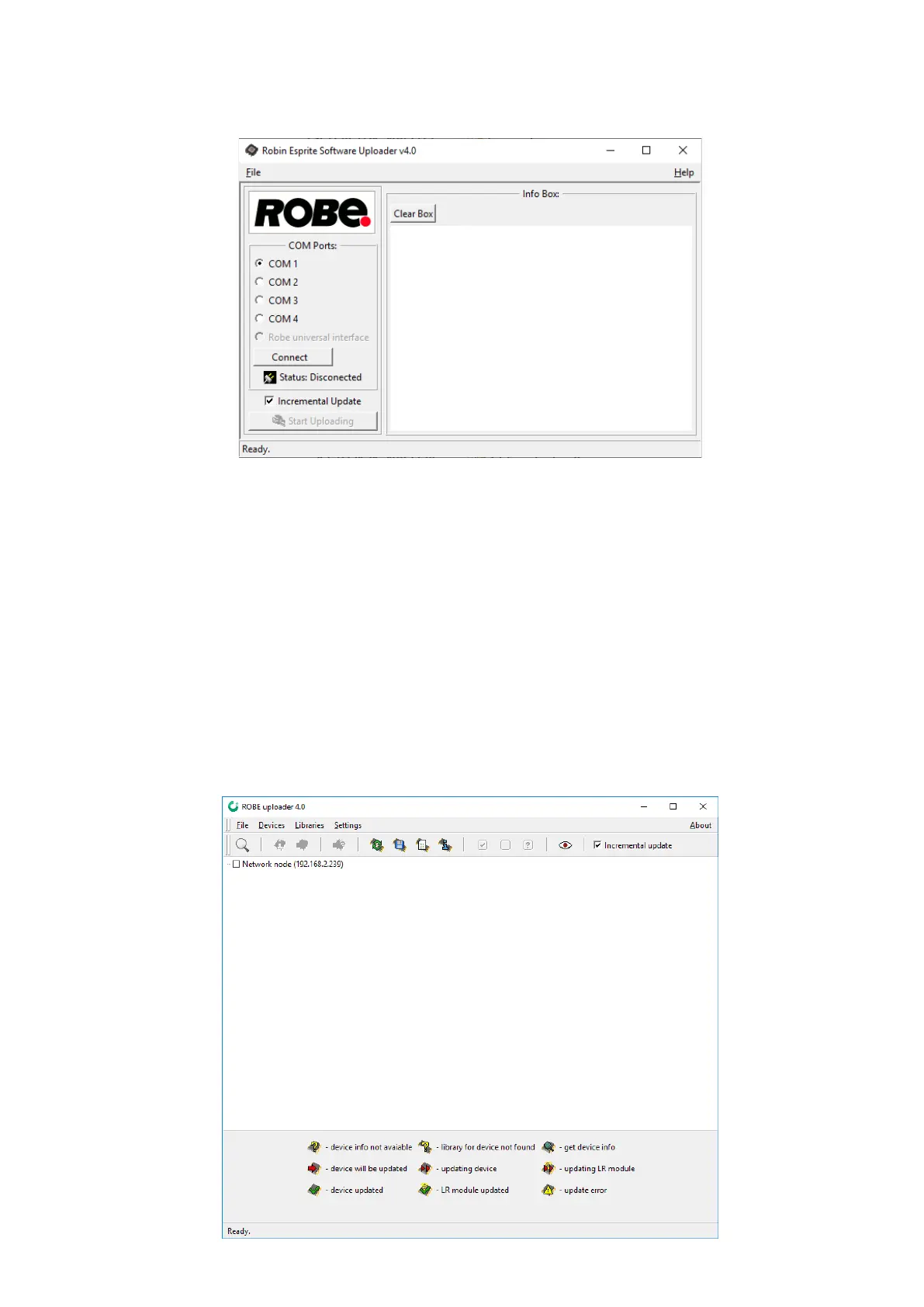
5. Double-click the software uploader le (e.g. DSU_RobinEsprite_18100828.exe) in
the extracted les. The Software Uploader program will start running.
6. Select correct "COM " number if you use a
Flash cable RS232/DMX
or select "
Robe Universal Interface "
if you use the
Robe Universal Interface/Robe Universal Interface WTX
and then click on the "Connect" button.
7. If the connection is OK, click the “Start Uploading" button to start software uploading. It will take several
minutes to perform software update.
If the option "Incremental Update" is not checked, all processors will be updated (including processors with
the same software version).
If you wish to update only processors with new version of software, check the “Incremental Update box“.
Avoid interrupting the process. Update status is being displayed in the "Info Box" window.
When the update is nished, the line with the text “Fixture is successfully updated“ will appear in
this window.
In case upload process is interrupted (e.g. power loss), the xture stays in “Updating mode” and you will have
to repeat the software update again.
Another way, how to update software in the xtures (especially large installation of xtures) is to use the ROBE
Uploader. It is a software for automatized software update of Robe xtures. It takes advantage of RDM
support).
For more information please see https://www.robe.cz/robe-uploader/.



 To Next Page