60
ClockandAlarms.
Manuallysettingtheclock
After a connection to the Internet has been established, your audio system will
normally set its clock automatically to the local time zone that was specied
during setup (see page 11).
Should you need to set the time manually, change the time zone, or manually
switch from winter to summer time (from GMT to BST in the UK, also commonly
known outside the UK as daylight savings time), then please follow this
procedure.
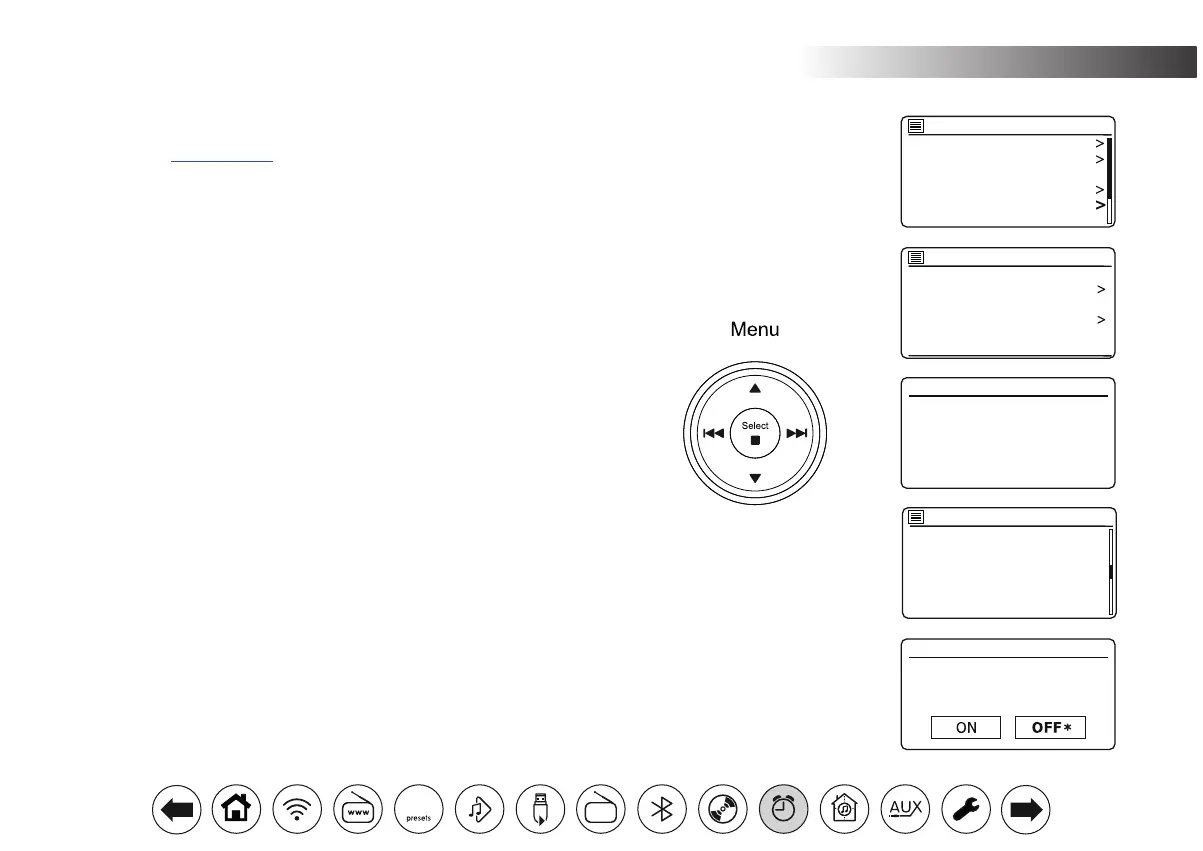
1. With your audio system switched on, press Menu.
2. Choose 'System settings'.
3. To change the current time or date setting choose 'Time/Date', 'Set Time/
Date', and then set the correct day, month, year, hour and minute digits.
To change the time zone setting go to step 5.
To change from winter to summer time go to step 6.
4. The display will then return to the previous menu.
5. Select 'Set timezone' and choose the time zone which is applicable to
your location.
6. Select 'Daylight savings'. The asterisk shows the current setting.
In the UK, ON is equivalent to British Summer Time, OFF is equivalent to
Greenwich Mean Time.
7. Choose 'ON' or 'OFF' as required. Press Menu to exit.
Set Time/Date
Auto update
Set format
Set timezone
Daylight savings
Time/Date
21 - 05 - 2018
13 : 53
Set Time/Date
Daylight savings
Daylight savings
UTC + 00:00: Dublin, Lond
UTC + 00:30:
UTC + 01:00: Madrid, Am
UTC + 01:30:
UTC + 02:00: Athens, Cair
UTC + 02:30:
Set timezone
*
Backlight
Equaliser
Streaming audio quality
Network
Time/Date
Inactive Standby
System settings
DAB
30


 To Next Page