82
Information.
Software update
From time to time, new software features for your product may be developed. Your product has therefore been
designed to allow its internal software to be updated using your Internet connection. You should not attempt to
update your product unless it is recommended to you by Roberts Customer Services. Updating the software may
remove all network settings, radio station presets and alarm settings from your product. It is important that you do
not attempt this procedure unless you have a good Internet connection and a reliable mains power supply. If the
product connects to your router using a WiFi connection, make sure that this is also reliable before proceeding.
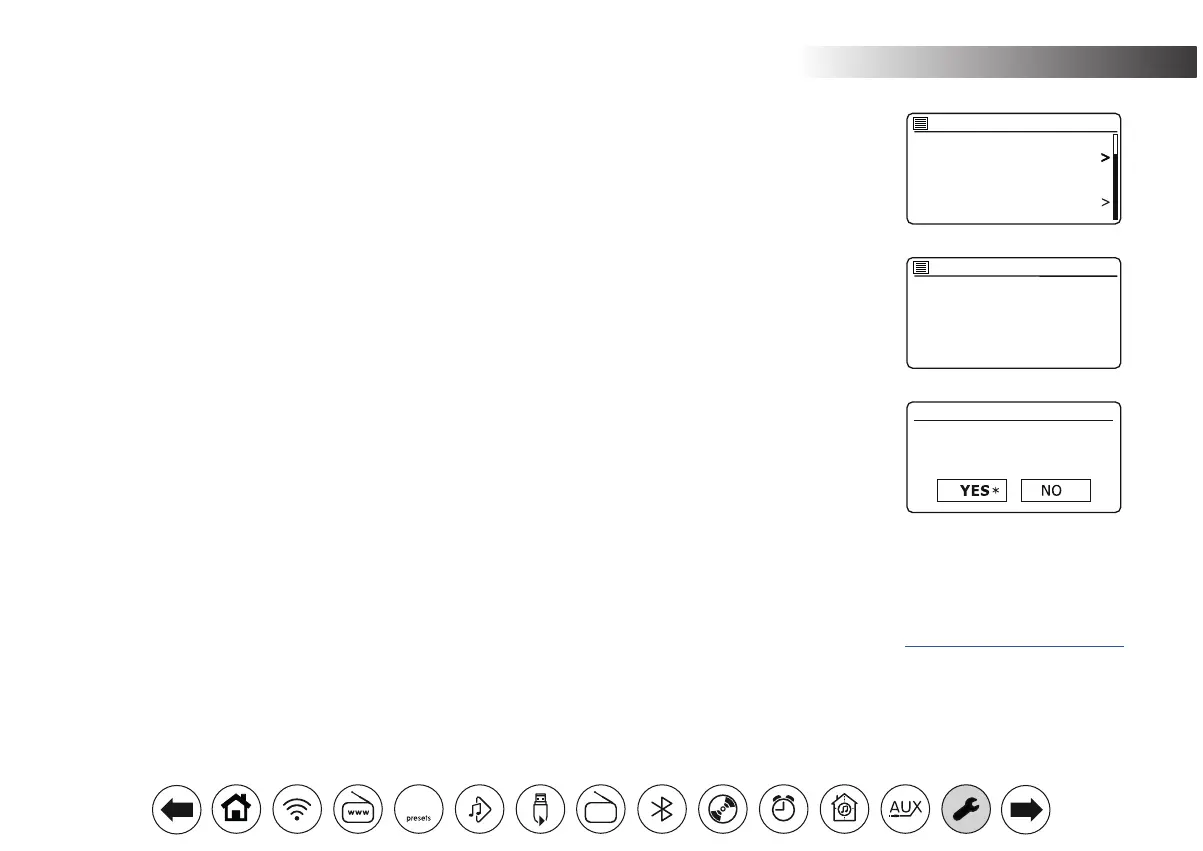
1. The 'Software update' option is accessed via the System Settings menu. When you select 'Software update'
the menu will display 'Auto check setting' and 'Check now'. If you want your product to check periodically for
new software versions choose 'Auto check settings' and then choose 'YES'. If you do not want your product
to check for updates choose 'NO'.
2. To check if there are any software updates available currently, choose 'Check now'. The product will check to
see if an update is available. The display will show 'Checking for new versions'. If there are no updates then
the display will show 'Software up to date'. If a software update is available your product will then offer the
choice of updating the software or not, displaying 'New version available. Update software?'. Select the 'YES'
option if you wish to go through the update process. If you choose to update your product it will rst download
the new software and will then reprogram its internal memory. This may take anything from a few seconds to
a few minutes depending on the speed of your internet connection.
3. Once the software update is completed, the product will prompt you to press Select to restart. Press Select
and your product will then restart. You may nd that you will need to recongure your network connection
following an update. You may also need to re-enter all radio station presets, alarm settings, and conguration
options.
VERY IMPORTANT: Do not switch off the power to the audio system until the update operation is complete
and the audio system has restarted, otherwise the unit may become permanently damaged.
Networkproles
Each time that you connect your product to a WiFi network, the product will store the details of that connection (SSID, security key, DHCP/IP address
settings) as a prole. Up to four such proles are stored in the product so that if the unit is used in multiple locations there is no need to enter the network
settings when returning to a location previously visited. The product stores the four most recent proles in memory identied by their SSID. Normally
the product will attempt to connect to one of the stored proles and only if it is unable to do so will you need to use the Network Wizard (see page 16).
In the event that you visit a location only once you may wish to delete the prole for the network in that location to avoid losing other proles.
1. Press Menu. Choose 'System settings', 'Network' and then 'Network prole'. Press Select to see the stored proles. The prole which is currently
in use (if any) is marked with an asterisk.
2. To remove a prole from memory, highlight the prole to be deleted and then press Select. The audio system will offer a 'YES' or 'NO' selection.
Choose 'YES'. The selected prole will be deleted. Note that it is not possible to delete a prole which is currently in use.
Auto-check setting
Check now
Software update
Software update
Check periodically for
new versions?
Factory Reset
Software update
Setup wizard
Info
Multi-room
Subwoofer
System settings
DAB
30


 To Next Page