76
Display and Audio
Equaliserfunction
The sound on your audio system can be adjusted to suit your personal taste for
the material that you are listening to. The Stream 67 has a range of equaliser
options. Alternatively you may set the bass, mid-range and treble levels to your
own preferences which can be accessed from the My EQ menu item.
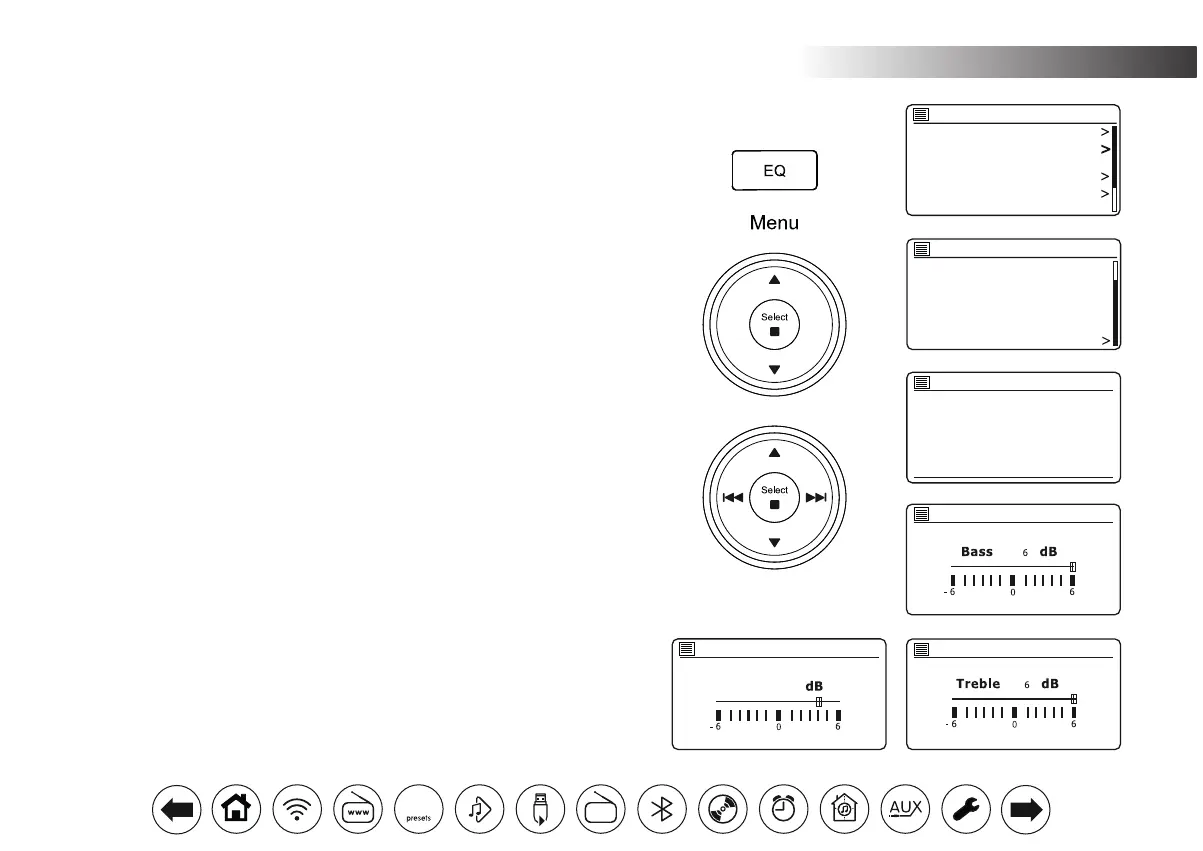
1. With your audio system switched on, press EQ on the remote control.
2. Alternatively, press Menu and then choose 'System settings', 'Equaliser' and
then cycle through and highlight the various option. Press Select to conrm
your selection. 'Normal', 'Music', 'Movie', 'Concert', 'Speech', 'My EQ'. The
currently selected option is marked with an asterisk.
SettingupyourMyEQprole
If you nd the preset equaliser functions not to your liking, you may set up a custom
bass, mid, treble and width setting as follows:
1. Follow steps above in order to enter the Equaliser menu.
2. Choose 'My EQ prole setup' then 'Bass, Mid, Treble or Width'.
3. Choose the desired level. The sound will change as you adjust the setting.
Press Select when you are happy with the setting.
4. Press Menu as needed and the display will prompt you to save the changes.
If you wish to save the changes choose 'YES'. If you do not wish to save the
changes choose 'NO'. Press Select.
5. To use the 'My EQ' prole choose 'My EQ'.
To quickly cancel the effect of the 'My EQ' prole choose 'Normal'.
The settings will be remembered for the next time that you wish to use the 'My
EQ' setting.
Note: When listening on headphones only the Bass and Treble settings are used.
The Mid and Width setting will have no effect.
DisplayandAudio.
Music
Movie
Concert
Speech
My EQ
My EQ profile setup
Equaliser
Bass
Treble
Bass: 0
Mid: 0
Treble: 0
Width: 0
My EQ profile setup
Mid
Mid
4
Backlight
Equaliser
Streaming audio quality
Network
Time/Date
Inactive Standby
System settings
DAB
30


 To Next Page