69
In addition to using the UNDOK app you may also use your audio system's
controls to congure it as part of a group of multi-room products.
View the audio system's multi-room details
To view the multi-room details for your Stream 67 follow the below procedure.
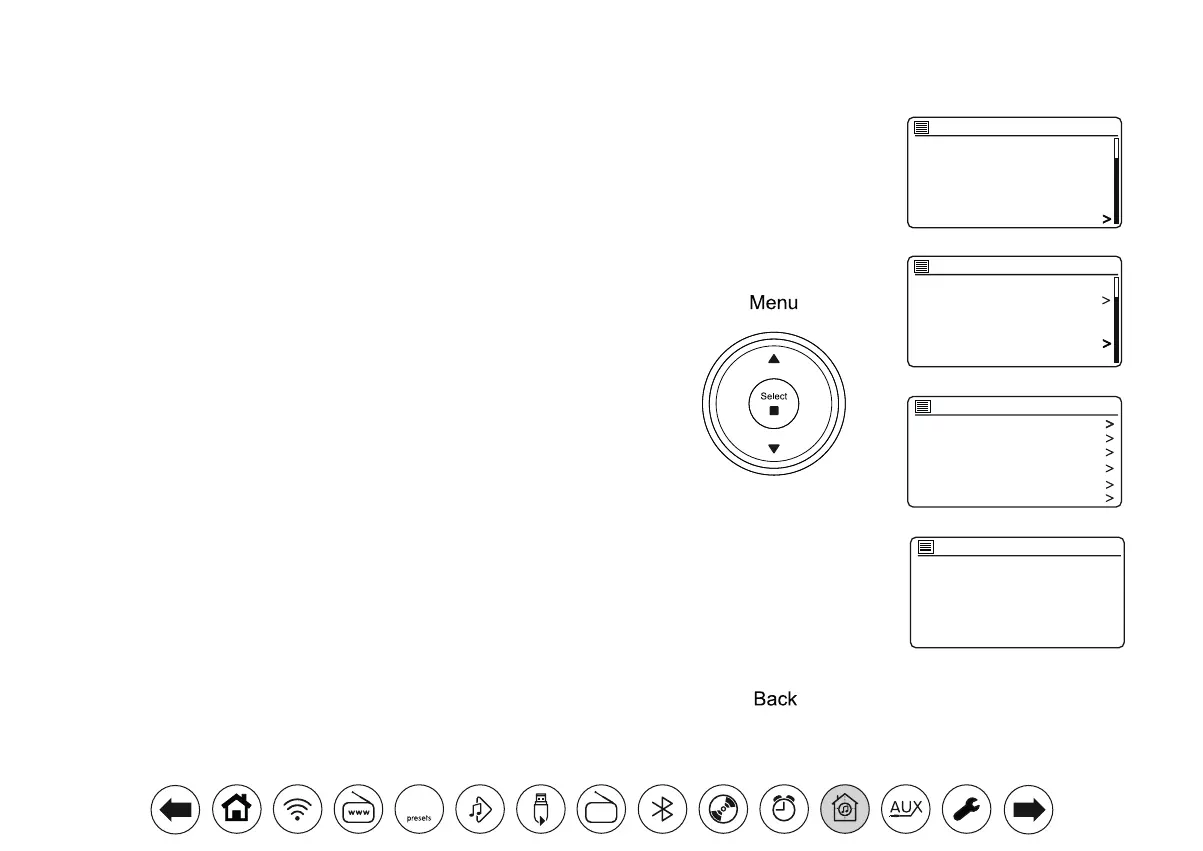
1. Access the menu for the current mode, press Menu.
2. Press Menu Up or Down until 'System settings' is highlighted on the display.
3. Press Select to enter the settings menu.
4. Press Menu Up or Down until 'Multi-room' is highlighted on the display.
Press Select.
5. Press Menu Up or Down until 'View details' is highlighted on the display.
Press Select. Your audio system's multi-room details will be shown on the
display.
• Ungrouped - The product is not part of a group.
• Server - The product sends audio content to other group members.
• Client - The product receives audio from another product in the group.
6. Press the Back button to exit the menu.
CD
Bluetooth
Aux in
Sleep
Alarms
System settings
Main menu
Factory Reset
Software update
Setup wizard
Info
Multi-room
Subwoofer
System settings
View details
Create new group
Add to group
List current clients
Leave group
Dissolve group
Multi-room
State: Server
Group: Lounge
View details
Usingyouraudiosystem'scontrolstoconguremulti-room
DAB
30


 To Next Page