gf33
33
Manual Robin SlimLine ENG - v. 1.0.0
5.2.3.4 Video / Motion
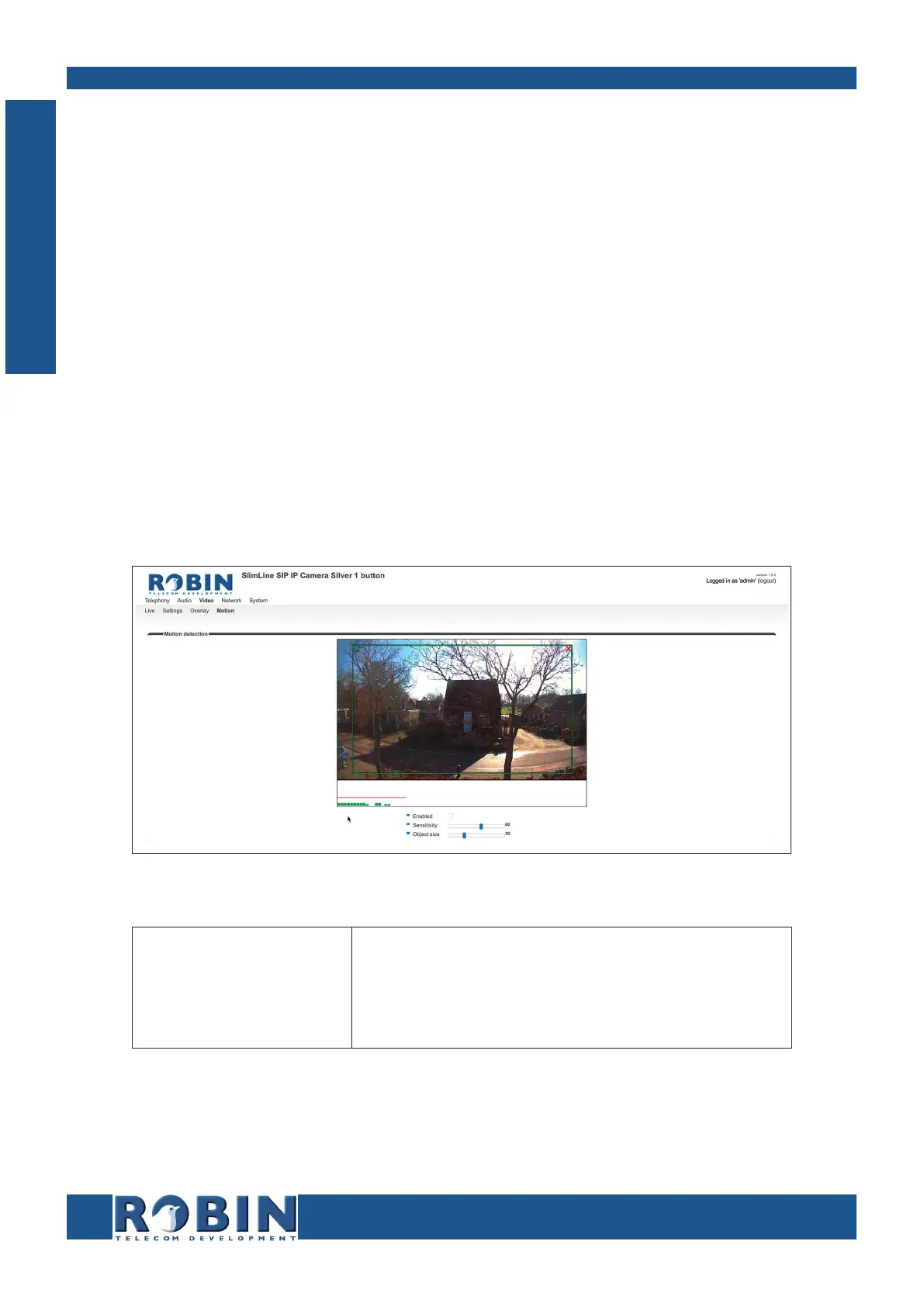
Motion allows you to select parts of the video image where you want movement to be detected.
Detection of movement can trigger ‘Actions’ such as an acoustic signal, switching a built-in relay or
initiating a call to a telephone. The actions are set in -System-Events-.
Use the mouse to select an area in the image. Draw a frame in the video image and enlarge/reduce
it by dragging the top left and bottom right corners. The red cross at the top removes the selection
frame.
Consider how to minimise the chance of a false alarm when selecting the zones. For example, avoid
objects that move in the wind such as flags, branches on trees, etc.
Both detection sensitivity and the size of the object you want to detect can be adjusted. The graph
at the bottom of the image allows you to verify whether the settings are correct.
The colour of the bars is green (= no detection) or red (= detection)
The red line indicates the boundary of the detection area.
Motion detection:
Enabled
Sensitivity
Object size
Activates Motion detection
Increases/reduces detection sensitivity
Changes the size of the object to detect by the Robin
! Note: To make tuning the Motion settings easier, no ‘Events’ that may have been set will be
activated when the -Video-Motion- window for the Robin is open. When you close the -Video-
Motion- window, detection is enabled again. !
C
Configuration


 To Next Page