19
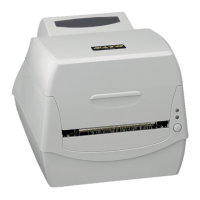
SA408 - User’s Manual
Multi-Column Label Setting Manually
To work with different types of media, sensor setting can be achieved
manually. Once there is need to detect multi-column labels, but there
is no PC around, or utility software is not installed, or it’s necessary to
over ride printer’s previous settings from commands/ software setting,
the procedures provided below can be quick and easy to set
Reflective Sensor Force Mode manually.
SA408 provides two modes of media sensor type settings to set
manually, with no need to connect PC and to select by software:
Mode A. To always detect multi-column labels, force SA408 printers
to enter Reflective Sensor Force Mode.
Thus, no matter which media type/ sensor type is set by Driver/ Utility/
printer commands, printer will always detect multi-column labels by its
movable Reflective sensor. Steps:
1. Push the Release Latch to open the printer module. Ready LED
will start flashing.
2. Press and hold Feed button for about 5 seconds, when Power
LED and Ready LED start to flash alternately, the setting is
complete. Release Feed button immediately.
3. In about 3 seconds, Ready LED will be flashing again. Close the
printer module and then press firmly at the both sides to properly
latch it until you hear a click.


 To Next Page