Page 67/70 May 2015 I 2.0
3. Use the key to start recording a
curve. Tap once more on the same key to
stop the curve recording.
4. Tap on the key to stop a contiguous
line.
5. Tap on the key to add manually a
breakpoint on the line.
6. Tap on the key to saved and add the
line to the loaded field. It is possible to
record several lines before saving the
line(s) to the loaded field. Intermediate
saving is also possible.
7. Tap on the key to capture the first
point of a subsequent line.
If one or more recorded lines are saved as a
reference line, you can add a new operation
based on this reference line(s) by making a new
operation under Field > New operation and
selecting the added reference line in that screen
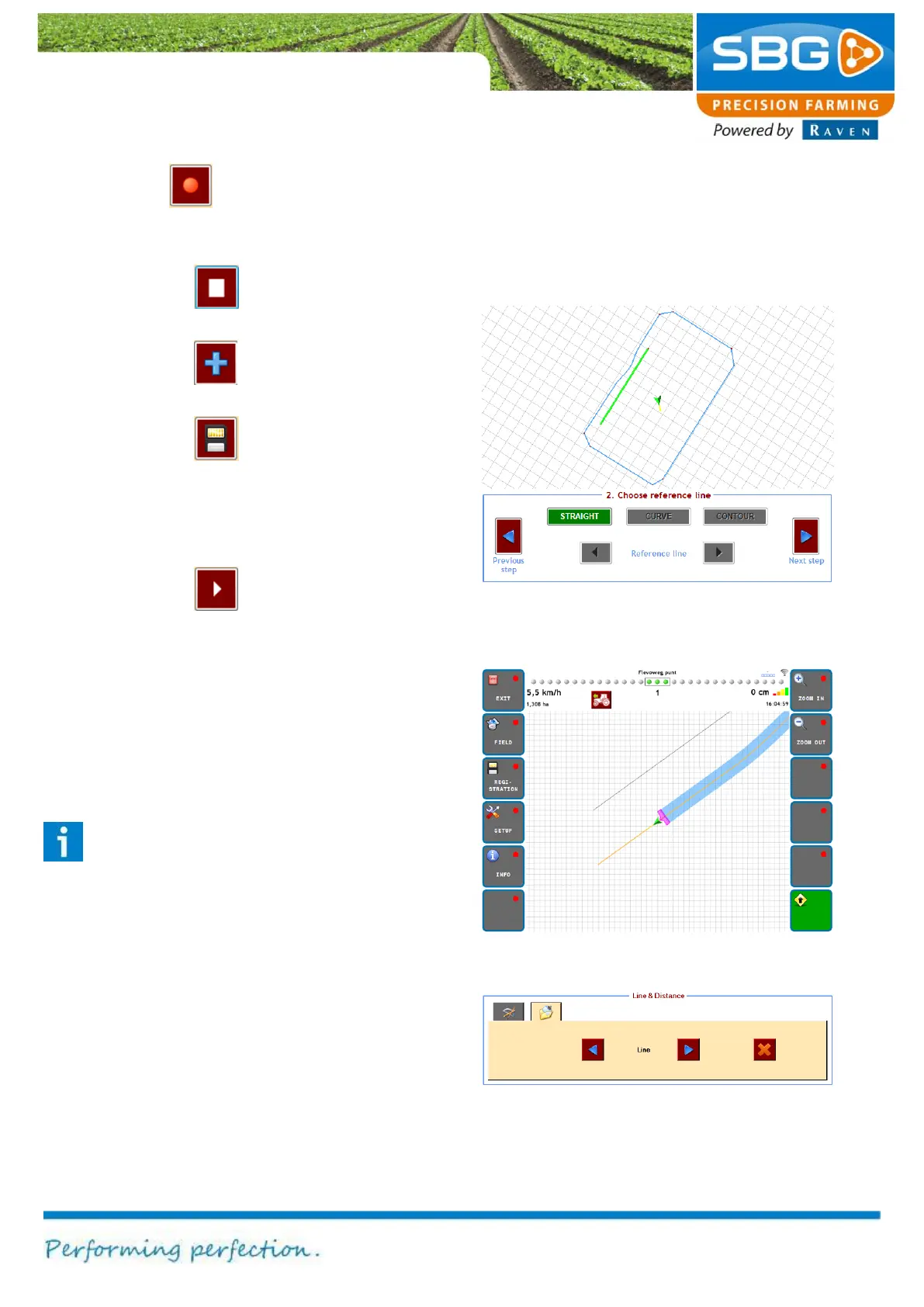
(Figure 113).
Please note!: to select an added reference
line in a new operation, the recorded line
should be longer than 20 m.
If one or more recorded lines are saved as a
navigation line, you can add a new operation
based on this reference line(s) by making a new
operation under Field > New operation and
selecting the added navigation line in that screen.
In the field view only the recorded navigation lines
will be visualised (Figure 114).
In the second tab of the Line & Distance menu the
recorded and added additional lines can be
deleted. Select the to be deleted lines and tap on
the red X icon (Figure 115).
Figure 113 New operation on added reference line
Figure 114 Steering on navigation line



 To Next Page