42
BA 68
Schaeffler Technologies
Schaeffler OPTIME
Buttons
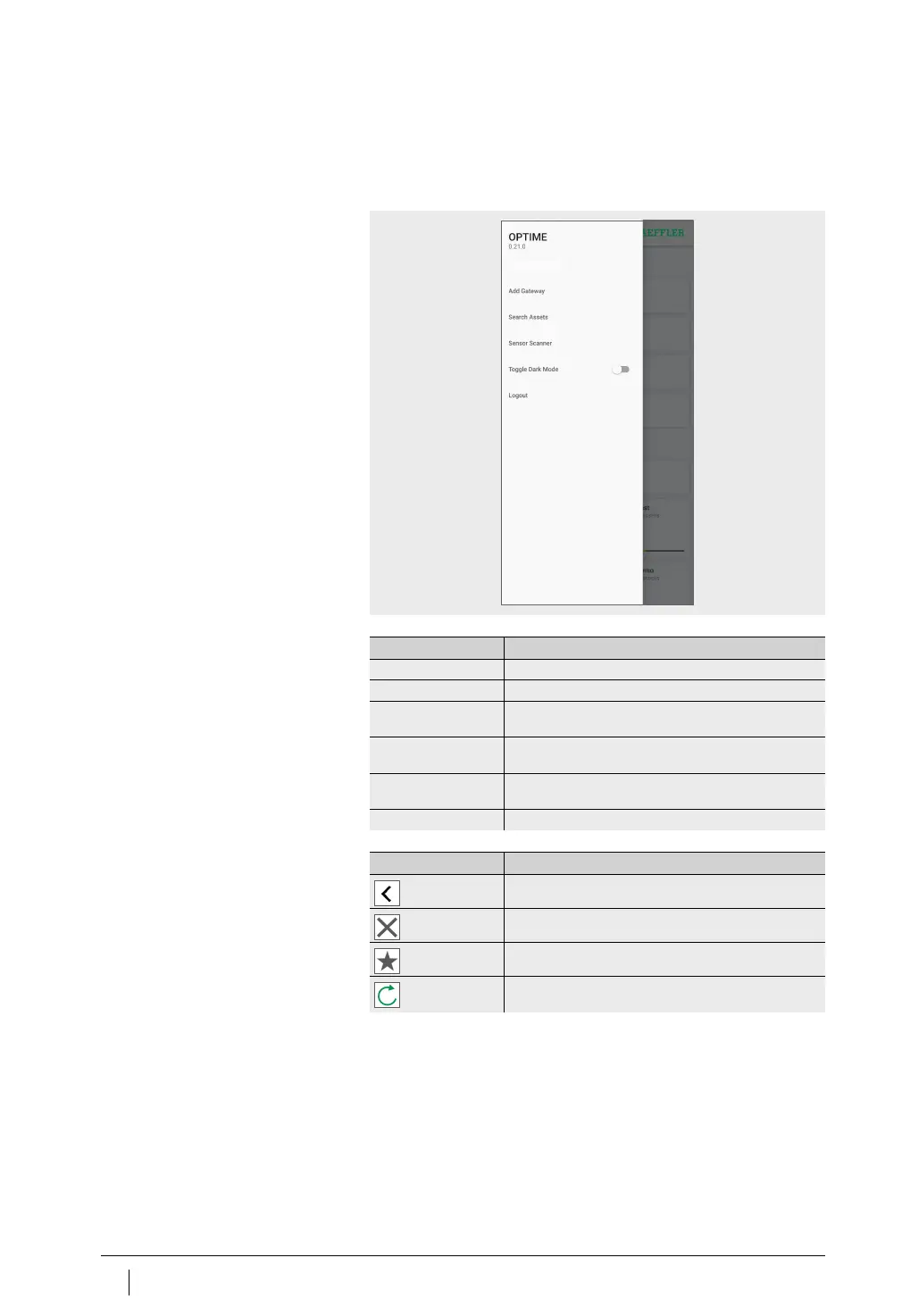
The drop-down menu, which can be accessed via the [
Menu
] symbol,
and the main buttons are used for navigation.
Symbol
[
Menu
]
Navigation elements
Figure 26
Direct access
via navigation elements
Add Sensors
Button, symbol Description
[
Add Sensor
] Direct access for installing and configuring a sensor.
[
Add Gateway
] Direct access for installing and configuring a gateway.
[
Search Machines
] Direct access to the search function for machines
with various filtering options.
[
Scan Sensor
] Direct access to the scan function for reading sensor
settings.
[
Toggle Dark Mode
] Toggles dark mode, in which the OPTIME app is
displayed in a darkened layout.
[
Logout
] Logs the user out.
Button, symbol Description
Goes back to previous screen.
Closes screen.
Adds selection to favourites.
Confirms the update after the screen was swiped down,
for example at group, machine or sensor level.


 To Next Page