54
BA 68
Schaeffler Technologies
Schaeffler OPTIME
Sensor management screen
For further information on the colour coding and designation
of alarms, see page 79.
Input Field Description
Machine name Text entry Displays the defined machine names.
Sensor name Text entry Displays the defined sensor names.
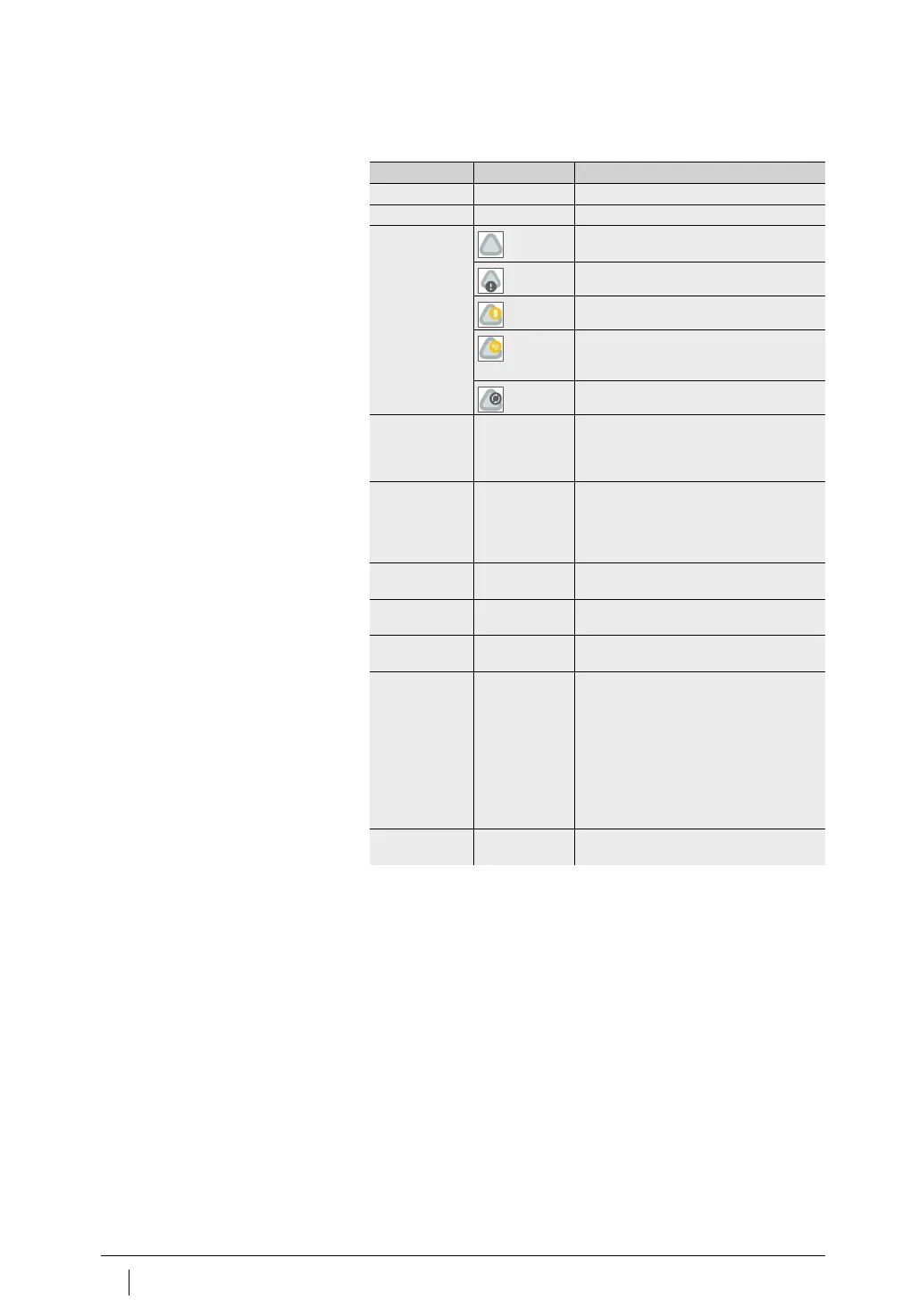
Sensor symbol Normal status.
Displays an alarm notification.
Displays the battery status.
Shows that the sensor is offline and
has not transmitted any data in the last
24 hours hours.
Displays learning mode.
Metadata
on the sensor
Text entries Depending on the sensor type,
further information can be entered.
Metadata are superordinate information
that serves to describe the information.
[
Acknowledge
notifications
]
Button Button takes the user to the relevant
screen.
The button only appears in the case of
notifications that require action to be
taken.
Battery level Graphic
representation
Displays the battery status.
KPI Graphic
representation
Presents the KPIs over time as a graph.
Raw data Graphic
representation
Presents the raw data over time as
a graph.
[
Installation
]
[
Data
]
[
Metadata
]
Button Additional buttons open.
The colour of the button indicates whether
there is a problem with the installation,
the data reception or the metadata.
Green indicates that the condition is in
order. Yellow indicates a high alarm level,
for example if necessary metadata are
missing. Red indicates the highest alarm
level, for example if no data have been
transmitted for a longer period of time.
[
Asset Log
] Button Button takes the user to the relevant
screen.


 To Next Page