11
Smart Functions
Getting Familiar with the Home Screen
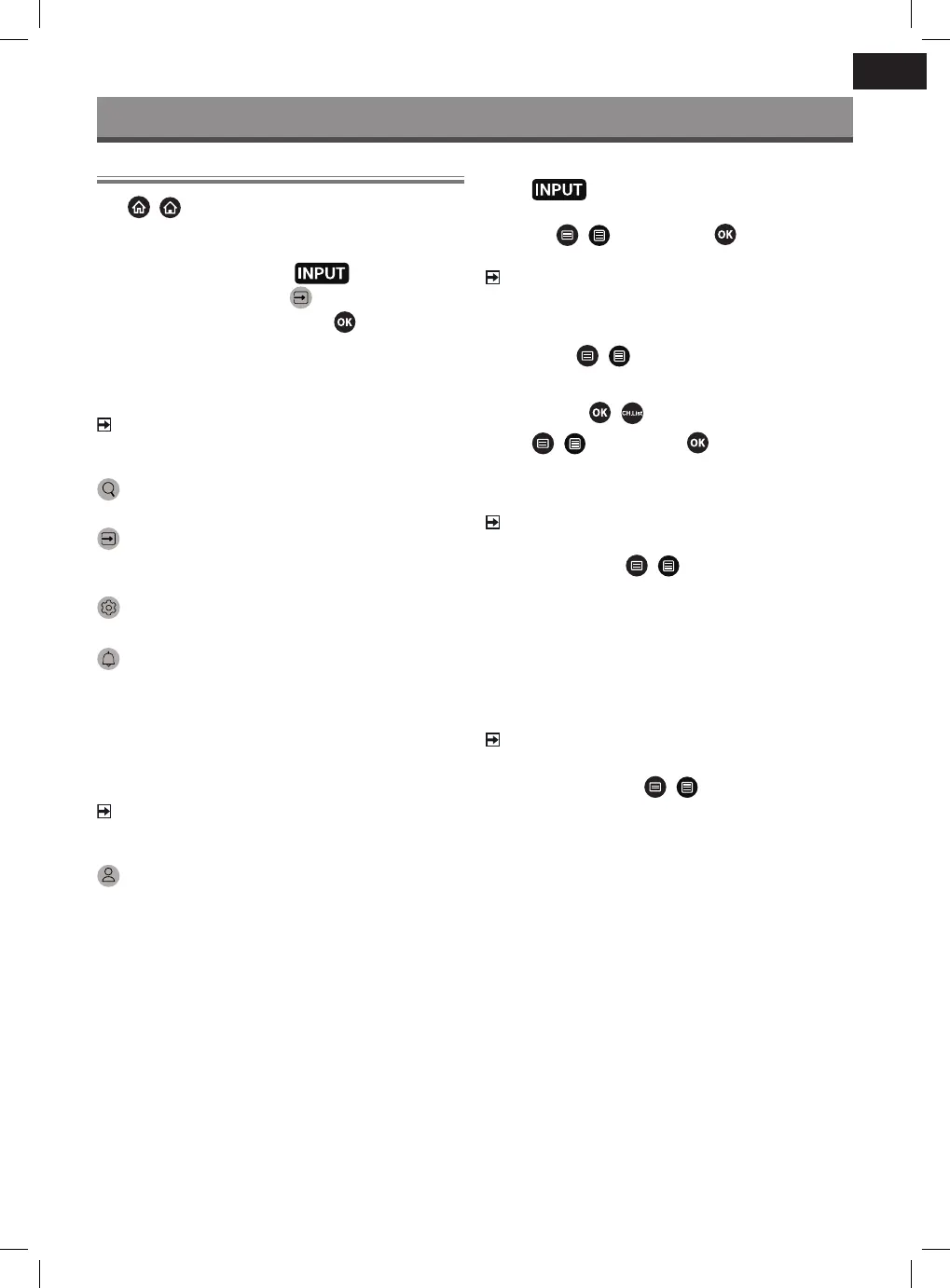
Press
/
button on your remote control to enter the Home
screen.
All TV functions can be accessed from the Home screen.
After exiting the home screen, press
on the remote con-
troller or move the cursor over the
Input icon on the screen
left with the navigation buttons, then press
to conrm and
select the required input source.
Using the navigation strip
The navigation strip consists of indicators and icons on the left of
the home screen.
NOTE
Indicators or icons may vary depending on models/countries/
regions.
Search
Search the content you want.
Input
Select the Input source depending on the device you have connect-
ed to your TV.
Settings
Manage TV conguration.
Notications
Allow pop-up notications to appear for useful information and
events that occur with your TV, including: Advertising, New Ar-
rivals, Warnings and Legal Statements, System Messages and
Alexa Notication. You can enable/disable each of these notica-
tions at Settings in the notication centre.
You can view the list of event messages generated by the TV.
To delete all notications, select Clear All.
NOTE
The Alexa Notication may not be applicable in some models/
countries/regions.
VIDAA Account
Sign in to your VIDAA account.
A VIDAA account provides all the best features of your smart TV and
ensures that all services are kept to date.
Add inputs to the home screen
1 Press
button.
2 Move the focus to an input you want to add to the Home screen,
and press
/
> Add to home >
. The input icon will
appear in Shortcuts on the Home screen.
NOTE
Some options in inputs source page cannot be added to the
Home screen.
To remove inputs from Shortcuts, just move the focus to a short-
cut and press
/
button on your remote control.
Add channels to the home screen
1 In Live TV, press
/
button to access the channel list.
2 Press
/
button and press
button to tick channel(s)
that you would like to add on the Home screen.
3 Select Add to home. The channel icon will appear in Shortcuts
on the Home screen.
NOTE
To remove the channel from Shortcuts, just move the focus to
the shortcut and press
/
button on your remote control.
Add webpages to the home screen
1 In Browser, visit a website you would like to add on the Home
screen.
2 Use the D-pad to move the focus to Add to home icon in the top
Browser navigation bar and select it.
3 Select Add, and this webpage will appear in Shortcuts on the
Home screen.
NOTE
To remove webpages from Shortcuts, just move the focus on
a shortcut page and press
/
button on your remote
control.


 To Next Page