12
Smart Functions
Using a VIDAA Account
Signing into an account
Before signing into your VIDAA account, make sure your TV is
connected to the network.
1 After the network is connected, press
/
button on your
remote and select
VIDAA Account icon in the top naviga-
tion bar on the Home screen.
2 Register your device to your VIDAA Account. After entering your
E-mail and password, select Sign In.
Creating a new account
If you do not have a VIDAA account, create a new one to enjoy the
best features of your Smart TV.
Before creating a new account, make sure your TV is connected to
the network.
1 Once the network connection is established, press
/
on
the remote controller and select the
VIDAA Account icon
in the left navigation strip on the home screen.
2 Select Create an Account on screen.
3 Enter your rst name, last name, E-mail address and password.
First Name and Last Name are optional.
4 Select Create an Account.
Media
/
> My Apps > Media
Media is a central location for you to view or listen to dierent types
of content, such as photos, music and movies. You can view media
content through the following methods:
A USB thumb drive or hard drive.
Compatible mobile phone, tablet or other personal devices: you
can stream movies, music and photos that are stored on compa-
tible personal device and play or view the content on your TV.
By default, there is Content Sharing displayed on the Media screen.
If your mobile device is connected to the TV, its name also appears
on the Media screen.
Playing media contents
/
> My Apps > Media > connected devices
Select the content you want to play on the screen, like pictures,
videos and music.
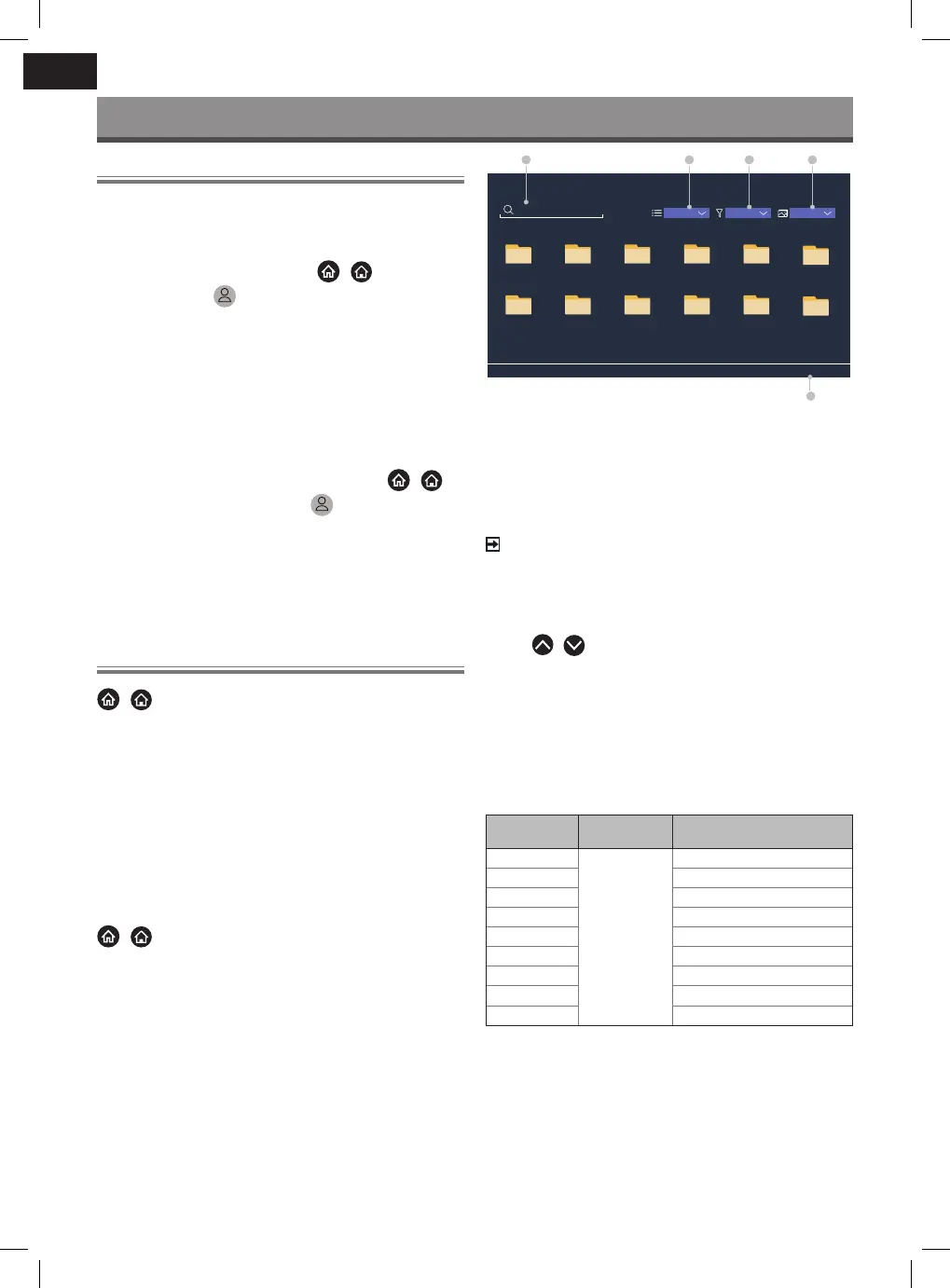
Search File
USB/
USB
Press MENU to create list
Name
Grid All Media
5
1 2 53 4
6
7 8 119 10
12
1 Search the content you want to play.
2 Arrange the content list by Grid, List.
3 Sort the content list by Name, Date modied, Size.
4 Filter the content list by All Media, Photo, Video, Music, Recor-
ded.
5 Create a photo, music, or video playlist.
NOTE
Some options in the above table may not be available in some
models/countries/regions.
Playing background music during viewing pictures
1 Choose a picture to display.
2 Press
/
button to call out playbar.
3 Select Background Music and choose your music to create a
Music Playlist.
Now you can play the background music during viewing pictures.
Media format list
Due to dierences in programming tools and other factors, some of
the le formats that are listed may not be supported.
Video Format
Codec Name
File Extension
Name
Sampling rate
MPEG1/2 .mp4
.mov
.mkv
.ts
.avi
.wmv
.v
.webm
1920 x 1080p @ 60fps
MPEG4 1920 x 1080p @ 60fps
AVC (H.264) 1920 x 1080p @ 30fps
HEVC (H.265) 1920 x 1080p @ 60fps
WMV3 1920 x 1080p @ 60fps
VC1 1920 x 1080p @ 60fps
VP8 1920 x 1080p @ 60fps
VP9 1920 x 1080p @ 60fps
AV1 1920 x 1080p @ 60fps


 To Next Page
 Loading...