13
Smart Functions
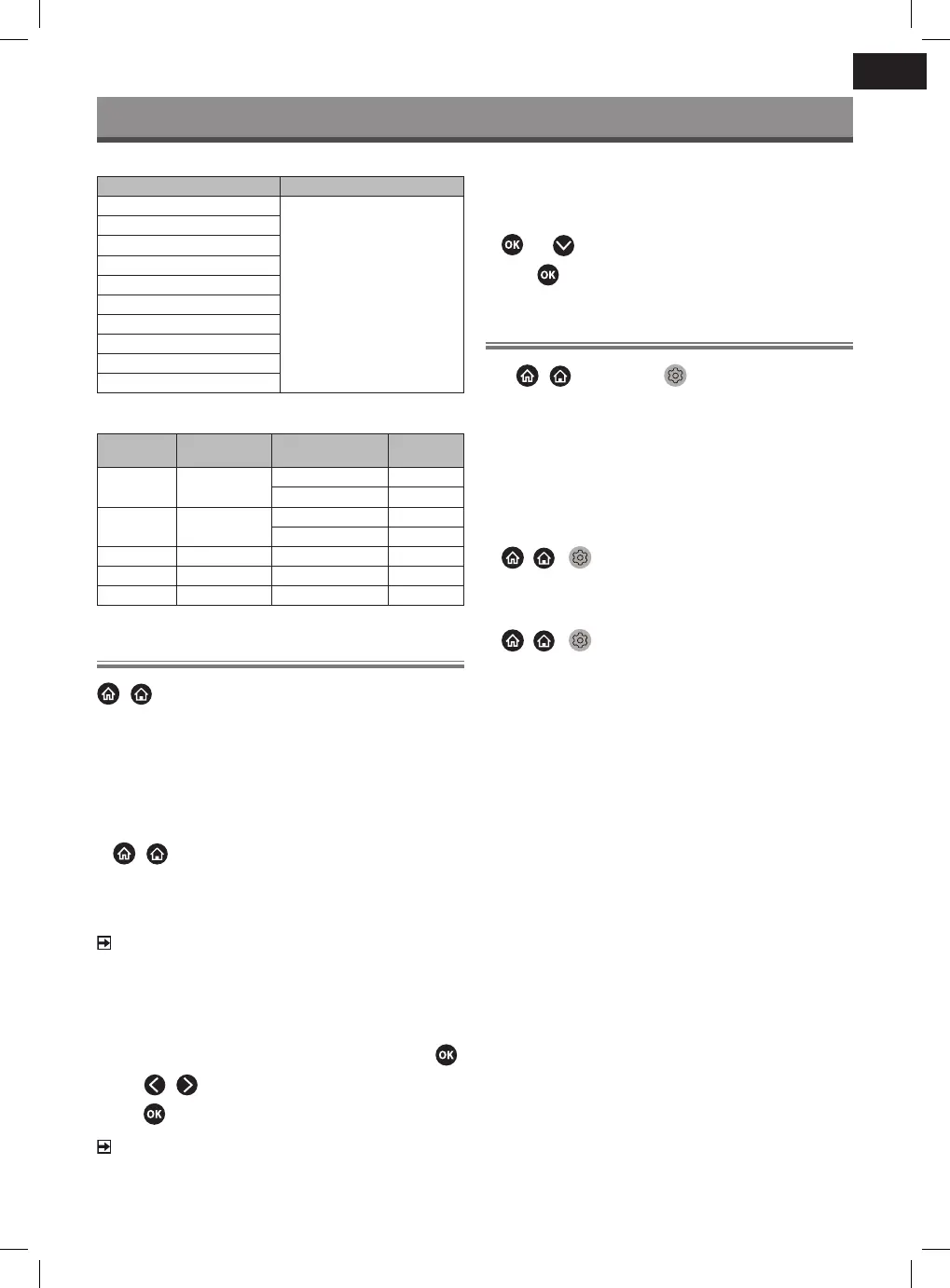
Audio Format
Container File Extension Name
LPCM .wav
.mp3
.wma
.ac
MPEG1/2 Layer1
MPEG1/2 Layer2
MPEG1/2/2.5 Layer3
WMA
AAC
MPEG-H
FLAC
VORBIS
OPUS
Photo Format
Container
File Extension
Name
Mode of Operation Resolution
JPEG .jpg .jpeg baseline 3840 x 2160
progressive 3840 x 2160
PNG .png no-interlace 3840 x 2160
interlace 3840 x 2160
BMP .bmp - 3840 x 2160
GIF .gif - 1980 x 1080
Webp .webp - 3840 x 2160
App
/
> My Apps
Numerous factory-installed apps are available for you to choose for
your entertainment preferences.
Installing an app
Even though your TV has numerous factory-installed apps, there
may be others that you would like to download.
To install an app:
1
/
> My Apps > APP STORE.
2 Use the navigation buttons on your remote to select the app
that you want to install.
3 Select Install. The selected app is installed on the TV.
NOTE
To use this function, your TV must be connected to the Internet.
Adding apps is free, but it might cost you money when using
some apps.
Sorting apps in My Apps
1 In My Apps select the app you want to sort, and then press
.
2 Press
button to move it.
3 Press
button to store the new position.
NOTE
Some Apps may not be moved.
Removing an app in My Apps
You can only delete apps that you have installed to the TV. Factory-
-installed apps cannot be deleted.
1 In My Apps select the app you want to remove, and then press
and
button to select Remove.
2 Select
. The selected app is deleted.
Installing Mobile App to Control your TV
Press
/
button to select
Settings icon, and select
Support > Mobile App Download.
Scan the Mobile App download QR code on screen to install the
app on your mobile device. It is possible to control your TV, such
as turning the TV on or o, inputting characters with your mobile’s
keyboard and sharing pictures or videos from your mobile device to
the TV. This app is available on both Android and iOS.
To connect your TV after installing the mobile app:
1 Agree with end user license, and disclaimer and privacy policies
on TV. If you are not sure whether you have agreed, check at
/ >
Settings > Support > Disclaimer and Privacy.
2 Make sure your mobile phone and TV are connected to the same
network environment.
3 To use this function, switch on Content Sharing at
/ >
Settings > System > Mobile Device
Connection> Content Sharing.
4 Open the mobile app and select the TV device you want to
connect.


 To Next Page