Using the “Conference Manager” software
136 | ADN Digital Conference System
왘 Set the network part of the IP address to the value retrieved from your Win-
dows PC.
왘 Set the device part (the last three digits) of the IP address to
a value (“1” -
“254”) that is neither used by your PC nor by another computer in your net-
work (in this example, the device part must not be “145”).
왘 On the central unit, call up the “Subnet mask” menu item.
왘 Set the subnet mask (in this example “255.255.255.0”).
왘 On the central unit, call up the “Gateway” menu item.
왘 Set the IP address of the default
gateway (in this example “192.168.1.1”).
The network connection is established via a static IP address.
Configuring the network settings on a PC runn
ing Windows 7
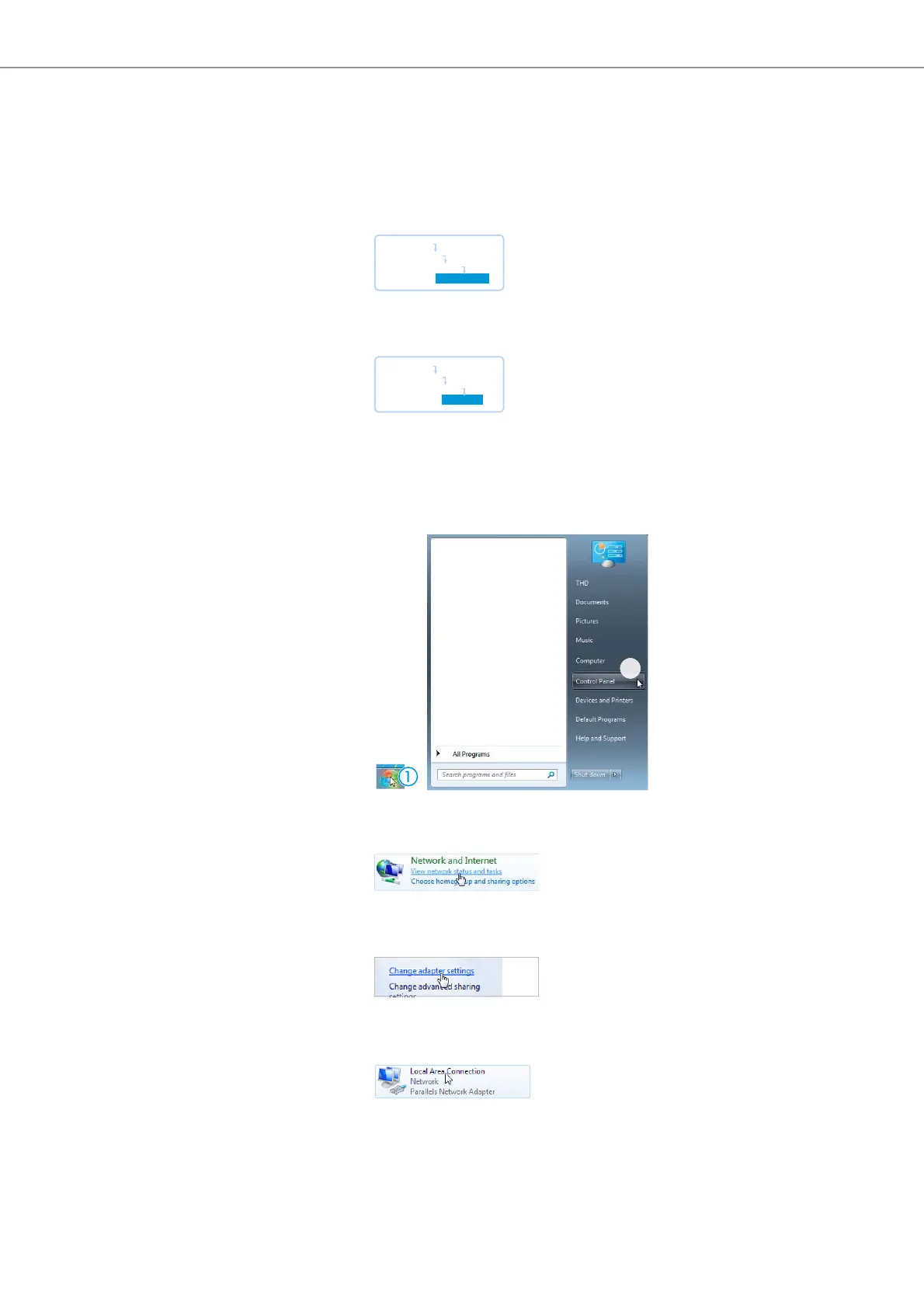
왘 Click “Start” and then select “Control Panel”.
The “C
ontrol Panel” window appears.
왘 Click “View network status and tasks”.
The “Netw
ork and Sharing Center” window appears.
왘 Click “Change adapter settings” in the left column.
Th
e “Network Con
nections” window appears.
왘 Double-click “Local Area Connection”.
The “Local Area Connection Status” window appears.
Main Menu
Settings
Network
Subnet Mask
Main Menu
Settings
Network
Gateway



 To Next Page