Configuring the conference system via the central unit
88 | ADN Digital Conference System
Working with the operating menu
By way of example of the “Microphone Limit” menu item, this section describes
how to use the operating menu.
Information on the factory default settings of the operating menu can be found in
the appendix (see page 253).
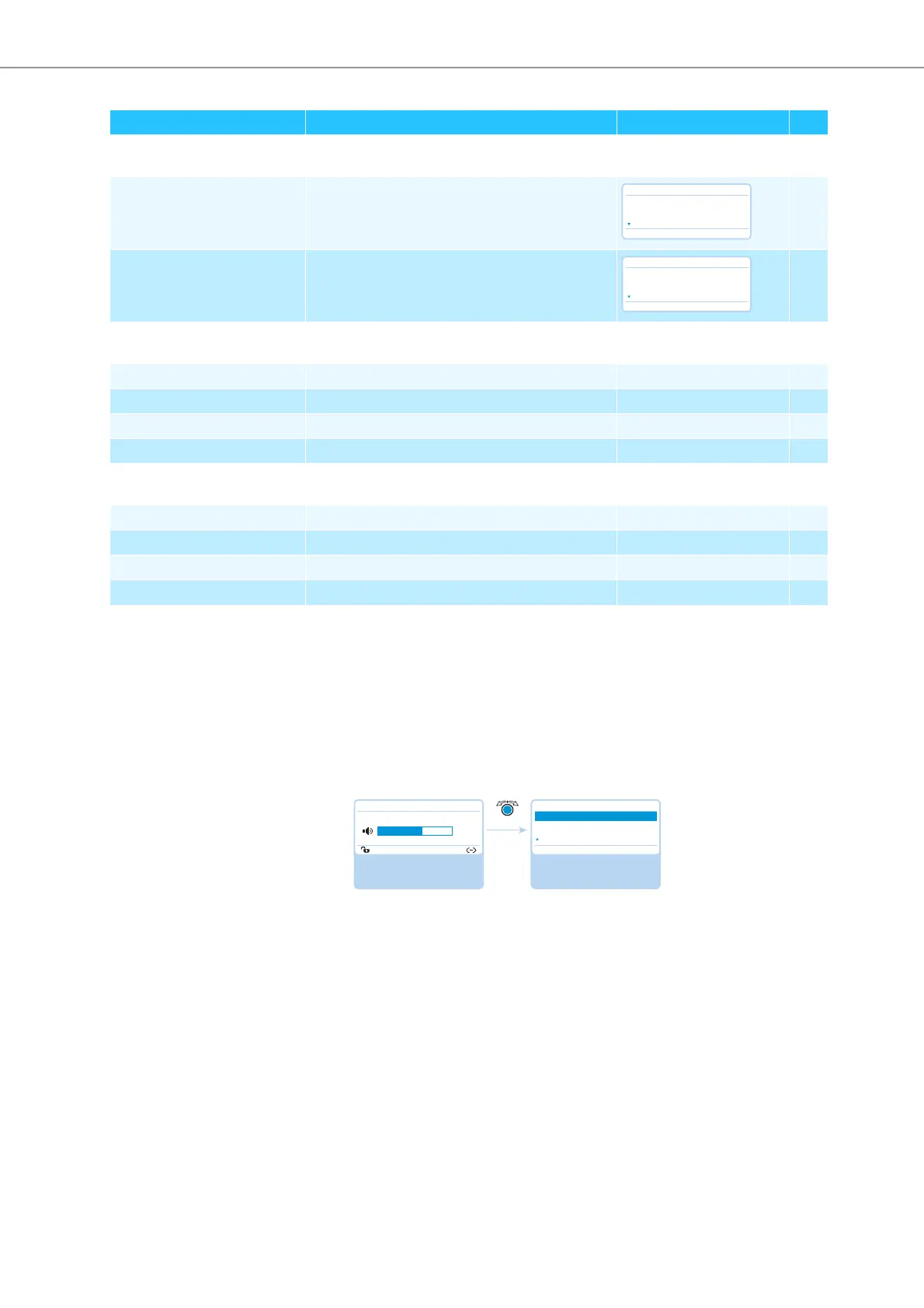
Changing from the standard display to the operating menu
왘 Press the jog dial.
Th
e standard display is replaced by the “Main Menu”. The last called-up sub-
menu or the last called-up menu item is highlighted.
“Versions” menu
“Hardware Version Info” Displays the hardware version 111
“Software Version Info” Displays the software version 112
“Settings” menu
“Network” Calls up the “Network” submenu – 113
“Contrast” Adjusts the contrast of the display panel “1” ... “15” 114
“Lock” Activates/deactivates the lock mode “On”/“Off” 114
“Restore Factory Defaults” Restores the factory default settings “Yes”/“No” 114
“Network” menu
“IP Address Mode” Sets the IP address allocation mode “Static IP”/“Dynamic IP” 113
“IP Address” Sets the IP address of the central unit “xxx . xxx . xxx . xxx” 113
“Subnet Mask” Sets the subnet mask of the central unit “xxx . xxx . xxx . xxx” 114
“Gateway” Sets the IP address of a standard gateway “xxx . xxx . xxx . xxx” 114
Display Function of the menu item
Option/display page
No
Hardware Version Info
ADN D1/C1: 1
CU1 SB: 1
ADN PS: 1
No
Software Version Info
ADN D1/C1: 0.1.1.5
CU1 SB: 1.0.0.0
CU1 Main: 1.0.0.0
“Main Menu”;
“Conference Menu”
submenu is selected
Standard display
Direct Access
30 D1/C1
20
Main Menu
Conference Menu
Audio Menu
System Menu



 To Next Page