31
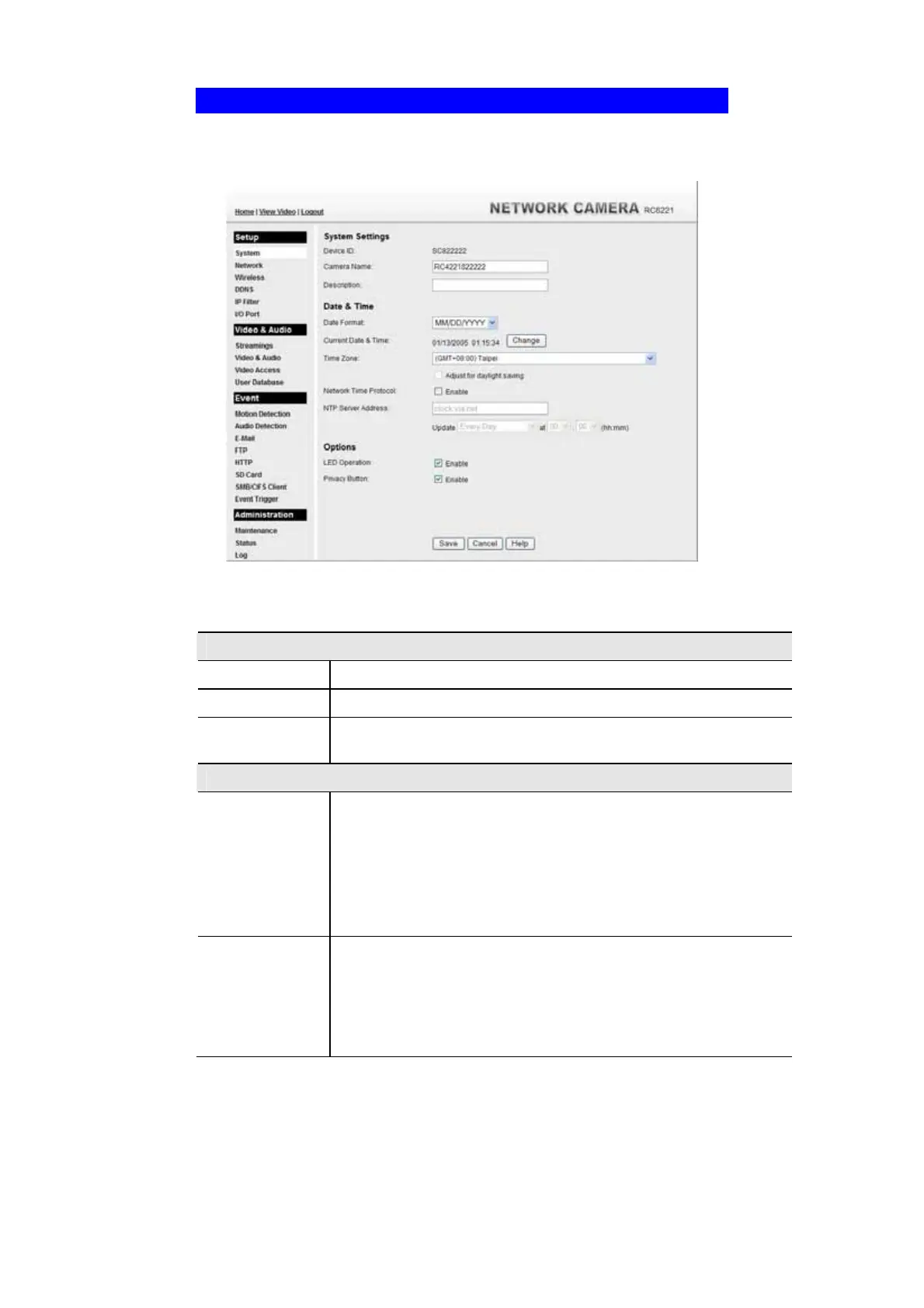
System Screen
After clicking Administration on the main menu, or selecting System on the
Administration menu, you will see a screen like the example below.
Figure 27: System Screen
Data - System Screen
System Settings
Device ID
This displays the ID for the Network Camera.
Camera Name
Enter the desired name for the Network Camera.
Description
This field is used for entering a description, such as the location of the
Network Camera.
Date & Time
Date Format
Select the desired date format, it will also be used to display the date
and time as an overlay on the video image.
The abbreviations used to predefine the date formats are list as follows:
• YYYY-MM-DD = Year-Month-Day, e.g. 2006-01-31
• MM/DD/YYYY = Month/Day/Year, e.g. 01/31/2006
• DD/MM/YYYY = Day/Month/Year, e.g. 31/01/2006
Current
Date & Time
This displays the current date and time on the camera.
If it's not correct, click the Change button to modify the date/time
settings. This button will open a sub-screen where you have 2 options:
• Set the camera's date and time to match your PC.
• Enter the correct date and time.


 To Next Page