67
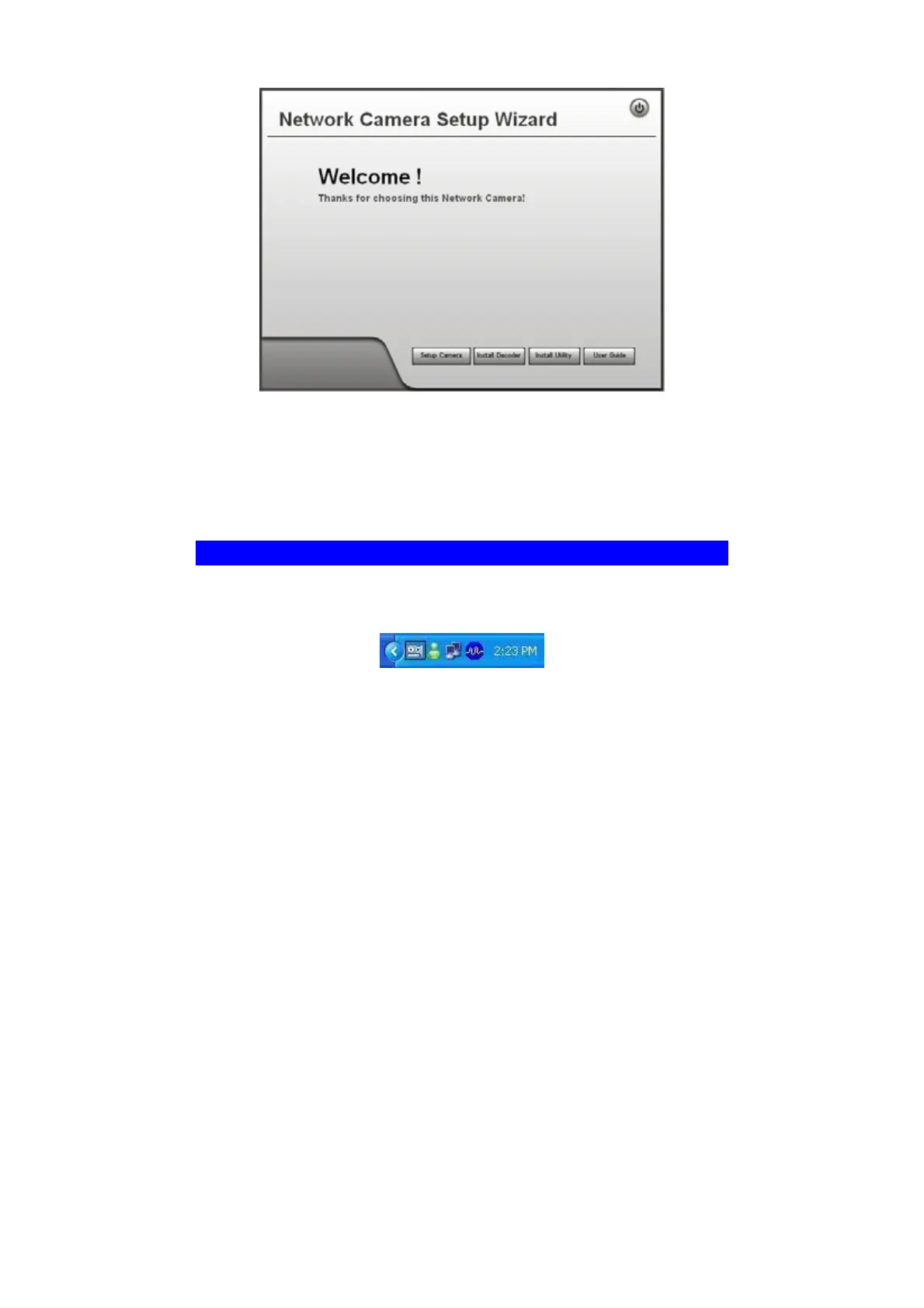
Figure 48: Welcome Screen
2. Click the Install Utility button to start the installation of the Utilities package.
3. Follow the prompts to complete the installation.
4. After the installation, double click the Monitor icon on the desktop or click
Monitor menu item in the Windows main program menu to launch the Utilities.
System Tray Icon
When started, the program will create an icon in the Windows system tray on the
taskbar, as shown below.
Figure 49: System Tray Icon
You can right click the icon and it will provides a menu which allows you to launch
utility program, view the utility details or even exit the utility package.


 To Next Page