41
Answering a Monitored Extension's Call
The monitored extension's icons and custom key LED provide visual cues to
announce an incoming call on a monitored extension.
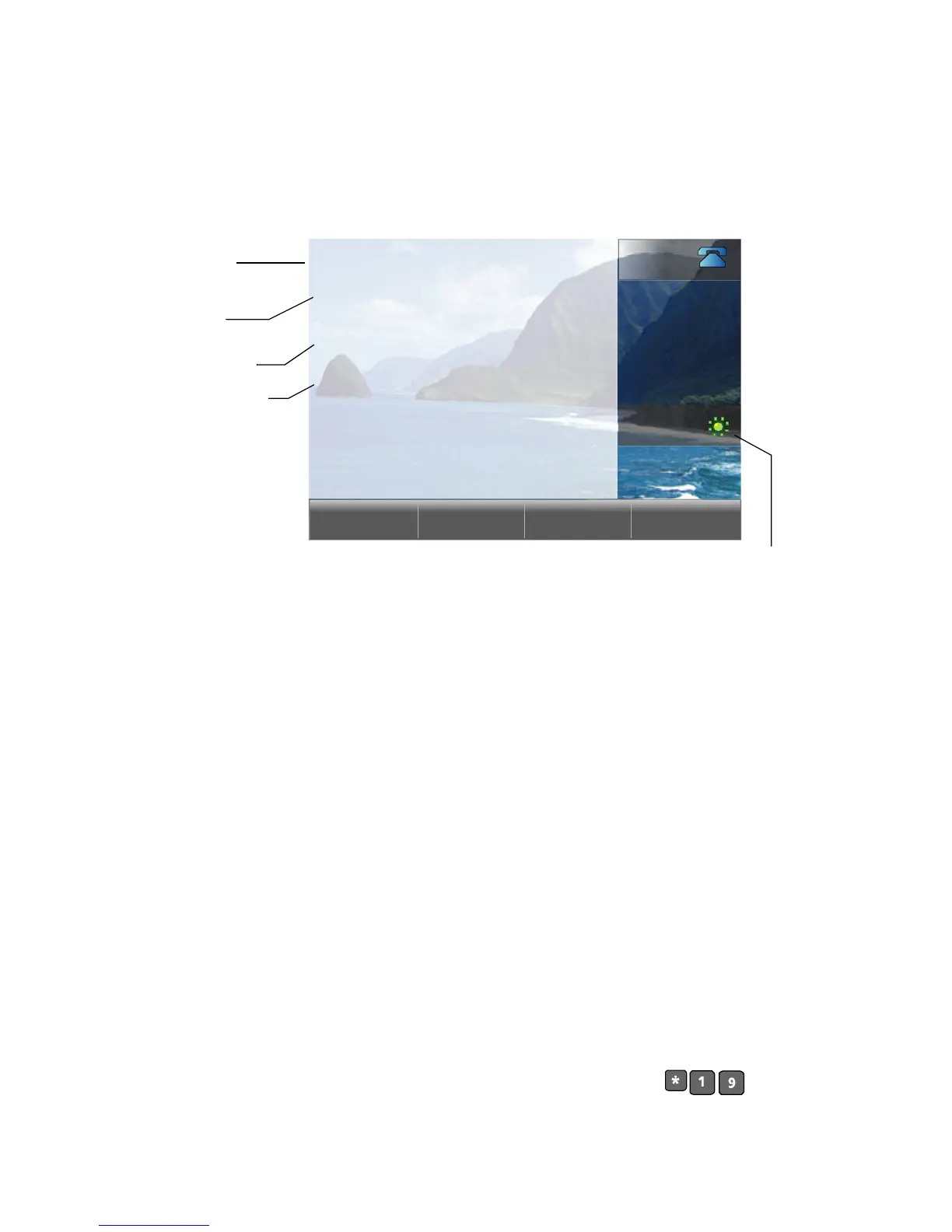
An incoming call for a monitored extension appears on your phone like this
(below):
You can pick up the call while it is ringing by pressing the custom key or by
pressing the Answer soft key. You can send it to the monitored extension's
voice mail by pressing To VM. You can also answer a call after the owner of
the monitored extension has put it on hold by pressing the Pickup soft key.
When you put a call that has come in to the monitored extension on hold, the
call is parked on the owner's phone, so that either of you may pick up the call
again.
The system administrator can configure your monitored extensions to deliver
Caller ID on inbound call, display Caller ID on active calls, turn on, turn off or
delay the ringing on inbound calls.
Whisper Page
With the appropriate permissions (set by your system administrator for both
your phone and the target phone), the Whisper Page feature lets you break
into an active call in order to speak with an internal user. This occurs without
the remote caller hearing the interruption and without you hearing the remote
caller.
To issue a Whisper Page to another user who is on a call, dial , plus
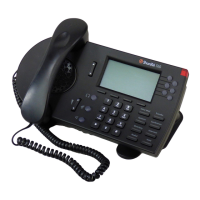
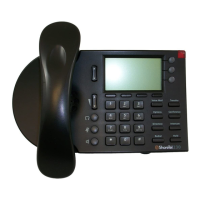
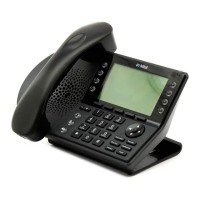
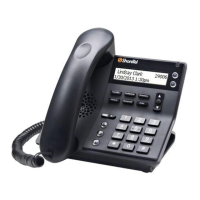
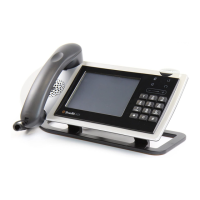
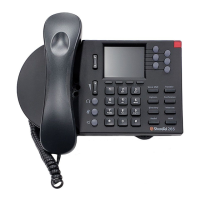
the extension of that user. Note that the recipient must be on an IP110, IP210,
IP212k, IP230, IP530 or IP560/560g/565g handset. If a Whisper Page call is
888
Answer To VM
Tyrone Prontius
For 153
822
Mariam Mucurios
153
Caller’s name
Caller’s number
Monitored
extension
Incoming call icon
for monitored
extension
Monitored
extension
name


 To Next Page