Shure Incorporated
32/55
2.
3.
1.
2.
3.
Adjust the equalizer settings to optimize speech intelligibility and minimize noise (such as low-frequency rumble caused
by HVAC systems).
If equalizer settings cause a significant increase or decrease in levels, make any necessary level adjustments accord-
ing to step 1.
When to Use the Channel and Automix Gain Faders
There are 2 different gain faders that serve different purposes:
Channel Gain (Pre-Gate)
To adjust, go to Channels. These faders affect a channel's gain before it reaches the automixer and therefore affect the
automixer's gating decision. Boosting the gain here will make the lobe more sensitive to sound sources and more likely to
gate on. Lowering gain here makes the lobe less sensitive and less likely to gate on. If you're only using direct outputs for
each channel without the automixer, you only need to use these faders.
Automix Gain (Post-Gate)
To adjust, go to Configuration > Automix. These faders adjust a channel's gain after the lobe has gated on. Adjusting
the gain here will not affect the automixer's gating decision. Only use these faders to adjust the gain of a talker after you
are satisfied with the automixer's gating behavior.
Note: The level meters in Configuration > Automix only display pre-gate channel gain, but the faders will adjust post-gate channel gain.
Mute and Fader Groups
Add channels to a Mute group or Fader group to link the corresponding controls together. For example, if channels 1, 2, and 3
are added to a Mute group, muting any of those individual channels will mute all of the grouped channels.
If you’re using Shure Designer software to configure your system, please check the Designer help section for more about this topic.
Identifying Channels
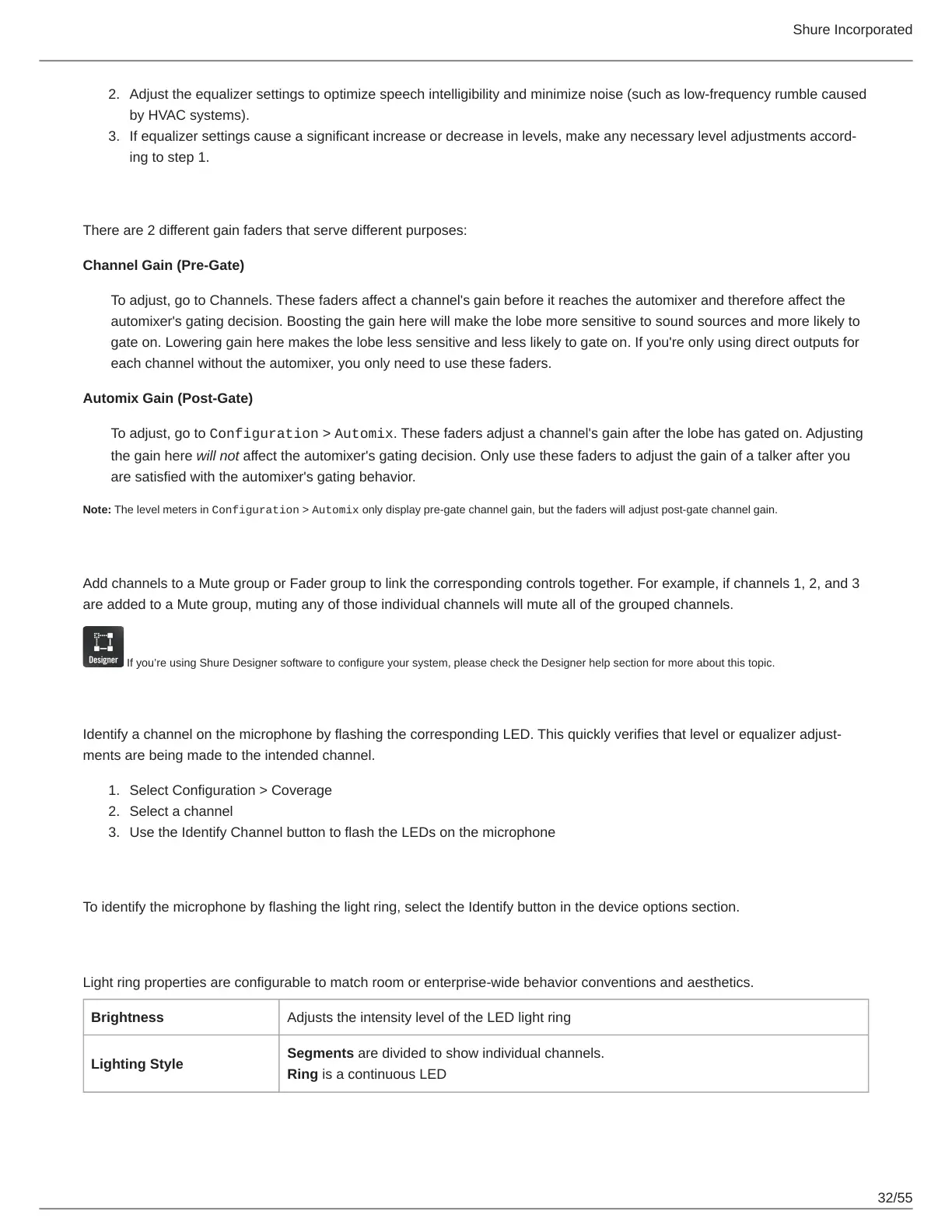
Identify a channel on the microphone by flashing the corresponding LED. This quickly verifies that level or equalizer adjust-
ments are being made to the intended channel.
Select Configuration > Coverage
Select a channel
Use the Identify Channel button to flash the LEDs on the microphone
Device Identification
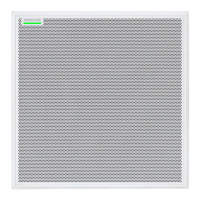
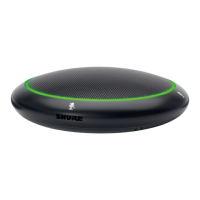
To identify the microphone by flashing the light ring, select the Identify button in the device options section.
LED Light Ring
Light ring properties are configurable to match room or enterprise-wide behavior conventions and aesthetics.
Brightness Adjusts the intensity level of the LED light ring
Lighting Style
Segments are divided to show individual channels.
Ring is a continuous LED


 To Next Page