Shure Incorporated
20/87
Note: When the LED is disabled, the LED still illuminates while the device is powering up and when an error state
occurs.
Customizing Lighting Settings
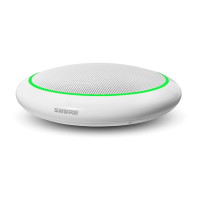
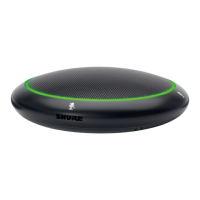
Custom LED brightness, colors, and behaviors are assignable in the control software. They can also be controlled
through an external control system:
1. Open the Configuration tab
2. Select Light Bar
Mute LED Behavior
The lighting for mute and active microphone states is configurable to match the behavior of other devices in con
ference rooms. In the LIGHT BAR PROPERTIES menu, use the drop-down menus to select LED settings.
Dimming and Disabling
To dim or turn off the LED, use the drop-down menu in the Light Bar configuration screen.
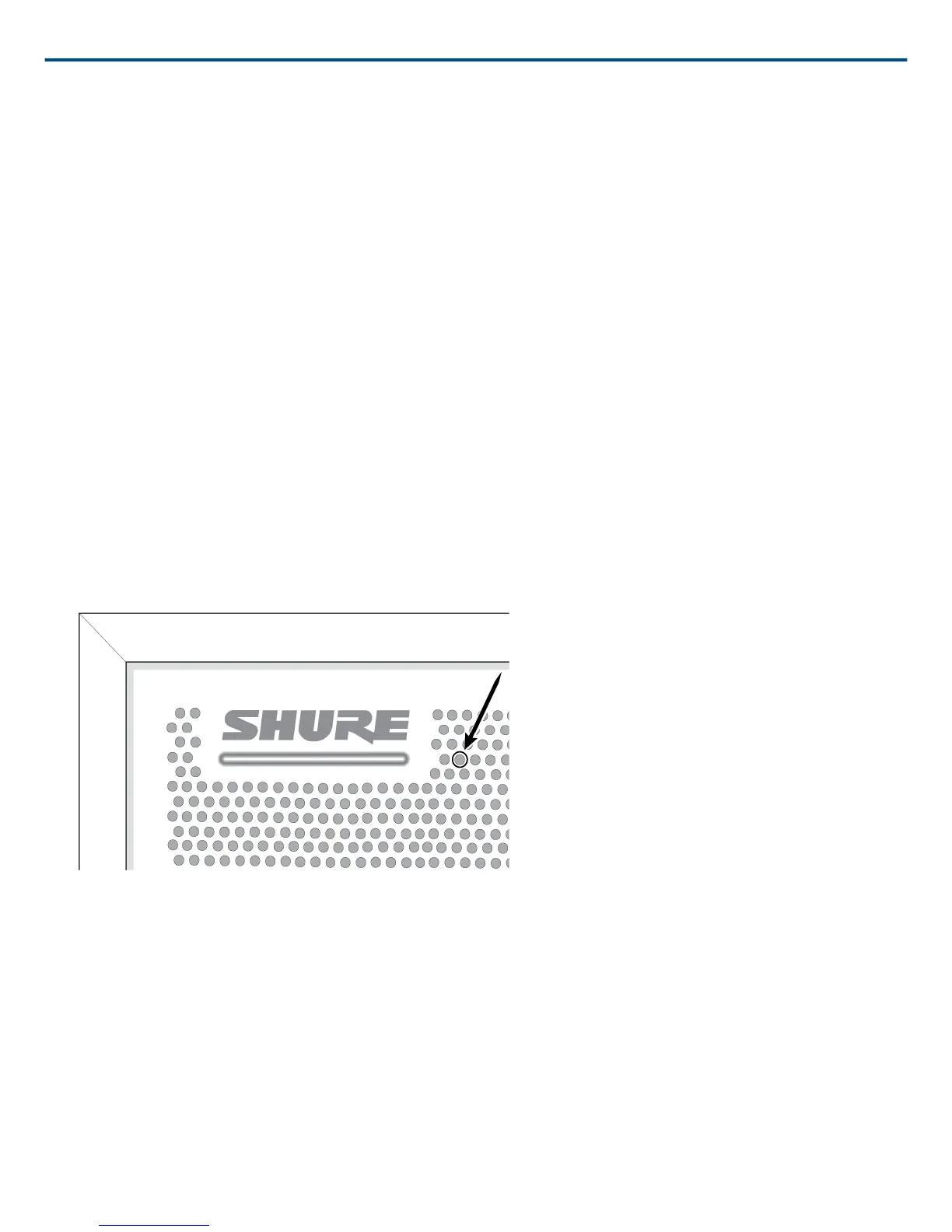
Reset Button
The hardware reset button is located inside a grille hole and can be pushed with a paperclip or other small tool.
The hole is identified with a gray circle. When looking at the Shure logo, it is the second hole in the fourth row from
the top.
Reset Modes
Network reset (press button for 4-8 seconds)
Resets all Shure control and audio network IP settings to factory defaults.
Full factory reset (press button for longer than 8 seconds)
Restores all network and web application settings to the factory defaults.
Software Reset Options
To simply revert settings without a complete hardware reset, use one of the following options:


 To Next Page