Chapter 2 Operating Instructions
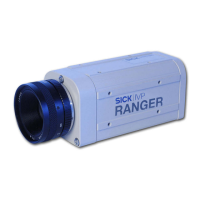
Ranger E/D
10 SICK IVP • Industrial Sensors • www.sickivp.com • All rights reserved 8011731
Installation Guide
The LEDs on the back of the Ranger will indicate that the Ranger is switched on (on),
connected to the network (link) and possibly sending data over the network (data).
For more information on how to connect I/O signals to the Ranger, see the following
sections:
Hardware Description on page 22
Connecting Encoder on page 31
Ranger E/D Power-I/O terminal on page 33
Figure 2.6 – Connecting the Ranger E and Ranger D
2.4 Installing Ranger Software
The installation program on the Ranger E/D Development software CD will install the
following items on the PC:
Ranger Studio
Ranger SDK, including the iCon APIs
Example programs
Reference Manual
Optional high-performance Ethernet drivers, for lower CPU load at high data rates
To install the Ranger E/D Development software (including Ranger Studio), insert the CD in
the PC and go through the Setup Wizard. The wizard starts automatically when the CD is
inserted. If the installation does not start automatically, double-click on setup.exe on
the CD.
For more detailed information on the installation, see the file releasenotes.txt on
the CD.
Note: You must have administrator privileges on the PC to install the Ranger E/D devel-
opment software.
24 V DC
Ranger E/D
PowerIO-Encoder
Y-cable
I/O signals
24 V DC
Power supply
Gigabit Ethernet
cable
Ranger E/D
Power-I/O terminal
ICT-B Laser


 To Next Page