Operating Instructions Chapter 2
Ranger E/D
8011731 SICK IVP • Industrial Sensors • www.sickivp.com • All rights reserved 11
Installation Guide
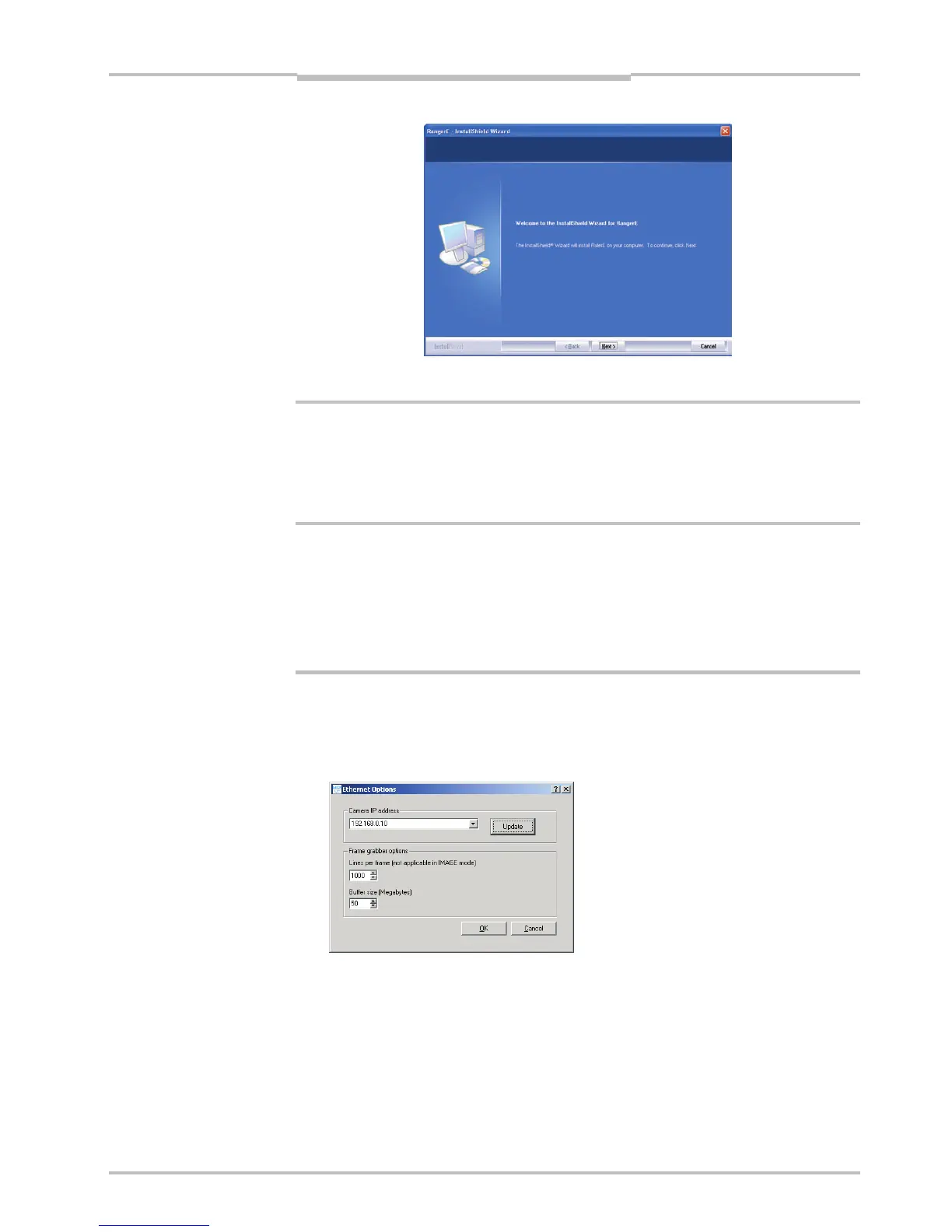
Follow the instructions in the Wizard and go through the following steps:
1. Click Next to continue from the Welcome page.
2. Select set-up type and click Next.
3. Click Install to begin the installation.
4. Follow the instructions given by the installation program.
5. Click Finish.
Ranger Studio and all other files for development purposes are installed in
/SICKIVP/3DCameras/
2.5 Getting an Image from the Ranger
In order to verify that the installation is correct, follow these steps to receive an image
from the Ranger:
6. Make sure the PC is connected to the Ranger and Ranger Studio is installed on the
PC.
7. Start Ranger Studio.
8. Choose Options
Æ Options from the Ranger Studio menu bar.
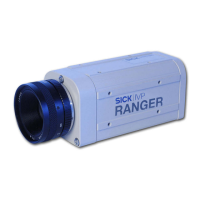
The following dialog box is displayed:
9. Fill in the Camera IP address, or select it from the menu, and click OK.
If the Ranger’s IP address is missing in the menu, use the Update button.
Updating the menu may take approximately 15 seconds. You also need to have ad-
ministrator privileges on the PC for the menu to be updated properly.
If you still can not see the Ranger’s IP address, use the iCon Device Configuration util-
ity, which can be launched from the Start menu. Information on using iCon Device
Configuration can be found in Appendix E.


 To Next Page