q
w
e
e
Saving Edited Design Files
An original embroidery design created in the editing
mode can be saved as a file in the built-in memory or on
the USB memory stick.
Remember a file can only be saved in the edit screen.
Saving in Machine Internal Memory
Step
¤0
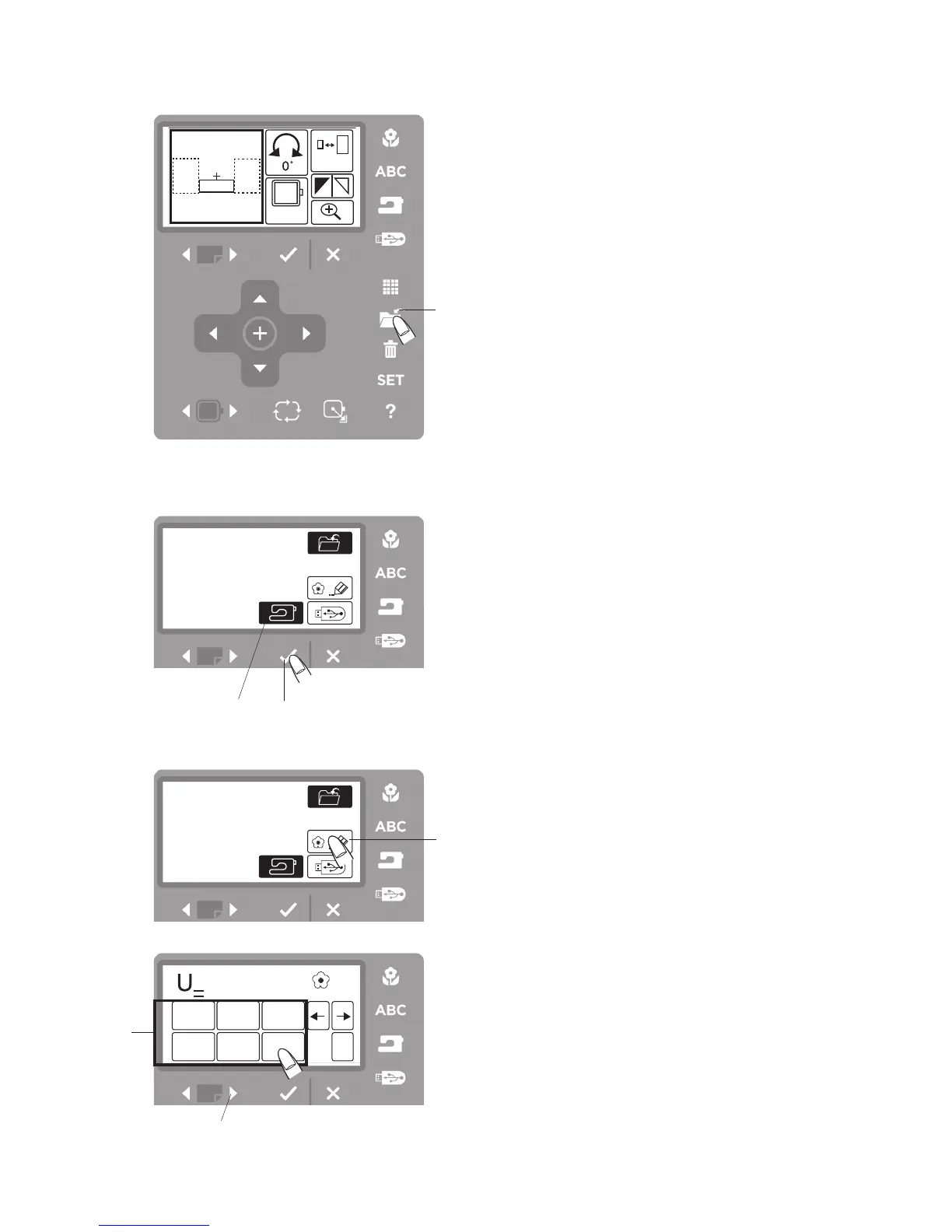
Press the file-save button
q
.
Step
¤1
The save file window will open.
Press the internal memory icon
w
.
Press the OK
√
button to save the file
e
.
The file name will automatically be assigned. If
you saved GREEN from page 30 this will be saved
as M_002.
Press the OK
√
button again and you will return to the
editing window.
Press OK √ again and you will return to the ready to
sew screen.
How to Name a File
You can assign a desired name to your file.
(Up to 8 characters can be entered for a file name.)
For example, assign “U_2” for the file name.
Step
z
Press the name icon
q
.
Step
x
The window for entering the name will open.
Press the letter icons
w
and enter “U” and move
cursor forward and enter “_”. Move cursor forward.
Step
c
Press the next page forward button
e
.
¤0
¤1
z
xc


 To Next Page