5. SignCut Draw Functions of Interest
5.00 Quick Reference for Chapter 5
• How to add a contour cut: Section 5.01
• How to edit a contour cut: Section 5.02
• How to fill a design with engraving lines: Section 5.03
• How to convert a photo into an engraving project: Section 5.03.4
5.01 Adding a Contour Cut Line to a Raster Image
• Graphics such as JPG, PNG, and BMP files are often used for print and cut (contour cut) applications.
Because these types of files are raster images (versus vector images), the images must be traced. This is
done through a process called vectorization.
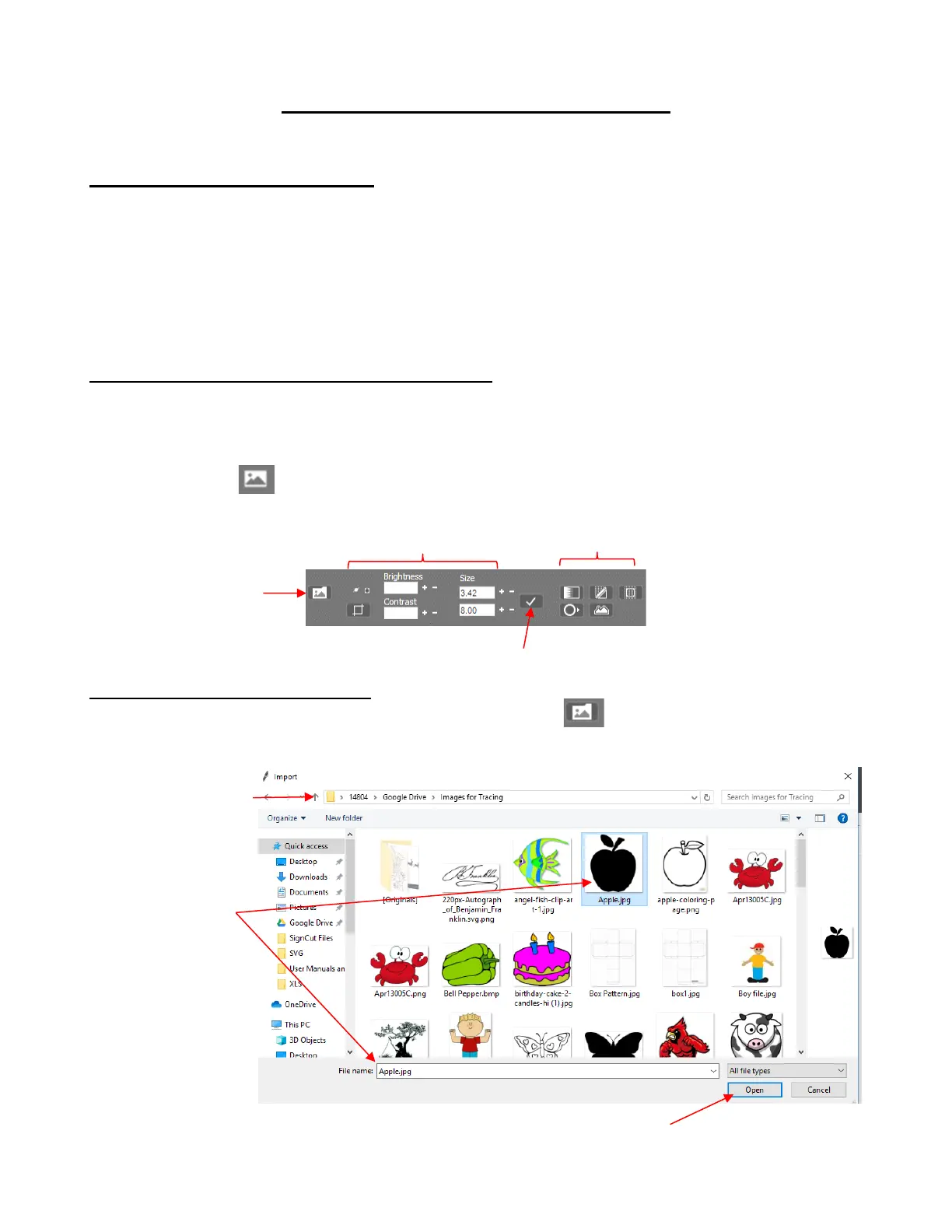
• The Bitmap tool (shortcut I) on the Tools Panel provides the necessary functions for importing a
raster image and performing automatic tracing. When activated, the Properties & Functions Bar initially
displays these options:
5.01.1 Importing an Image to Trace
• To begin the tracing process, click on the Open bitmap file icon and an Import window will open.
Browse to the folder containing the bitmap image you wish to open and trace:
• If you tend to keep raster images in one particular folder, then holding the Shift key while clicking on the
Open bitmap file icon will open a Bitmap window where you can set up a Favorites folder.



 To Next Page