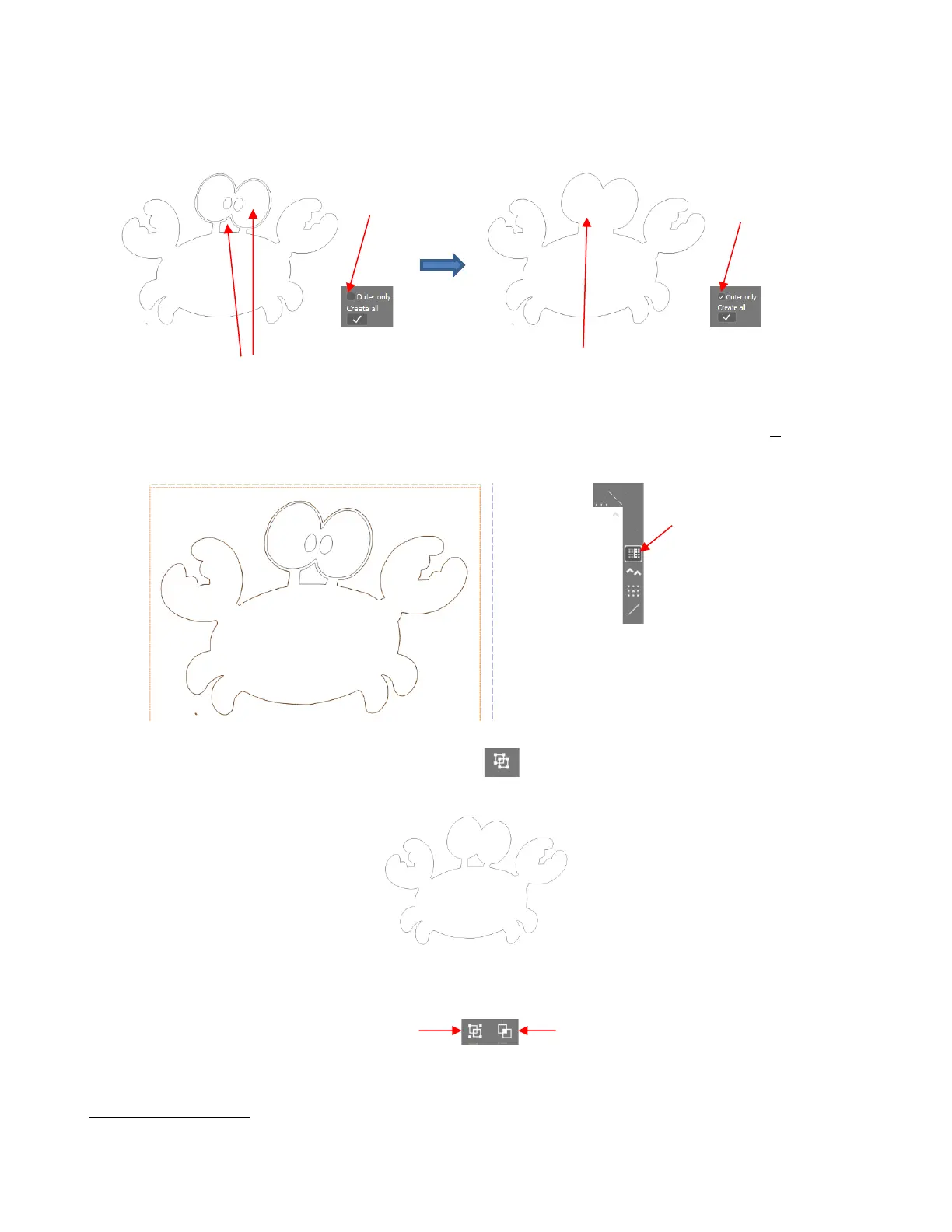
The issue in this example is that the space below the eyes should be cut out but not other internal
shapes, such as the pupils of the eyes. Note the difference in what will be cut between marking and not
marking the Keep Holes option in the Create Cut-Contour window:
The first option, Outer only, needs to be left unchecked so that the area beneath the eyes is traced.
After creating the trace, click on the Object edit icon to return to the main screen. Click on the View
Bitmap icon to hide the bitmap image:
Select the tracing and click on the Ungroup icon on the Properties & Functions Bar (or press
Ctrl+U). You can now individually select the shapes you want to remove and press the Delete key.
You may wish to now reselect the outer and inner shapes and apply either a Create group (Ctrl-G) or
Combine objects (Ctrl-L):
5.03 Engraving Fills
SignCut Draw offers a number of different options to create engraving fills. The following sections cover each
type.



 To Next Page