▪ Switch between all / none : Toggle between having all shapes selected or none selected
▪ Switch between marked / not marked : Invert the selection (any selected shapes will
become unselected and vice-versa)
▪ Change color of selected objects : Opens a color palette window where a different color
can be selected
▪ Setup path(s) attributes : Use this window to change various cut settings (refer to
Section 2.02.3)
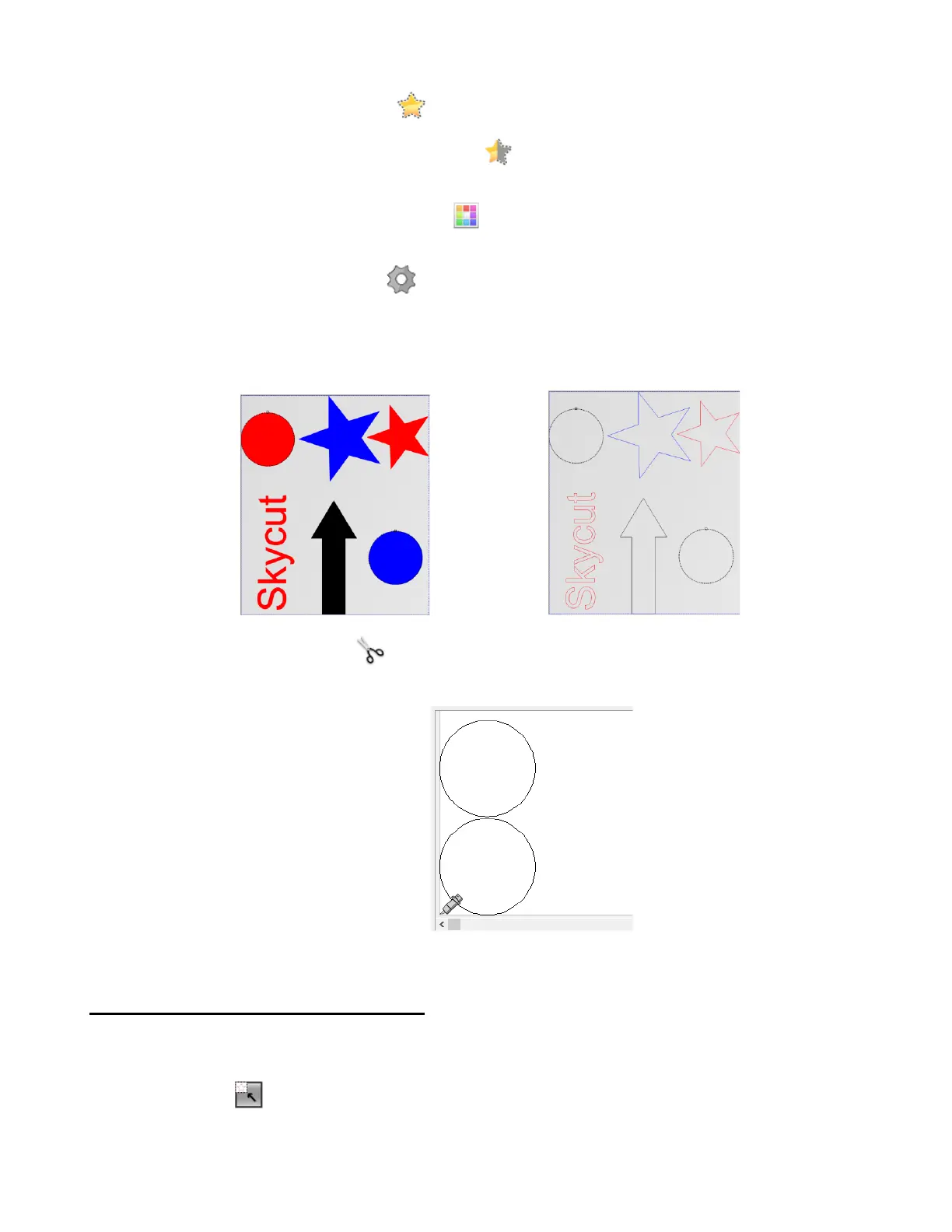
o With the Marking tool icon highlighted, select the shape(s) that you want to cut. In this example,
the red circle and the blue circle will be selected. Wireframe mode is also shown:
o Click on the Cut out icon and, in the preview window, these two selected shapes are the only
two present for cutting and have been arranged to optimize material usage:
2.02.2 Controlling Where Shapes Will Cut
• The top icon on the Color toolbar is a setting which switches between Whole area and Optimized. Using the
same shapes from Section 2.02.1, assume that only the blue shapes have been selected to cut:
Whole area : shapes will be cut from the material as if the other shapes were still present:



 To Next Page