1.13.4 Drawing the Shape from SignCut Pro
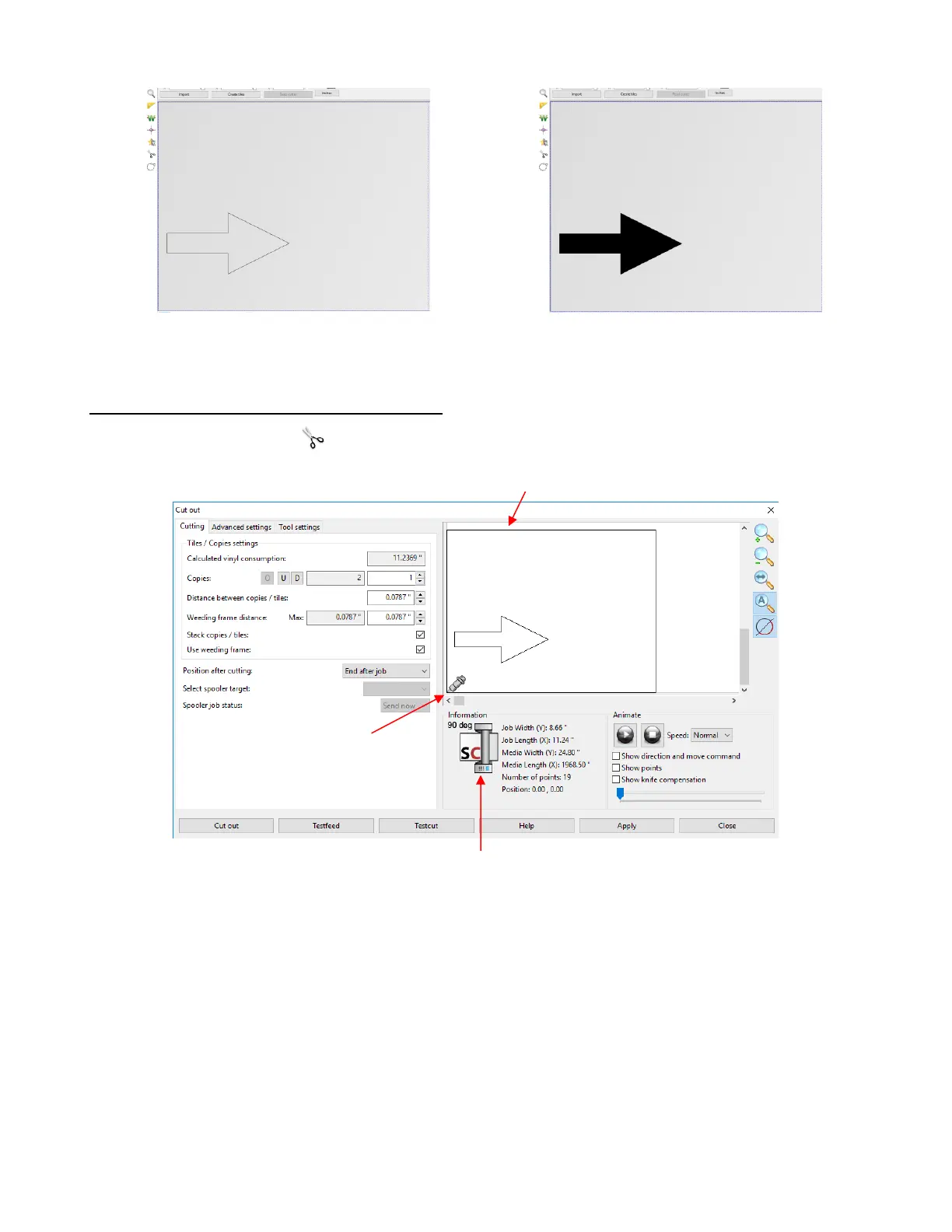
• Click on the Cut Out icon (second from bottom) on the Tools panel. The following window opens:
• A few items to note about this window:
The top right portion of the window shows a preview of the arrow and the orientation in which it will be
drawn relative to the origin you set on the Skycut (which is represented by the blade holder image. In
this case the arrow will be pointing upwards as you face the Skycut.
As a reminder of the orientation, the image of a cutter below the preview will remind you that the top of
the preview corresponds to the left side of the cutter and the bottom of the preview corresponds to the
right side of the cutter (as you face the cutter).
There is a weed border option that is probably checked by default. Since this is a test draw, turn off the
weed border by unchecking the Use weeding frame option:



 To Next Page