Appendix A Troubleshooting FAQ’s
A1 Communication Issues
I cannot get the Skycut to power on.
• Make sure the power cable is securely plugged into the adaptor.
• Make sure the adaptor light is a steady blue light and it is plugged securely into the Skycut.
• If you still cannot get the Skycut powered on, contact your dealer.
____________________
I cannot power off the Skycut.
• Press and hold the power button until the light shuts off.
____________________
I cannot get Wi-Fi to work with my Skycut.
• Set the Skycut close to the router when performing the initial setup presented in Section 1.12.2. After
establishing communication, you can test how far the Skycut can be located from your router.
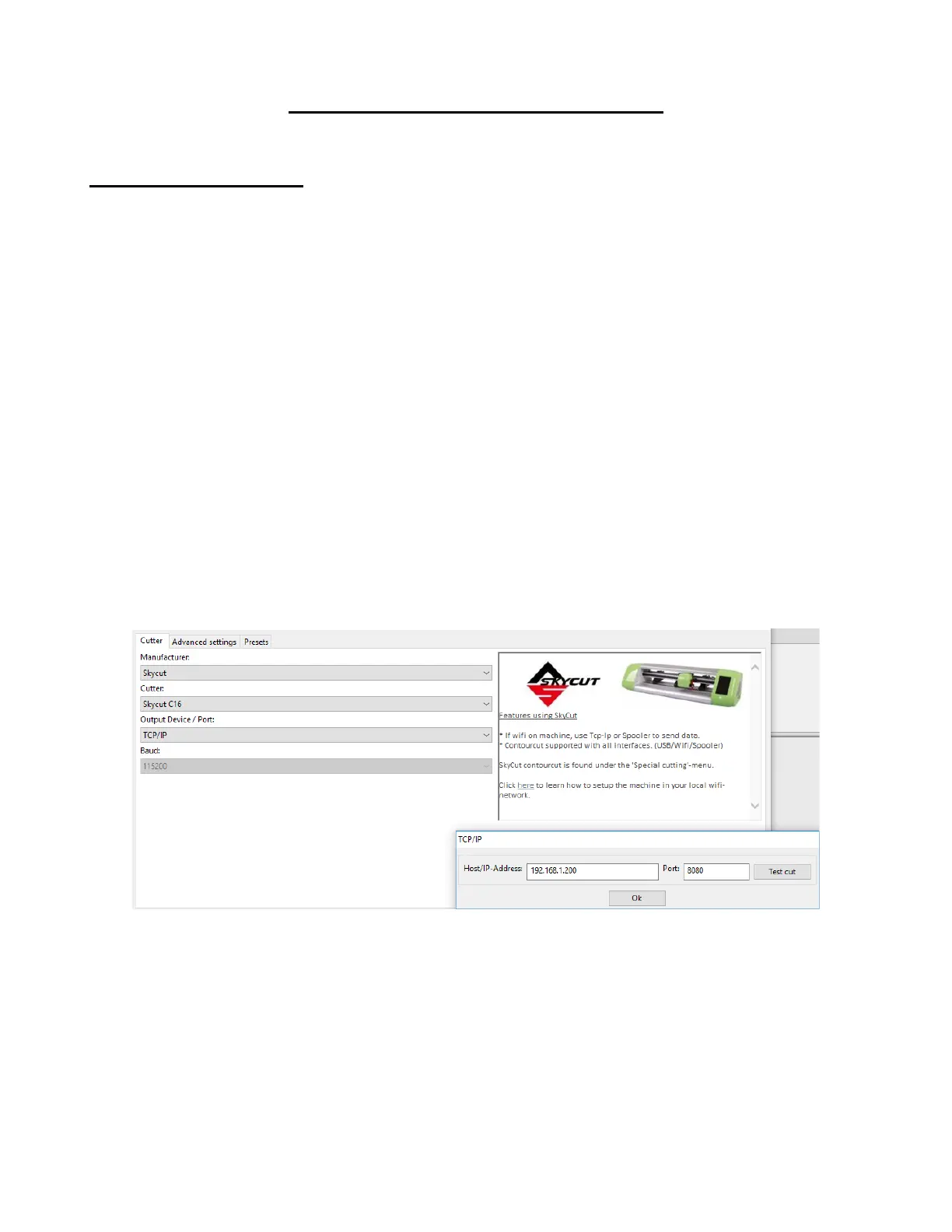
• In SignCut Pro’s Settings>Cutter window, make sure you have selected TCP, entered the same IP
address you selected during setup on the Skycut’s control panel, and have Port set to 8080:
• Make sure your computer is connected to the same router as your Skycut.
• Verify that Flexi/SignCut or SignMaster/SCAL is the selected software on the control panel under
Set>Sys Information.
____________________
I cannot get USB to work with my Skycut.
• Unplug/replug the USB cable at both the computer and at the Skycut.
• In SignCut Pro’s Settings>Cutter window, make sure Output Device / Port is set to USB001:



 To Next Page