• Two other rotation options at the bottom of the screen:
Rotation for minimum vinyl consumption : This function determines the best of the 4 possible
rotations that will use the least amount of material.
Reset the Rotation : This function returns the shapes to the original rotation, however note that if
you have elected to have files rotated upon being imported (under Settings>Settings>Default Folder),
this setting will return it to how the shapes were positioned in the original file.
2.02.3 Where to Enter Cut Settings
• There are four locations where Cut Settings can be accessed in SignCut Pro (although not all offer the
same settings):
Select the Cut Out icon on the Main Panel, then the Tool settings tab (as was shown in Section
1.13)
Select the Cut Out icon on the Main Panel, then the Advanced settings tab
Right click on any of the color thumbnails on the Color Toolbar
Select the Tools for objects icon on the Main Panel, select any or all of the shapes, then select
the Setup path(s) attributes icon on the Sub-toolbar
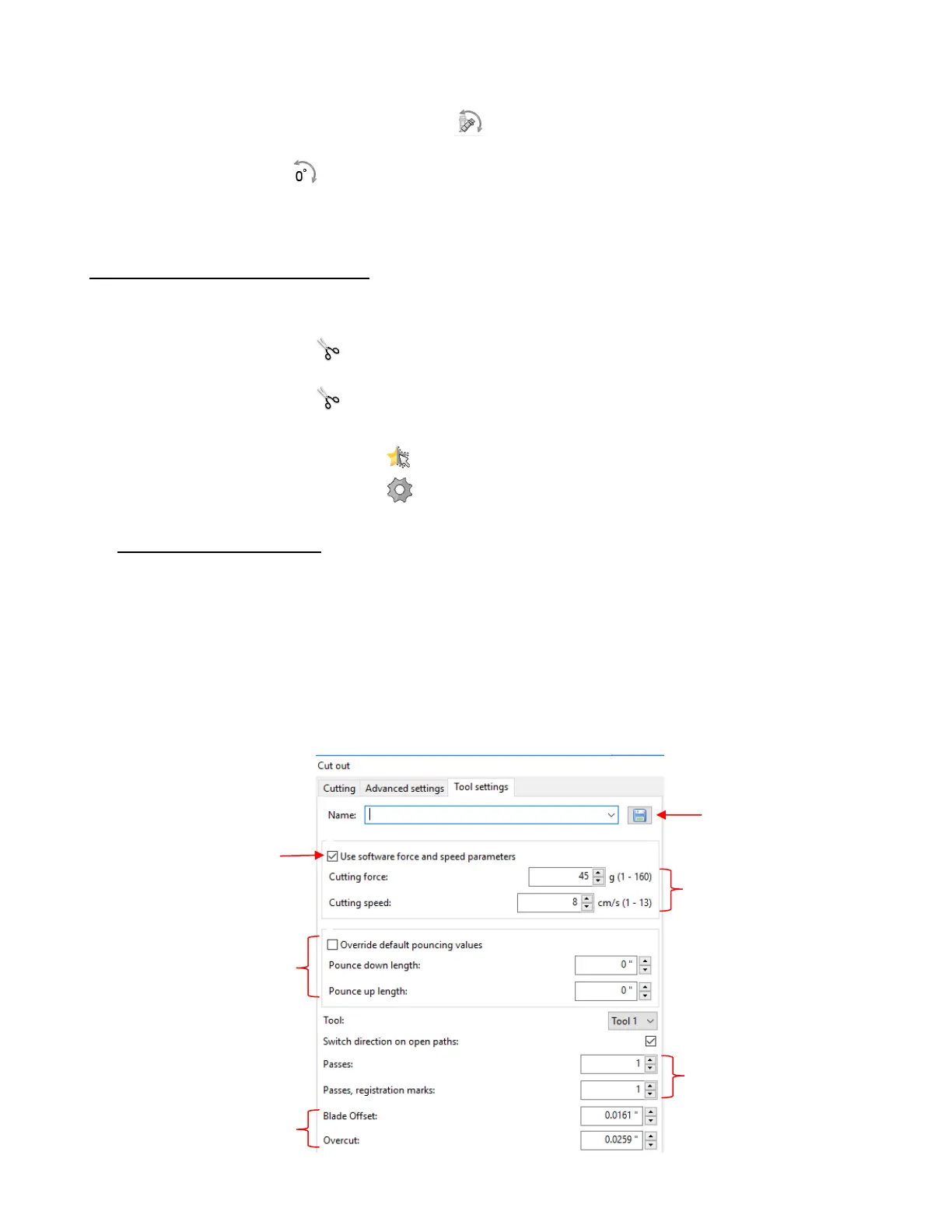
• Cut Out > Tool settings tab
The settings entered in this window will be used for all shapes assuming:
o You check the box labeled Use software force and speed parameters (Otherwise, regardless of
what force and speed settings are used in the other windows, the Force and Speed setting on
Skycut’s control panel will be used.
o You haven’t entered specific settings by color or by selected shapes (as will be covered in the
subsequent options)
Thus, this is the best option to use when the same settings are used for all shapes in the project:



 To Next Page